Chapter 3 of 8
Find the floppy behind drive zero
A BASIC program on the hard disk and a BASIC program on a floppy can both be called HELLO. You could list drive zero, see a familiar filename and still be about to save on the wrong disk. Let’s give just one of the two disks a file you can recognize.
Set up two destinations
Save anything you want to keep from the current session. In Machine → Configuration Profiles…, select Hard Drive BASIC under System Profiles. Choose Create Fresh Starter Media…, give the new personal profile a name such as Cargo Volumes, then load it. Creating the files and loading the machine are separate actions. Using fresh media here gives you a safe place to write a marker and lets you compare your directories with the ones in this chapter.
Open Media → Virtual Hard Disks…. Find the assigned Mac image beside HD0. Now open Media → Floppy Disks… and find the separate image beside FD0. Both can be ready at once. The hardware setup includes a virtual hard-disk controller serving HD0 and HD1, and a floppy controller that supplies the disk ROM and serves FD0 through FD3. The profile selects compatible firmware for you. Resume and focus the CoCo. You should see HARD DISK BASIC at startup and reach OK.
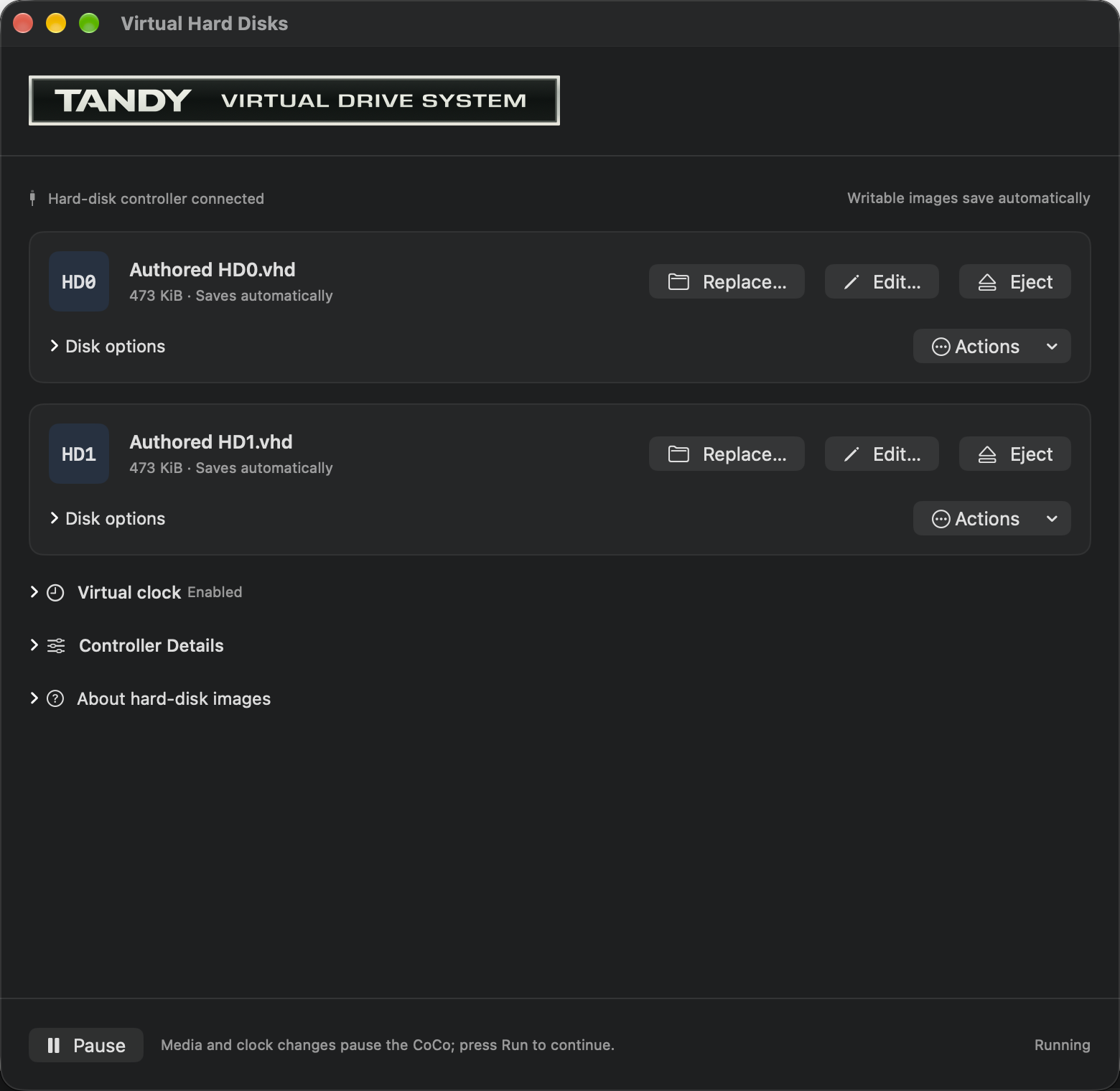
A floppy image represents one disk. A hard-disk image for this profile contains room for many numbered BASIC disks, called volumes. Here HD0 is the Mac app’s name for the first hard disk. Volume 0 is one BASIC disk on that hard disk. Keep these two names apart, especially if your collection also has a second hard-disk image.
Leave a marker on volume zero
Enter the following lines, pressing Return after each. They assume you just loaded the fresh Hard Drive BASIC profile, where BASIC drive zero initially reaches volume 0 of HD0.
10 PRINT "VOLUME ZERO"
SAVE "VZERO:0"
DIR 0
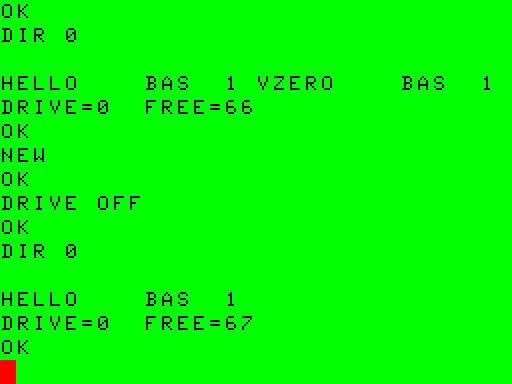
Look for VZERO alongside HELLO. Write the two names down if you like. Call this your hard-disk directory. In the example, FREE=66 follows the listing. Another disk may have a different amount of free space. The filename you added is the evidence to follow.
Ask the floppy the same question
At the next prompt, enter:
NEW
DRIVE OFF
DIR 0
Compare this directory with the first one. On the fresh floppy HELLO is there and VZERO is missing. NEW cleared the marker program in RAM. DRIVE OFF is the RGB-DOS instruction that lets ordinary floppy drives answer at numbers 0–3. FD0 just answered the same DIR 0 you typed before. Both drives are still visible on the Mac. You can watch their read indicators as you issue the commands, but the marker stays in the directory long after a light goes out.
Predict what will happen if you ask the original device to answer again. Then try it:
DRIVE ON
LOAD "VZERO:0"
RUN
VOLUME ZERO and OK confirm that the CoCo read back the marker on the hard disk. You cleared RAM before making that trip. Seeing its message again is a stronger check than seeing the number zero printed next to two directory listings.
If you use your own images later, both copies might contain VZERO, or neither might have HELLO. Check the assigned Mac filenames, the last routing command and the title’s instructions. In particular, use DRIVE OFF and DRIVE ON in this Hard Drive BASIC setup. The standard floppy profile and the SDC profile have different firmware. Read the SDC card and a mounted disk to compare the same drive number there.
Know which part of a hard disk you’re opening
| From this setup | The name you use | What it reaches |
|---|---|---|
| Hard Drive BASIC, just started | Drive 0 | RGB-DOS BASIC volume 0 on HD0 |
| Hard Drive BASIC after DRIVE OFF | Drive 0 | The floppy in FD0 |
| Bundled NitrOS-9 system profile | /dd | The OS-9 system filesystem on its main disk |
| Bundled NitrOS-9 system profile | /h1 | The OS-9 filesystem on the second hard disk |
The standard Hard Drive BASIC and NitrOS-9 profiles share a working data image. In the first profile that image is HD0. In the second it is HD1 because the NitrOS-9 system disk occupies HD0. The shared data image has separate space for BASIC volumes and an OS-9 filesystem. Opening its OS-9 directory shows the OS-9 files in that space. Your fresh personal profile for this lesson has its own working media, so keep it if you want to return to VZERO.
The New Disk… command in Virtual Hard Disks asks how much storage to create. A new raw image is empty space until software prepares its filesystem and you save the image to a Mac file. For a bootable setup or a ready-to-use BASIC directory, start with the matching system profile. For a short trip to the OS-9 shell and the two actual directory listings, see Visit the OS-9 side of the disk. To create and recover your own OS-9 file on HD1, follow Leave a captain’s log.
The native Disk Image Editor also distinguishes the parts of a supported image. Edit… beside HD0 or HD1 pauses and locks that machine; the editor's Volume picker selects OS-9 or a numbered HDB-DOS Disk BASIC volume. Space totals apply to the selected filesystem. Saving an edited copy retains the whole image; applying to a mounted drive requires an explicit restart. See Edit the files inside an image before using that separate Mac workflow.
On the OS-9 side, you can follow a particular file through its disk sectors.