Chapter 4 of 8
Record a program you can rewind
With a floppy, BASIC can go straight to the directory and find CARGO. A cassette has a beginning, an end and a position somewhere between them. To find CARGO, the CoCo must pass the recorded name on its way along the tape. You can watch it recognize that name.
Put the recorder on your desk
Use Disk BASIC for this lesson. Save anything you want from RAM before changing profiles. Load a practice Disk BASIC setup in Machine → Configuration Profiles…, resume if paused, and choose Media → Cassette…. Clicking the recorder in System view leads to the same controls. Look for the tape name, transport state, motor state and position counter.
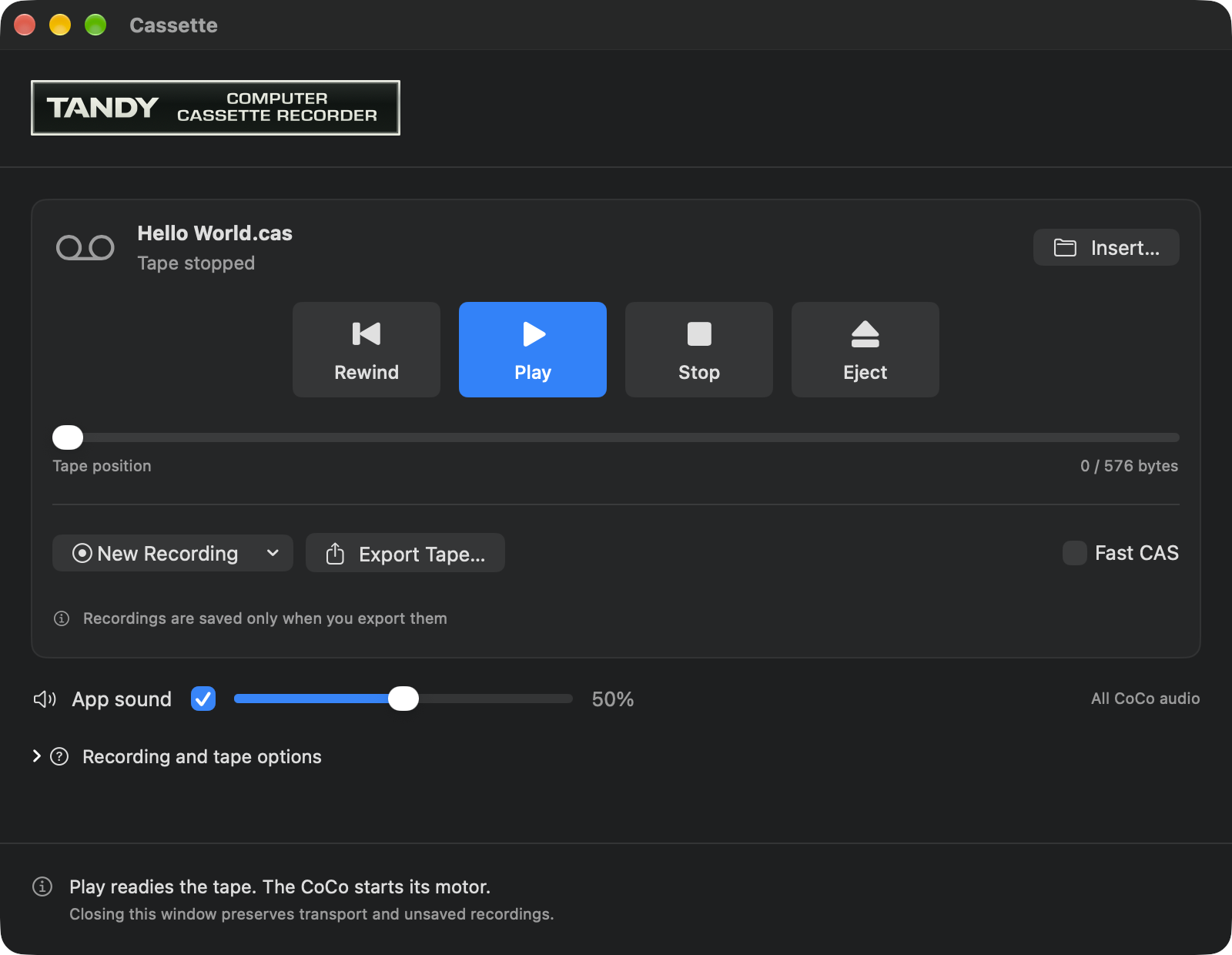
On a CoCo desk the operator pressed buttons on the recorder and BASIC controlled the motor through its cable. Here Play gets the tape ready. The CoCo starts its motor when a program asks for input. Seeing that the tape is ready while its counter stands still makes sense at an idle BASIC prompt. The Cassette window can close while the recorder is in use. Reopen it from Media or the tape status when you want to look at the controls again.
Want to try playback first? Save the cargo cassette in your practice folder and jump to Find the recorded name. To make your own, follow the recording steps below.
Record CARGO and keep the tape
- At a practice BASIC prompt, type
NEWand press Return to start with empty program memory. Enter the numbered line below. As in the floppy lesson, it stays in RAM until you save it.
10 PRINT "CARGO ORIGINAL"- In Cassette, choose New Recording → CAS. This replaces the inserted tape with a fresh tape in memory and arms the recorder. If an earlier recording needs export, keep it under its own Mac filename before starting another.
- Return to the CoCo. Type
CSAVE"CARGO"and press Return. Watch the tape position advance. Wait for OK and for the tape motor to stop. The C at the beginning of CSAVE sent the program to the cassette interface. - In Cassette, choose Stop, then Export Tape…. Give the new file an unused name such as My Cargo.cas in your practice folder. During recording you may see Recording needs export to keep it. Guest success at OK means BASIC finished sending the program to the recorder. Export is the step that keeps the recording in Finder.
- After the export finishes, choose Eject. At the CoCo, enter
NEW, thenLIST. Check for OK without any numbered lines. You now have an empty BASIC workspace, an empty recorder, and a recording you can insert.
Find the recorded name
- In Cassette, choose Insert… and select the CAS file you exported or the practice cassette you saved from the book. Choose Rewind to set position to the beginning. Choose Play.
- Focus the CoCo screen and, if needed, resume the machine. Type
CLOAD"CARGO"and press Return. Watch for F CARGO. BASIC found the name you requested. Wait for OK before typing another command. - Type
RUNand press Return. Look for CARGO ORIGINAL and OK. Those words came from the program read from the tape. Its Mac filename can be My Cargo.cas even though the program name BASIC looked for was CARGO.
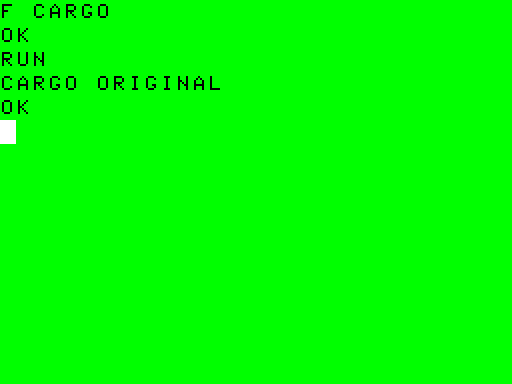
If the search seems to go nowhere, check the tape filename, the position counter, and whether the guest is running. A counter already at the end means the recorded name is behind the current position. Return to a BASIC prompt, rewind, choose Play, and start the named load again. If the name was found but the greeting has yet to appear, check for OK and type RUN. Finding, loading and running are separate events.
Compare a compact tape with a waveform
Repeat the recording and playback steps with New Recording → WAV. Give the export a fresh .wav filename. Tape position now counts samples, while a CAS tape counts bytes. Hearing something through the Mac speaker is optional. The counter, found-file message and BASIC result let you check every step visually.
Both forms carried the same program in our exercise. The CAS file occupied 310 bytes. One WAV recording of the same line occupied 131,160 bytes. CAS keeps the encoded tape data compactly. WAV represents the signal as samples over time, so its length can vary with recording time. Use the format that matches the material you have or the destination you plan to use.
The Fast CAS switch is available with the transport stopped. It accelerates compatible BASIC ROM loads of CAS files. WAV playback follows the waveform. For a recording you want to pass on, keep the actual exported file and try it on a fresh load as you did here. The first chapter’s floppy round trip uses the same proof with a different device.