Chapter 8 of 8
Leave the original just as you found it
Someone hands you a disk and says, “Try changing the greeting, but let me have my original back.” When you finish, both disks will have a BASIC program called CARGO. Looking at the two directories will tell you almost nothing. What could you do to prove which disk has the change?
Make two practice disks
Start with the CARGO.DSK practice image or the disk you made in Put a program somewhere. In Finder, make two copies in a practice folder. Name one Cargo Original.dsk and the other Cargo Working.dsk. Put the supplied practice file away. You can repeat this experiment as often as you like.
Save any other work from the CoCo. Choose Disk BASIC in Machine → Configuration Profiles… and load the setup. Open Media → Floppy Disks… and put Cargo Original.dsk in FD0. The button says Replace… if a disk is already there. In FD0’s Disk options, turn on Write protected. Read back the filename and the words Write protected together. On a narrow screen, scroll inside the Floppy Disks window to see the options.
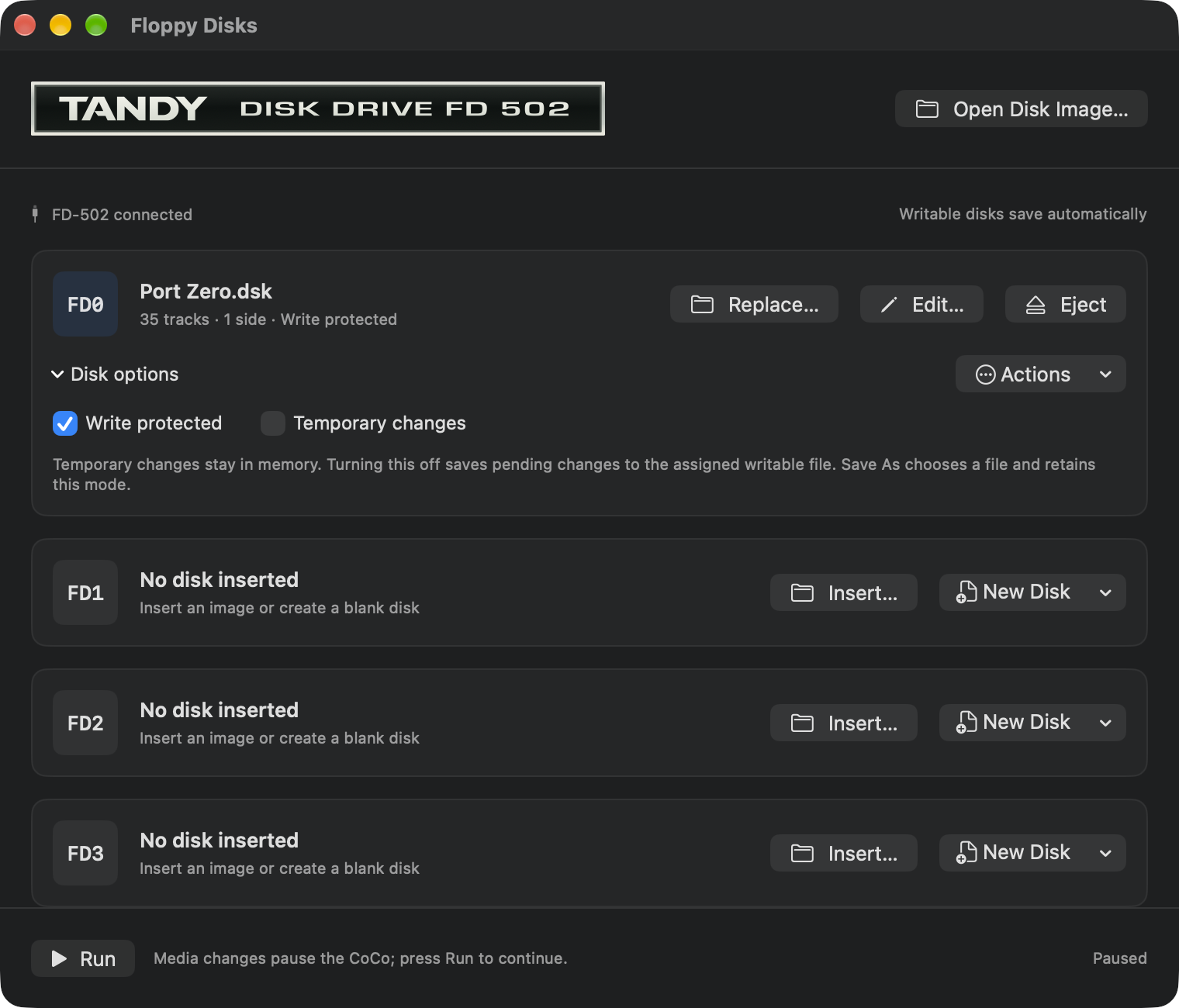
Media changes pause the CoCo. Click Run in the window footer to resume, then click the CoCo display to type. At the BASIC prompt, enter each of these commands and press Return:
LOAD"CARGO"
RUN
You should see CARGO ORIGINAL, then OK. The disk supplied the program, and BASIC ran it in RAM.
Change the greeting in RAM
Enter these two lines:
10 PRINT "CARGO COPY"
SAVE"CARGO"
Expect ?WP ERROR from BASIC. WP means write protected. Line 10 changed as soon as you pressed Return after typing it. The error came on the next command, when BASIC tried to put that line on disk. Leave the program in RAM while you swap disks.
Open Media → Floppy Disks… and use Replace… on FD0. Choose Cargo Working.dsk. Read the filename again. For this working disk, leave Write protected and Temporary changes off and check that the row says Saves automatically. Resume the machine. At the guest prompt enter:
SAVE"CARGO"This time BASIC should say OK. Let the Mac finish saving the disk. The directory entry still says CARGO. What will the program actually say the next time you load it?
Prove which copy changed
- With the working disk saved, cold-restart the practice machine. A cold restart clears the program in RAM. Check that Cargo Working.dsk is still in FD0, or insert it again. Resume if paused.
- Type
LOAD"CARGO", thenRUN. Look for CARGO COPY and the OK prompt. - Replace FD0 with Cargo Original.dsk and select Write protected again. Resume and enter
NEW. This clears the stored line you just ran. Now typeLOAD"CARGO", thenRUN. Expect CARGO ORIGINAL and OK.
| Disk file attached on the Mac | Name requested by BASIC | What came back |
|---|---|---|
| Cargo Working.dsk | CARGO | CARGO COPY |
| Cargo Original.dsk | CARGO | CARGO ORIGINAL |
That last load matters. If you simply swapped the two disks and typed RUN again, the CoCo would run the version already sitting in RAM. Loading each program after clearing RAM lets the disks answer the question.
Keep a change only if you like it
Some games need to write to a disk before they will run. Sometimes you just want to try a change and decide later whether to keep it. Make a fresh Finder copy of Cargo Original.dsk and call it Cargo Trial.dsk. Use that disposable file for this variation.
- Mount the trial in FD0. With the disk clean, turn on Temporary changes. Allow guest writes by clearing Write protected if selected. Resume the machine.
- Load CARGO, enter
10 PRINT "CARGO COPY", and enterSAVE"CARGO". This time BASIC accepts the write. Open Floppy Disks…. FD0 says Unsaved changes · Save As to keep them. - Choose Save As… on the FD0 row. In the Mac save dialog choose your practice folder and enter a different filename, such as Cargo Working Export.dsk. Read the folder and filename before you save. After saving, check which filename appears on FD0. It is now the exported copy, and its save mode is still Temporary changes.
- Finish with the same proof. Start a fresh practice session. Load and run CARGO from the exported disk, then from the unchanged trial. The export should print CARGO COPY, and the trial should print CARGO ORIGINAL.
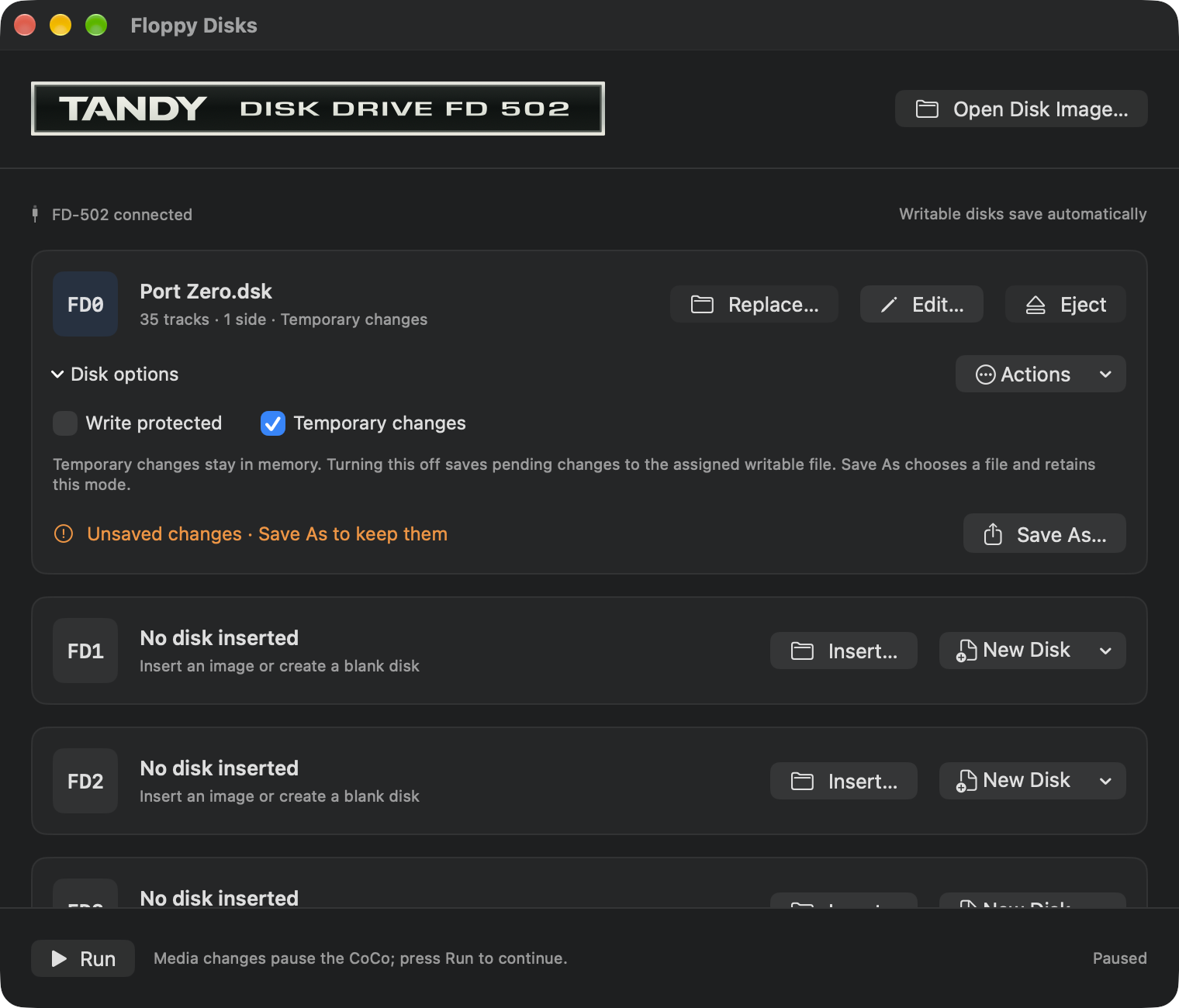
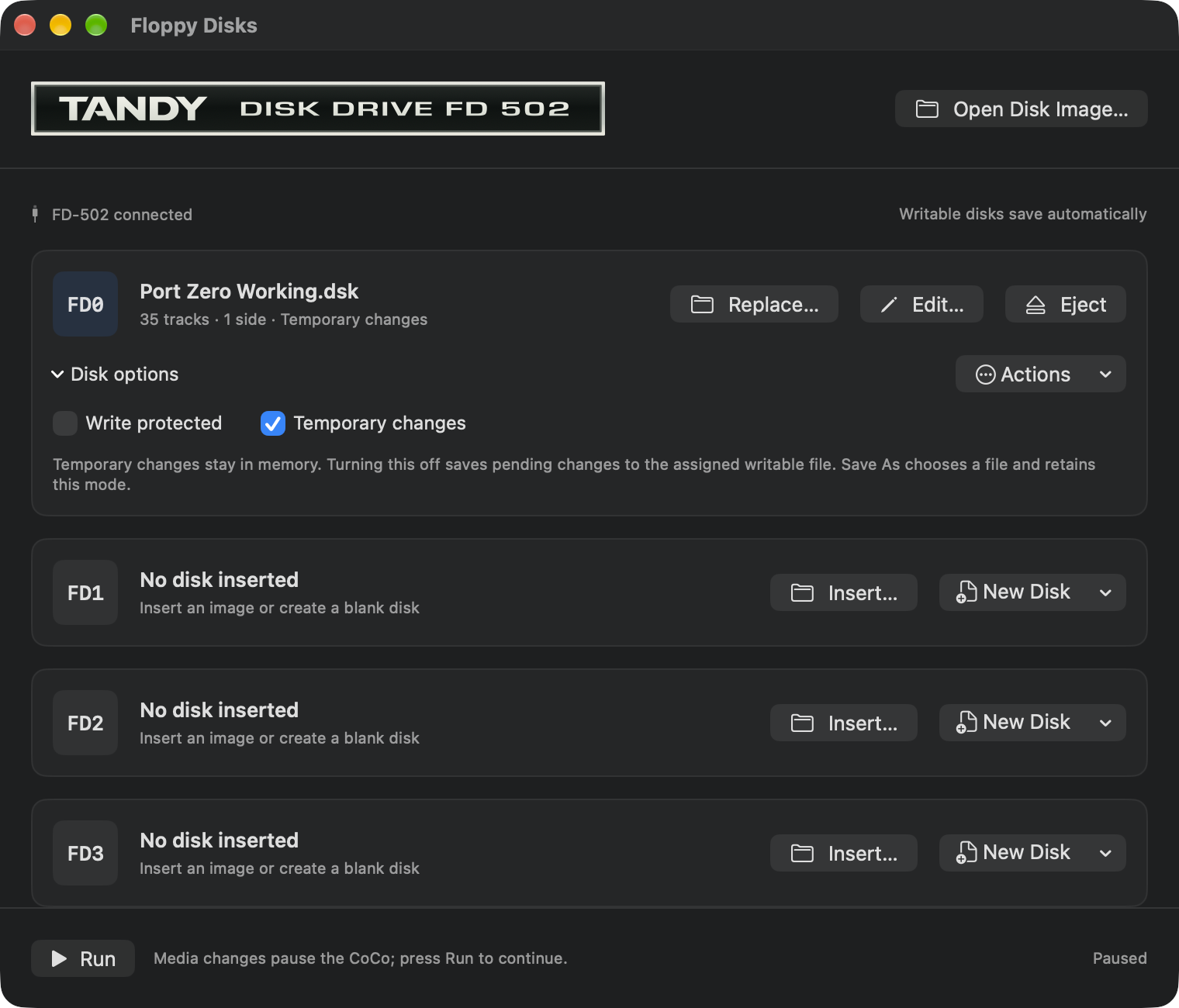
Turning Temporary changes off while edits are pending allows those edits to save to the assigned writable file. To abandon a temporary experiment, choose Actions → Discard Changes and Eject… and review the confirmation. Discard gives up the pending changes. It cannot roll back writes that already reached a file while automatic saving was on.
When the Mac cannot save
The CoCo can accept a write just before VCC Plus discovers a problem with the Mac file. The app pauses and the affected drive row explains what happened. Keep that disk mounted while you decide what to do. If you have the only copy of your work in memory, Save As… to a fresh filename on a writable volume preserves the current image.
| What you see | What to check | How to proceed |
|---|---|---|
| BASIC says ?WP ERROR | Read the protection state on the drive BASIC used. Image-header or Mac file permissions can enforce protection. | Load a personal writable working copy, then try the guest save again. |
| FD0 says Unsaved changes · Save As to keep them | Check whether temporary mode is on or the image still has no backing file. | Save As under the name you want to keep. Check that FD0 now displays it. |
| A previously attached disk is missing when you reopen the app | Check whether its external volume is mounted or the Mac file moved. | Reconnect the volume and choose Retry Remembered Disks. Use Replace… to choose a file that moved. |
| A save failed after the Mac volume disconnected | The current guest edits may still be in the drive. | Reconnect the original volume and use Retry Save if its file is still the expected version. Use Save As… elsewhere if you need to rescue the image first. |
| Another app changed the disk file | You have two versions worth keeping: the changed file on the Mac and the guest’s version in memory. | Save As to a different filename. Compare disposable copies later. Avoid mounting the same writable file in two emulators at once. |
You can now hand both copies back. You know what each contains because you made the machine read them, and you can tell which save belonged to BASIC and which belonged to macOS. Keep the User’s Handbook’s recovery chapter handy for missing media and configuration problems beyond this exercise.