Chapter 6 of 8
Install, play, and come home
A friend hands you a disk image. A Library search turns up a tape and a disk with the same game title. In either case, someone has to choose a machine, insert the right medium and start a particular program. You can do those jobs yourself. For many catalog entries, the Library can do all three.
Launch a file you already have
Try the reader’s side of a manual setup first. Save your work and start at the Disk BASIC prompt. In the book, select the CARGO practice disk and save a copy in a Finder folder of your own. In a browser, use the download link or copy CARGO.DSK from this book’s media folder.
- Open Media → Floppy Disks…. At FD0 choose Insert… or Replace… and pick your copy. You can also drop a file on the appropriate drive row. Read the name beside FD0. Protect the disk for this reading visit.
- Resume the machine if it paused. Focus the CoCo display, enter
DIR 0, and find CARGO BAS. The image is mounted. Its directory lists a program that BASIC can run. - Enter
LOAD "CARGO:0", thenRUN. CARGO ORIGINAL tells you which file you actually ran. After OK, you can keep working or eject the disk. For a file you have used before, File → Open Recent Media remembers earlier choices.
For a CoCo block-format machine-language binary, File → Load Binary… loads its blocks and starts at the file’s execution address. For a disk image containing a binary, insert the disk and follow the title’s loading instructions instead. File → Open Media… also accepts several media types. Check the selected drive, slot or recorder before confirming. The file guide collects the common choices in one place.
Choose an edition of Bedlam
Open Media → Software Library…, or click the wooden shelf in System view. Choose All Software, clear any old filters and search for Bedlam. Choose the Tandy adventure and look for its disk and cassette editions. The catalog follows the Color Computer Archive’s collection. Its edition and source details help you identify what was preserved there. A title can appear on several media, and some similarly named releases may have different publishers or different loading procedures.
Under Using this software, read the recommended machine and loading instructions for your selected edition. Then read Compatibility for known requirements. Think of the difference this way: one tells you which disk to insert and what to type; the other may tell you which processor, RAM or controller you will need. The heart saves the title to Favorites. Your favorites can include software you have never installed.
To find a game’s keys, look for Read Manual or Read Instructions. A PDF opens in the app’s document reader; the instructions button opens a text document. The Library may need a connection for the first cover, manual or software download; it caches material it has retrieved. This book and its CARGO exercise work offline. For more browsing controls, see Choose a version that fits.
Compare Install Only, Play and Set Up
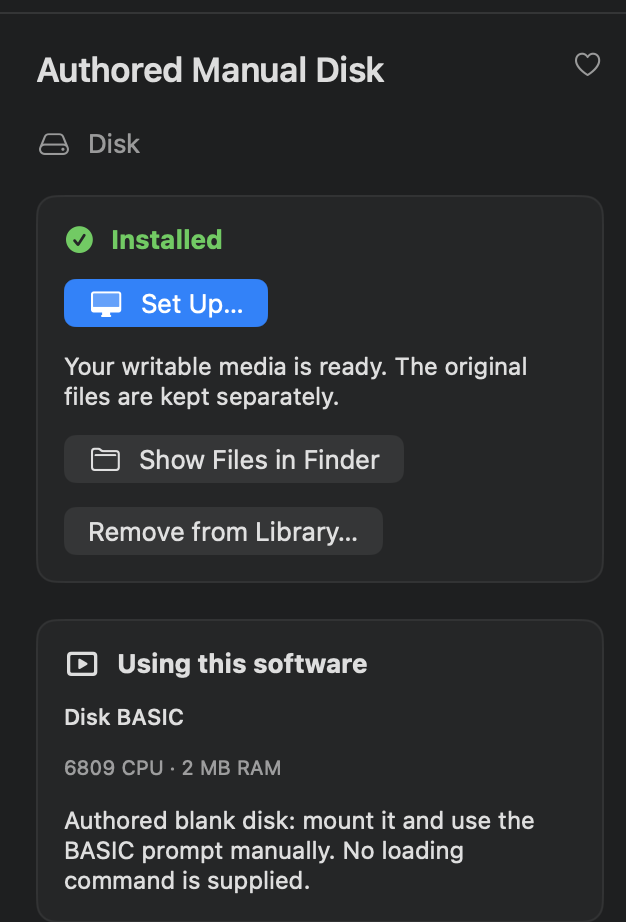
On a connected Mac, choose one Bedlam edition for an optional visit. Install Only checks the download and makes local working files. Watch the installed status appear in the Library. Look back at the running CoCo: the program you left there can still be running. Show Files in Finder shows the files available for use on this Mac. Writable media here belongs to your installation; the Library keeps the original package separately.
Save anything you want from guest RAM before starting the edition. Choose Play… for an installed edition with a launch sequence. If you started with Download & Play…, the install leads into the same setup preview. At Start Software, look for the processor, RAM, signal and the item the Library will mount or plug in. Check the destination before you choose Start. If the collection has several possible starting files, use Choose Starting Media and the edition’s instructions. Cancel at the preview lets you investigate further without restarting the CoCo.
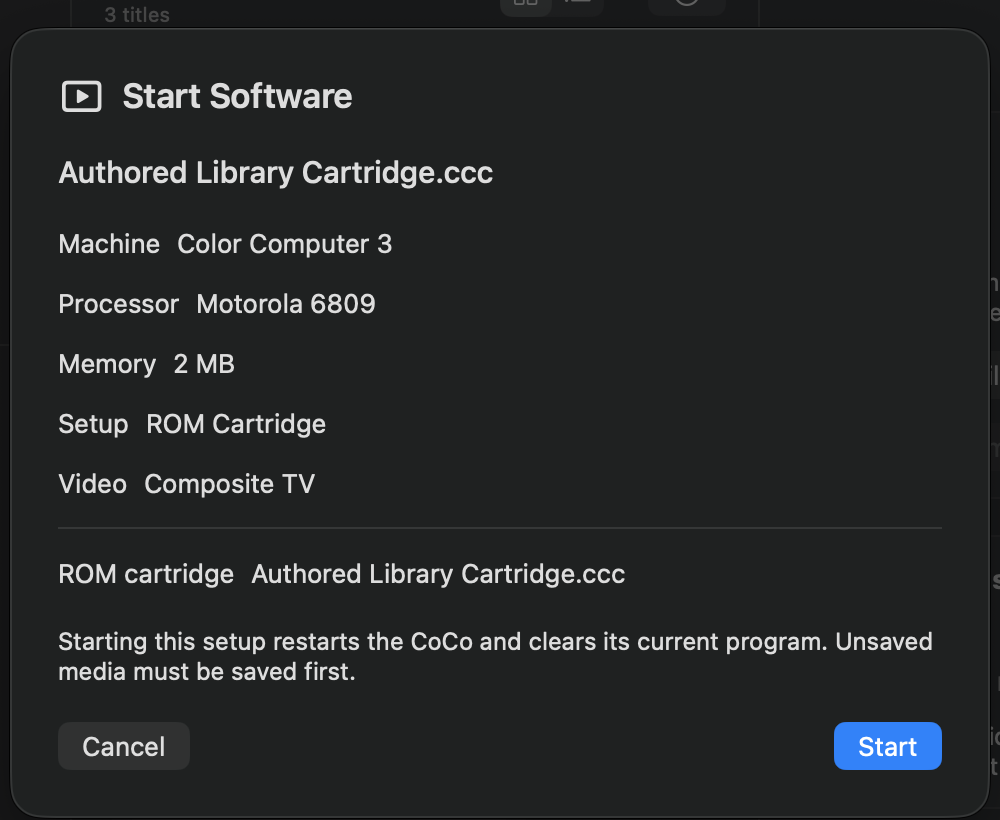
Bedlam gives you a useful comparison: the disk edition reaches the adventure by reading FD0, while the cassette edition reads the tape. Both reach the opening passage about waking from a bad dream. The media indicators and filenames can differ even though the story looks familiar. Click the guest screen when the story asks you to type.
Some editions offer Download & Set Up… or Set Up…. This is a manual launch. Read the Manual loading part of the preview and choose Set Up when ready. The Library prepares the equipment and media; the instructions tell you how to continue from the guest. For a blank data disk, reaching a prompt with the disk available can be the entire job. For CARGO you already know how to complete the two remaining steps yourself.
Return with your work
If you save a game, save it inside the guest on a writable working disk using the game’s own instructions. Give the disk time to finish saving. A saved score can be part of a file inside the image without appearing as a separate Mac document. A write-protected disk, an unexported recording or a game that never writes a save needs a different plan before you leave.
Open Media → Software Library…. Near the top of the window, choose the curved back arrow Return to Previous Setup…, then Restore Setup. This option appears when the Library was able to capture your earlier configuration. It restarts the machine with the previous equipment and media assignments. A prompt where a game used to be is normal. Reload a program from the disk where you saved it. A visit you arranged yourself through the drive window can be undone by loading your named practice profile.
Return to Installed to find the game’s working files again. Remove from Library… removes its installation entry while preserving its files on the Mac. A later installation gets a fresh working copy. If you want to keep playing from a saved game, locate your previous copy before starting over. Checking both the filename on the Mac and the guest's directory is a skill you can use outside the Library, too.