Chapter 6 of 6
Visit a disk and come home
Suppose a friend gives you an image of a BASIC disk. You want to try it, keep the disk safe, and get your usual floppy back afterward. Make the round trip once with Port Zero and you'll have a routine for your own collection.
Give your starting setup a name
Start in Disk BASIC with the ordinary starter floppy in FD0. Open Media → Floppy Disks… and read the filename in that first row. With the supplied starter it reads Hello World.dsk. Write down the name so you can recognize it on your return.
If you have a BASIC program in RAM that you want to keep, save it to your own disk or tape first. A configuration profile remembers things such as your machine settings, the cartridges in their slots, and which Mac files your drives use. Your program in RAM needs a save of its own.
Open Machine → Configuration Profiles…, choose Save Current As…, and call your profile Home Port Setup. Save the name. You have now recorded the setup with the starter floppy attached.
Take a protected copy for a spin
- In Finder, duplicate your friend's image in a writable folder. For this trip you can use the Port Zero practice disk and make a duplicate just as you would for a treasured disk.
- In Media → Floppy Disks…, choose Replace… beside FD0 and select the duplicate. Expand Disk options and turn on Write protected. Check for your duplicate's filename and the words Write protected on the same drive row. Compare it with the protected drive in chapter 2.
- Click Run if the emulator shows Paused. Give the CoCo display keyboard focus. At
OK, enterDIR. For Port Zero, look for PORT, then enterLOAD"PORT"andRUN. When asked for a call sign, type ACE and press Return. The CoCo welcomes you aboard. - On a personal disk, use its own instructions to start the program. If all you know about that disk so far is its directory, you've still learned something useful. You can come home with the original safe and the names of its files in hand.
Return to your starter floppy
Open Machine → Configuration Profiles…, select Home Port Setup, and choose Load…. Read the confirmation and choose Load Profile. If VCC Plus asks you to resolve changes to a temporary disk or an unsaved recording, keep the data you want before switching. Leave a discard action for data you're ready to lose.
Check Media → Floppy Disks… again. The filename you wrote down should be back, with Saves automatically under it. Loading the profile restored the drive assignment and its settings.
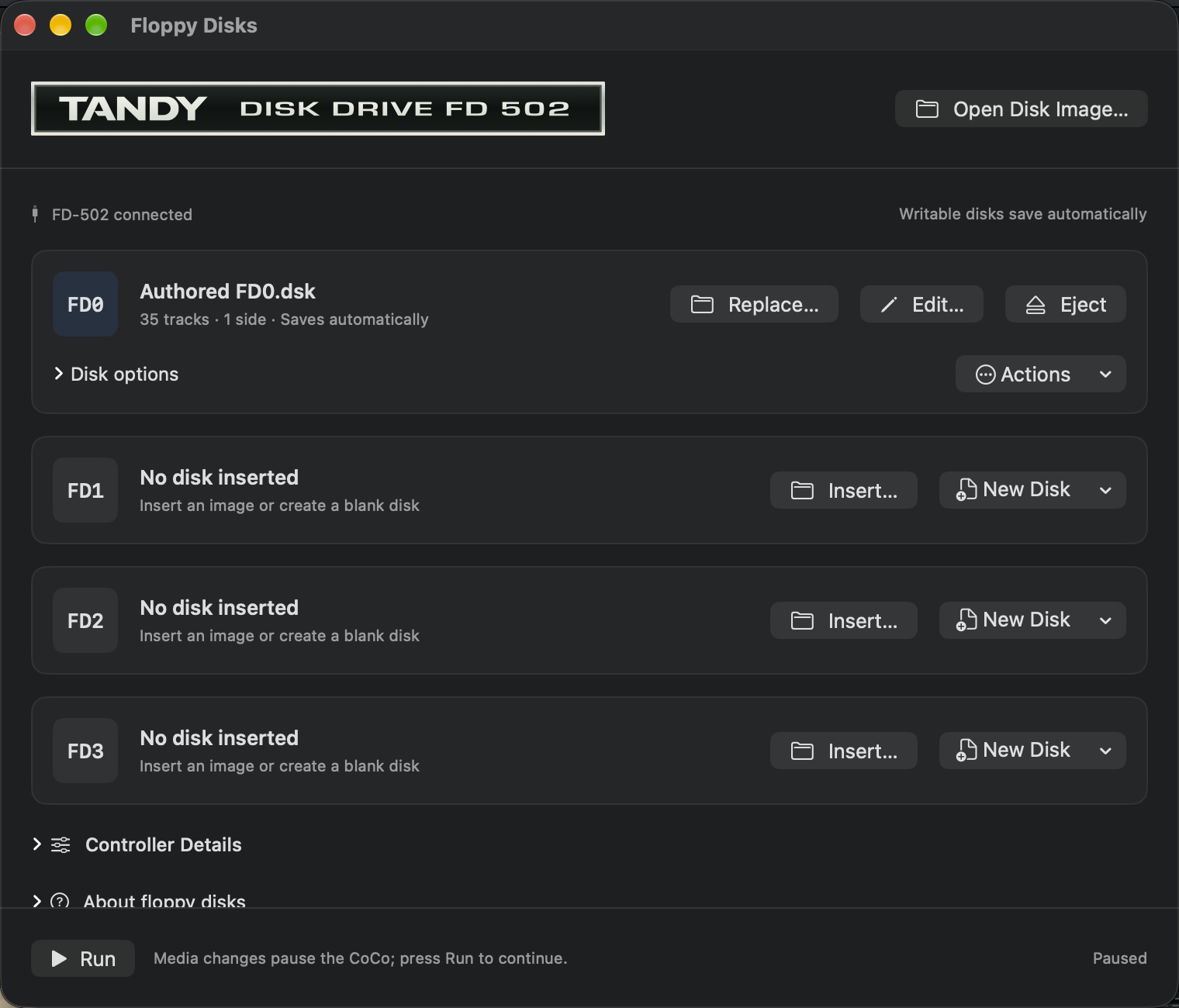
Click Run to resume the restored setup. Type DIR at the fresh BASIC prompt. On the starter floppy you'll find HELLO again. You brought your equipment and disks home. To bring back a BASIC program, load the copy you saved.
Come home after a Software Library visit
If the Software Library set up the machine for a title you launched, reopen Media → Software Library…. Look near the window title for the curved back arrow, Return to Previous Setup…. Read the confirmation and choose Restore Setup when you're ready to leave the title.
That arrow belongs to a Library visit. For a disk you inserted yourself, Machine → Configuration Profiles… holds the named setup you saved. Both routes restore equipment and file assignments. A game score or the place where a running program paused survives a restart only if the program saved it somewhere you can load again.