Chapter 1 of 6
Which CoCo did you bring with you?
Maybe your fingers remember exactly where BREAK was. Maybe you remember pressing Play on a cassette recorder, then waiting for a name to appear on the TV. Bring those memories to the keyboard. You can use them to find your way around this CoCo, even if the one you owned had a different number on its case.
Find your old hardware on the Mac
Choose Display → Interactive System in VCC Plus. The computer sits in the keyboard case beneath the monitor. Read the badge above the scene for its RAM and the badge on the right for its processor. The Disk BASIC starter setup pairs a 6809 with 512 KB of RAM. Follow the disk drive back to the cartridge beside the keyboard. That cartridge is the floppy controller. It gives BASIC a way to talk to the drive.
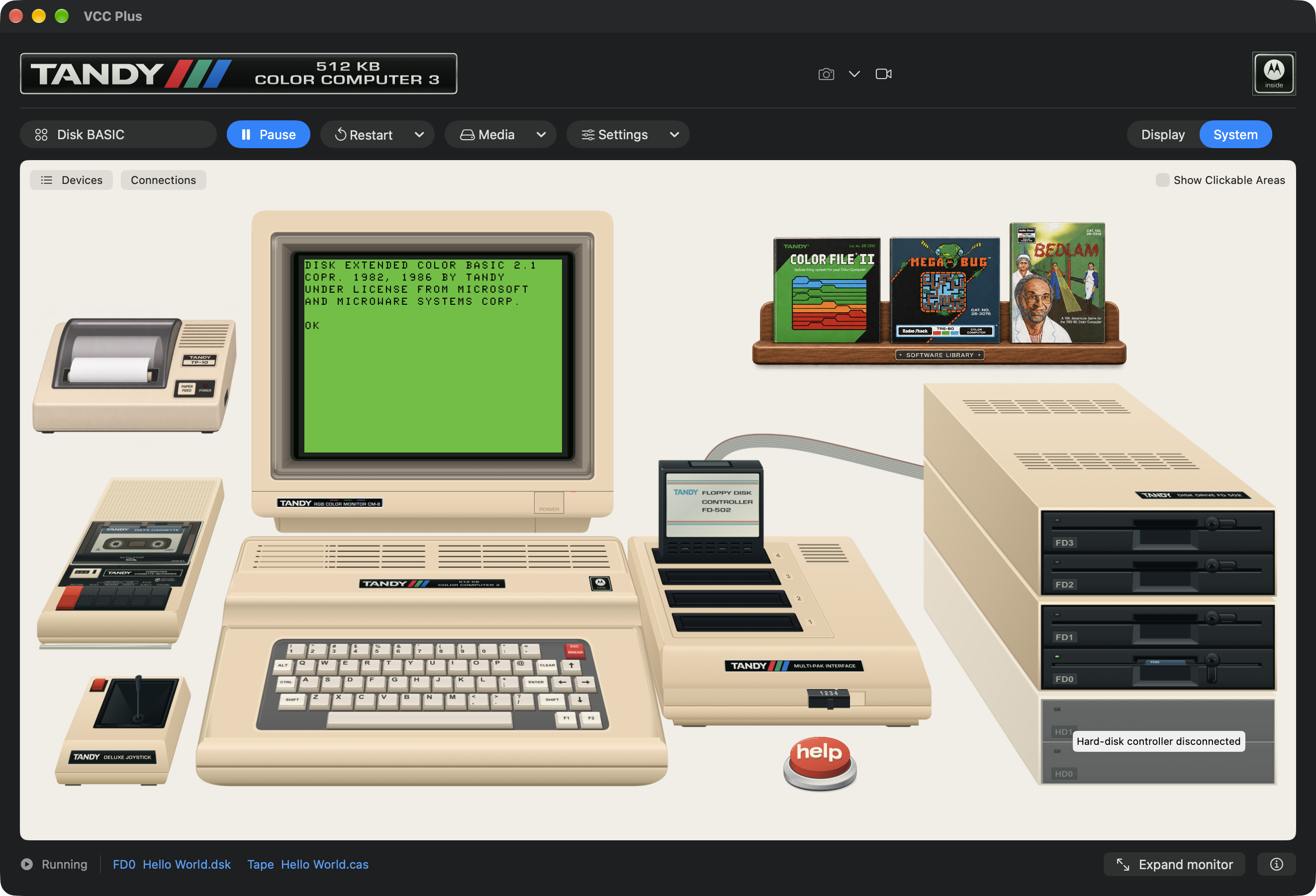
If you remember a CoCo 1 or 2, the green 32-column BASIC screen should feel familiar. Watch what happens in the next chapter when a program asks the CoCo 3 for 40 columns. If you came from a CoCo 3 with an RGB monitor, you can also try the same program on two video signals. For a closer look at the original keyboard case and its 1986 hardware, visit Find the keyboard and monitor.
| What you used to do | Where to do it here | How you can tell |
|---|---|---|
| Insert a disk in drive 0 | Media → Floppy Disks…, then Insert… or Replace… in FD0. | The Mac filename appears on the FD0 row. |
| Cue a tape | Media → Cassette…, then Rewind and Play. | The counter returns to the beginning. BASIC can start the motor. |
| Power up with a cartridge | Cartridge → Cartridges…. Choose the cartridge and its startup slot. | After the restart, a bootable cartridge displays its own opening screen. |
| Press BREAK | Focus the CoCo display and press Esc. | Running BASIC can report the line where it stopped. |
Give BREAK its first job
Start in a Disk BASIC session with an empty program. If another program is in RAM, save it first. To load the starter setup, open Machine → Configuration Profiles…, select Disk BASIC, and choose Load…, then Load Profile. Press the Mac window's Run if the CoCo is paused.
Click the CoCo screen or press Option-Command-K (Input → Focus CoCo Display). At OK, type these two lines, pressing Return after each.
10 GOTO 10
RUN
The CoCo is busy doing exactly what you asked. Every trip to line 10 sends it back to line 10. Click Pause on the Mac toolbar. The whole machine freezes. Click Run alongside the toolbar controls and the CoCo picks up the loop again. Can you get BASIC's attention without restarting the machine?
Focus the CoCo screen and press Esc once. BASIC steps out of the loop and answers:
BREAK IN 10
OK
Type LIST and press Return. The loop is still there. BREAK gave you back the prompt. Pause let you take a breather in the middle of a running machine. That's also why the Mac's Run button and typing RUN at the BASIC prompt do different jobs.
To leave the display using only the keyboard, press Option-Command-U (Input → Focus Mac Controls). Tab and Shift-Tab move between controls. Space operates a focused button. If Tab skips buttons, turn on Keyboard navigation under System Settings → Keyboard on the Mac.
Choose your way back
- I have a disk I want to run. Begin with Bring up a disk you remember. Try our disk first, then make a safe visit to your own.
- I want my old setup back. Start with Tape, cartridges and the slot switch. Follow it with Which drive zero? to pick your system.
- I used to write programs. Try the same program from a disk and from the Mac editor. Then use your CoCo to compare composite and RGB.