Chapter 3 of 6
Tape, cartridges and the slot switch
Think of two old ways to start a program. With a tape, you could press Play and wait for BASIC to find a name. With a cartridge, the title could already be on the screen by the time your hands reached the keys. Both habits work here. Start with a cassette that comes with the Disk BASIC setup. You can do the slot-switch experiment at the end with just the floppy controller.
Cue up the cassette
Open Media → Cassette…. Look for Hello World.cas, the starter cassette in the Disk BASIC system profile. If you use a different tape in your own setup, save any recording you want to keep before changing media or loading the starter profile. The next steps replace the BASIC program in RAM, so save it first if you want it back.
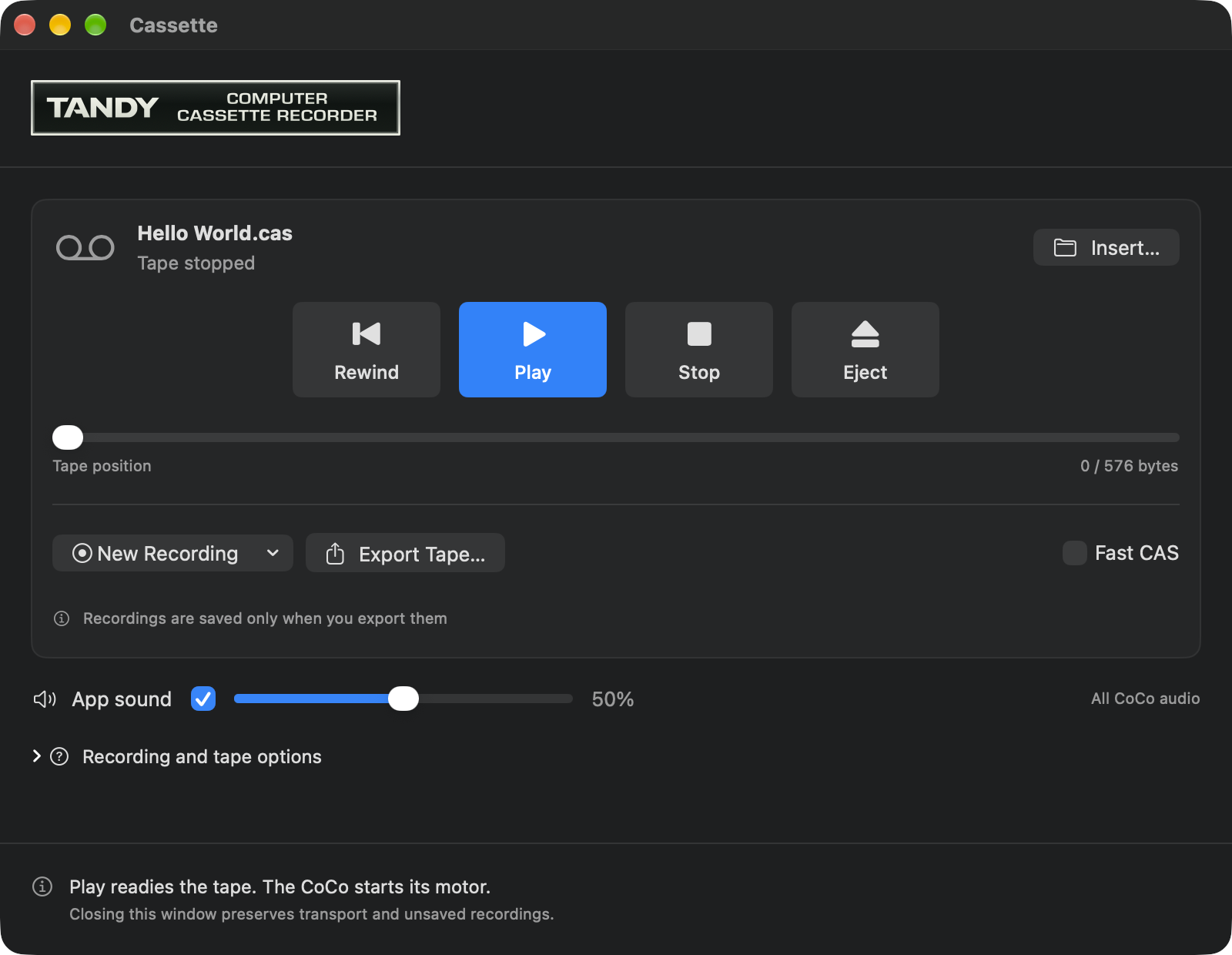
- In the Cassette window, choose Rewind and then Play. Play gets the recorder ready. The CoCo controls the motor when it wants to read.
- Return to the emulator. If it is paused, click Run on the toolbar. Focus the CoCo display, type
CLOADatOK, and press Return. Watch forF HELLO. The recorder found a BASIC program named HELLO on the tape. Wait untilOKreturns. - Type
RUNand press Return. At What planet do you live on?, press 2. One keystroke takes you to Mars. Look for Hello Cold Red Dot World! and the BASIC prompt.
If you reach the end of the tape before finding HELLO, check the filename in the Cassette window. Rewind before making another pass. You can close the window while the tape is in use. To stop the transport, use Stop in the Cassette window.
Power up with a cartridge
A program cartridge carries its own ROM. On a CoCo with a Multi-Pak, the switch selects the slot the machine starts from. In a Disk BASIC setup, the floppy controller already occupies slot 4. Replacing it with a program cartridge temporarily gives that startup slot a different job.
This optional walk-through uses Color Scripsit II for the CoCo. Use your own copy of the 1986 Tandy cartridge image if you have one. Otherwise, go straight to Watch the Multi-Pak change its mind below.
- Save any guest program or media changes you want to keep. Open Machine → Configuration Profiles… and use Save Current As… to give your present disk setup a name. That name remembers your hardware settings and media locations. Save your BASIC program separately if you want to keep the contents of RAM.
- In Cartridge → Cartridges…, find slot 4 of the Multi-Pak. Choose Device → ROM Cartridge… on its row and select the Color Scripsit II ROM file. Keep Startup slot at Slot 4. Confirm the restart if prompted. Press Run if paused.
- Look for the COLOR SCRIPSIT II menu. Focus the CoCo screen. Press E to enter the editor, then I for insert mode. Type a few words. Press Esc to leave insert mode, then Control-Esc to return to the menu. Other cartridges have their own opening screens and keys.
- In Machine → Configuration Profiles…, select the user profile you saved in step 1. Choose Load…, confirm Load Profile, and press Run if paused. The floppy controller is back in slot 4. A new BASIC prompt is ready for you.
The name on the slot matters. Disk BASIC was there because the selected controller supplied the disk ROM. Once you put Scripsit in that position, the same machine selected the word processor's ROM instead.
Watch the Multi-Pak change its mind
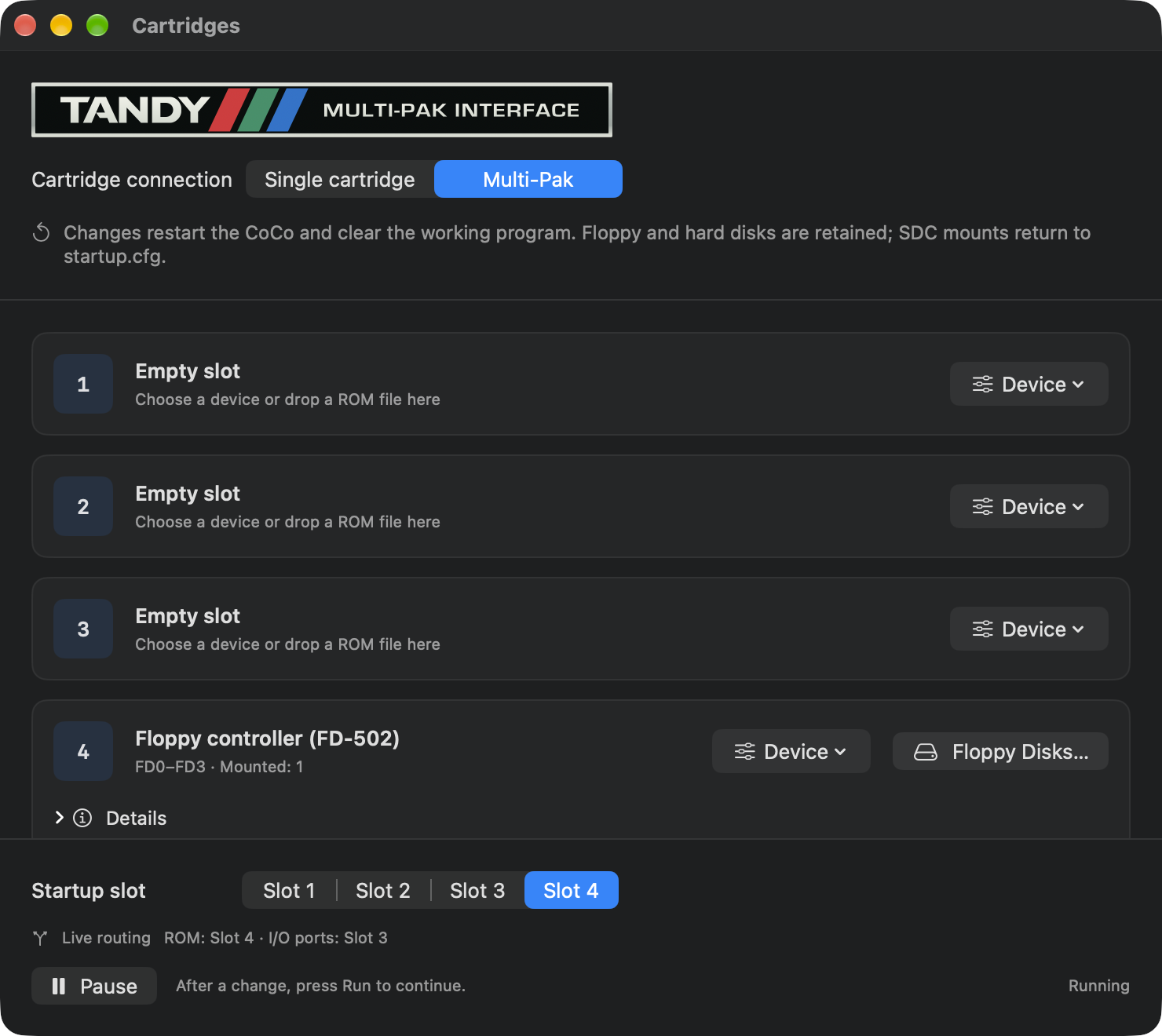
Look at the bottom of Cartridge → Cartridges… in the ordinary Disk BASIC setup. Startup slot is the selector that tells the machine where to begin. Live routing shows two choices the running software can make. ROM tells you which slot supplies cartridge program bytes. I/O ports tells you which slot answers device requests.
Try the two commands below only in the default Disk BASIC practice setup with the FD-502 in slot 4 and the other slots empty. Finish any disk operations first. At the start, the selector, ROM and I/O should all show slot 4. If they differ, load the Disk BASIC profile before trying this.
At the idle BASIC prompt, type the first command and press Return:
POKE &HFF7F,&H32Look at Live routing. ROM still reads Slot 4. I/O ports now reads Slot 3. The startup selector stayed at 4. You just asked the running CoCo to send device requests to an empty slot while keeping the BASIC ROM in reach.
Before using any disk command, focus the CoCo again and put I/O back on the floppy controller:
POKE &HFF7F,&H33Both live indicators should now say Slot 4 again. The number after POKE changed what the Multi-Pak connected while the machine was running. You never moved its startup switch. For a closer look at the bits behind the live indicators, follow the write to a device register.
There is a second way a perfectly good drive can seem to go missing. On some setups, disk number zero belongs to a different device altogether. Which drive zero? lets you try the same directory request at three different BASIC desks.