Chapter 5 of 6
Same bytes, different monitor
Did a game you remember in orange and blue once turn up on another screen in black and white? You can make that happen on purpose, with a program small enough to read in one glance.
Draw a picture that can fool a TV
Begin with Disk BASIC at OK. Save anything you want to keep from RAM. Open STRIPES.bas in Develop → BASIC Development… and choose the editor's Run. Confirm replacement of the current BASIC program if asked. Wait for two tall panels to finish drawing.
10 PMODE 4,1:PCLS 0:SCREEN 1,1
20 FOR X=24 TO 118 STEP 2
30 LINE (X,48)-(X,144),PSET
40 LINE (X+113,48)-(X+113,144),PSET
50 NEXT X
60 IF INKEY$="" THEN 60
70 SCREEN 0,0:END
Lines 30 and 40 both ask BASIC to draw bright vertical lines against the dark background. The loop skips a pixel between lines. There's one trick: the right panel starts 113 pixels farther across the screen. That's an odd number. Where one pattern goes bright, dark, bright, the other starts on the opposite beat.
Line 60 waits for a key. Leave it waiting so you can change monitors with the drawing still on screen.
Try the three signals
In the main VCC Plus window, open Settings → Video Signal and choose Composite TV. The left panel looks orange and the right looks blue. On a composite connection the TV interprets picture detail and color from one signal. Fine alternating lines can produce a color that the program never asked BASIC to draw. That's artifact color. CoCo game artists could use it deliberately.
Choose RGB Monitor. The CoCo 3 can send the monitor separate red, green and blue signals. Look closely at the panels. Both show thin black and white lines. The program is still waiting at line 60.

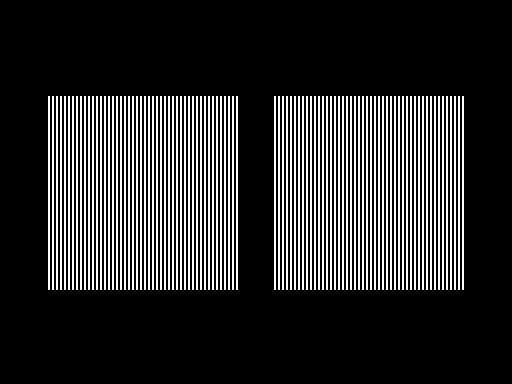
Try Composite TV — Alternate Colors. The solid-looking panels are back, with blue on the left and orange on the right. If a favorite game's colors look reversed, this is a setting worth trying. For a CoCo 3 program designed for an RGB monitor, try RGB Monitor first.
Choose the signal you want to keep. Use Input → Focus CoCo Display and press A. The program switches back to text and returns to OK.
Find the joystick port a game reads
An old game can put its opening screen on the monitor and then wait for a joystick on one particular port. Here's a way to see what BASIC receives before you start the game.
- Make sure your source is saved. Start with a fresh Disk BASIC program, or type
NEWatOKto clear the practice program from RAM. - Enter these two numbered lines and the run command, pressing Return after each one.
10 PRINT@0,JOYSTK(0);JOYSTK(2)
20 GOTO 10
RUN- In Input → Keyboard and Joysticks…, find the Right CoCo joystick and Left CoCo joystick assignments. If you have a controller mapped, use that stick. To try keyboard control, note your previous setting, choose Keyboard for one port, and select Arrows + Z / X in its options. Put focus back on the CoCo.
- Move the stick from left to right, or hold and release the left and right arrow keys. Watch the two numbers at the upper left. The first follows the right CoCo port; the second follows the left one. With centered controls you should see about 31 31. With only the right-hand port moving, try for 0 31 and 63 31.
If the other number changes, you've just found the port your input actually reaches. Use the input window to match that port to the one your game expects. Press Esc to stop the loop. Restore any input assignment you changed for this experiment.