Chapter 1 of 7
Meet the machine
Picture a family in 1986 making room for a computer. Someone clears the table in front of the television. Someone else sets down a cream-colored keyboard. Where does the computer go? It’s already there, inside the keyboard case.
Find the keyboard and monitor
Tandy’s Color Computer 3 arrived in 1986. It was the newest member of a family of computers that owners called the CoCo. Switch it on and you could give it an instruction in a language called BASIC.
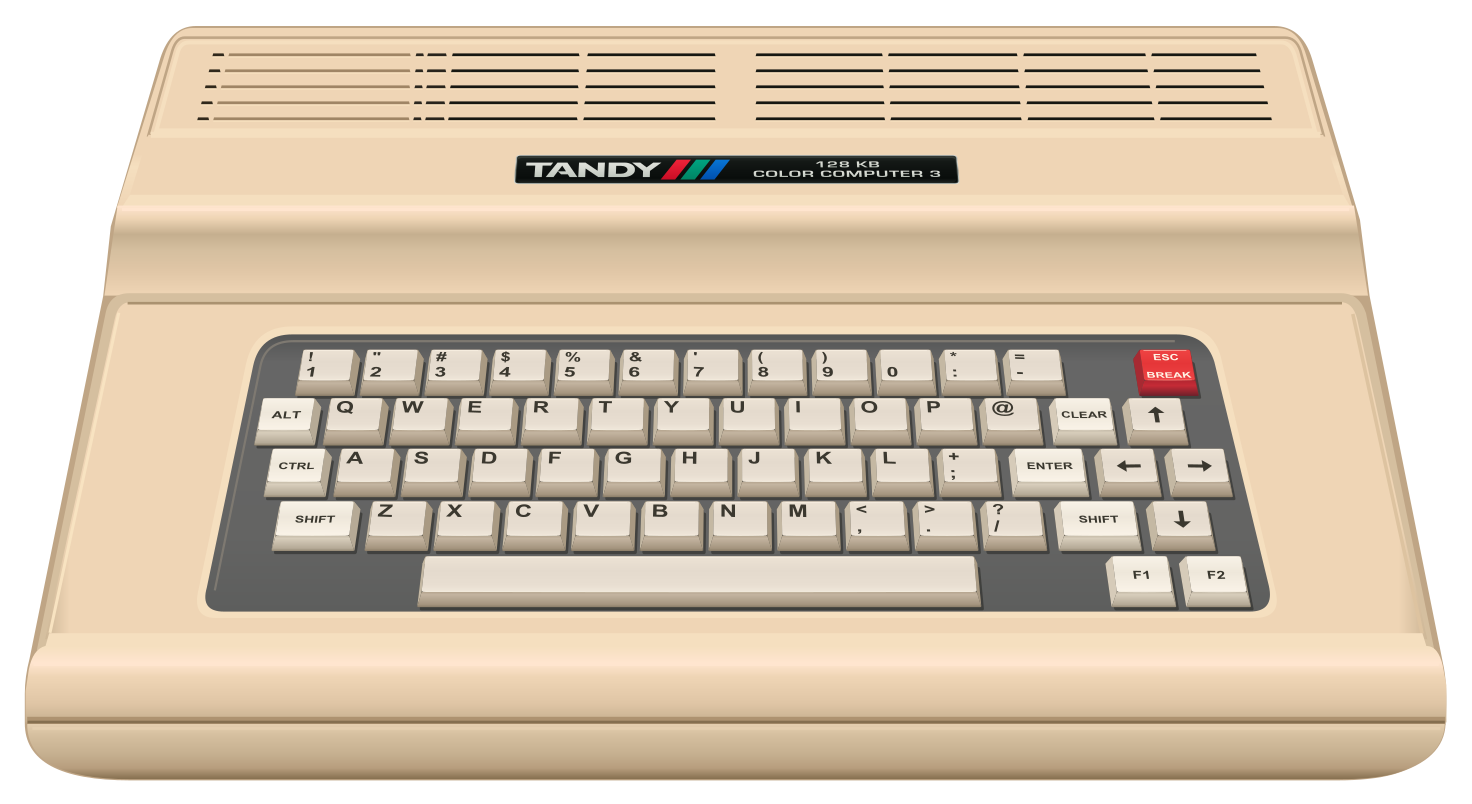
A family could use its television for the picture or give the CoCo a monitor of its own. A separate drive could sit beside the computer. Slip a floppy disk into that drive and you had a place to keep programs for another day.
The original CoCo 3 had 128 KB of RAM. RAM is the computer’s working memory. KB stands for kilobytes, a way to measure how much it can hold. Owners could expand that space to 512 KB, four times as much. Look for that number on the machine in this book.
Remember using that floppy drive? Find its controls on the Mac in Back at the CoCo.
Set a CoCo on your Mac desk
Open VCC Plus on your Mac. It’s an emulator. Your Mac does the work of running a CoCo, right down to accepting the keys you press. For these lessons, start with the Disk BASIC setup and its supplied Hello World disk in FD0, the first floppy drive.
On a fresh setup, go straight to the main emulator window. If Using your CoCo is open, read the short guide, then click outside it to get back to your computer.
Already use VCC Plus? Make a practice setup
Save any CoCo work you want to keep before loading a setup. Loading one clears the CoCo’s working memory. Here’s how to give your book experiments a starter disk of their own.
- Open Machine → Configuration Profiles….
- Choose Disk BASIC under System Profiles.
- Choose Create Fresh Starter Media….
- Name your setup My First CoCo and choose Save.
- With your new setup selected, choose Load…, then Load Profile.
- Return to the main window.
If the machine is paused, choose Run.
Choose Display → Interactive System. Find the Color Computer 3 nameplate and the RAM badge. The case underneath the keys houses the computer. Look above the keys for the monitor, then beside the monitor for the disk drives. Find FD0. If you’d like a list of the drives, open Media → Floppy Disks…. FD0 should show Hello World.dsk.
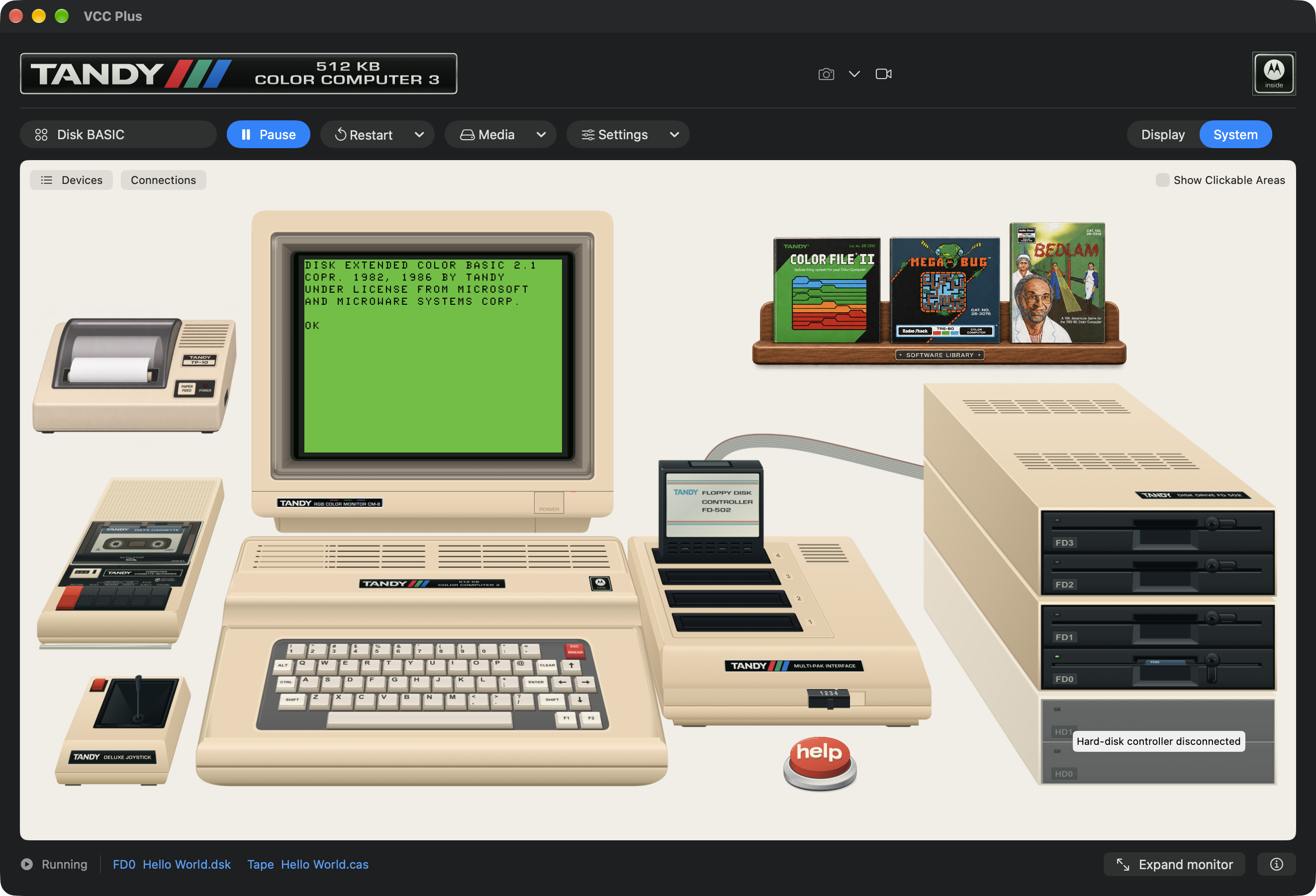
Try pointing to three places in the picture. Below the monitor, find the keyboard where a person at a real CoCo would type. Inside the monitor, find the green screen where the answer appears. To the right, find the drive labeled FD0. A real floppy drive had a slot for a thin disk. Later you’ll slip a whole disk into this one by choosing a file on your Mac.
Get a reply
Look for OK on the CoCo screen. That’s the prompt. BASIC is ready for an instruction. The blinking square shows where the next character will appear.
- Click inside the CoCo screen. From the keyboard, choose Input → Focus CoCo Display or press Option-Command-K. This directs your typing to the CoCo.
- Type the line below, including both double quotation marks. Pause with your finger over Return.
PRINT "HELLO, COCO!"So far, every letter on that line came from your fingers. Press Return. Look just below the line you typed.
HELLO, COCO!
OK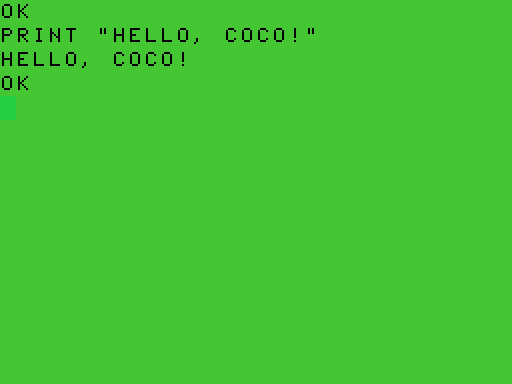
Your keystrokes were input. The CoCo followed your instruction and sent the greeting to the monitor. That greeting was output. Find the exclamation mark twice on your screen. Can you tell which one belongs to the instruction and which one belongs to the reply?
If typing goes to a Mac control, press Option-Command-K and try the line again. To go the other way, choose Input → Focus Mac Controls or press Option-Command-U. Tab moves between Mac controls and Space activates a focused button. If Tab skips buttons, turn on Keyboard navigation in System Settings → Keyboard on your Mac.
Try leaving an answer half typed, then bringing the same window back in the handbook’s flight-number exercise.
Where to go next
You supplied every letter of the greeting. Can you get the CoCo to print an answer you never typed? Leave it at the prompt for chapter 2.
Tandy Corporation. Introducing Your Color Computer 3. 1986. “To Our Customers” and the opening hardware tour.
CoCopedia contributors. “Color Computer 3.” CoCopedia, revision 11134.