Chapter 2 of 10
Who has the keyboard?
BASIC is asking for a flight number. You can see the question behind the source editor. If you press 4 now, will it answer the question or change the program you wrote? On a Mac, the place that receives your next keystroke has keyboard focus. You can move it deliberately.
Give the CoCo your next keystroke
Click inside the live CoCo picture, or choose Input → Focus CoCo Display (Option-Command-K). This brings the emulator forward and directs typing to the guest computer. On the toolbar, Pause means the CoCo is running. If the button reads Run and the status reads Paused, click Run before answering a guest prompt.
To operate the Mac controls, choose Input → Focus Mac Controls (Option-Command-U). The Profiles button receives focus. Press Space to open it, or use Tab and Shift-Tab to move between controls. If Tab skips buttons, check System Settings → Keyboard → Keyboard navigation on the Mac. Clicking inside a source document gives ordinary editing keys back to that editor.
The difference matters with Escape. In a Mac menu, Escape dismisses the menu. Inside the guest, it sends Break, which can interrupt a program. Command shortcuts belong to the Mac even while you're typing into the guest.
Finish an answer after reopening the window
Start in Disk BASIC. Save any BASIC program you want to keep. Follow KEYS.bas. In the app it opens in a separate BASIC Example window. In a browser, open the downloaded file in Develop → BASIC Development…. Choose Run in the window containing KEYS. Confirm replacement of the program in CoCo memory if prompted. Watch for the flight-number question.
- Leave the question waiting and use the Mac’s Window menu to return to the BASIC window you ran. In that editor you can see the numbered line that asks the question. Go to Input → Focus Mac Controls. Press Space to open Profiles, then close its window without loading a setup.
- Choose Input → Focus CoCo Display. Type 4 and leave Return alone. Look for the digit on the question line.
- Close the emulator window with its red close button. Keep VCC Plus open. Press Command-1 (File → Show Emulator). You should see the digit you left behind.
- Type 2 and press Return. The complete answer is 42. BASIC prints FLIGHT 42 and returns to OK.
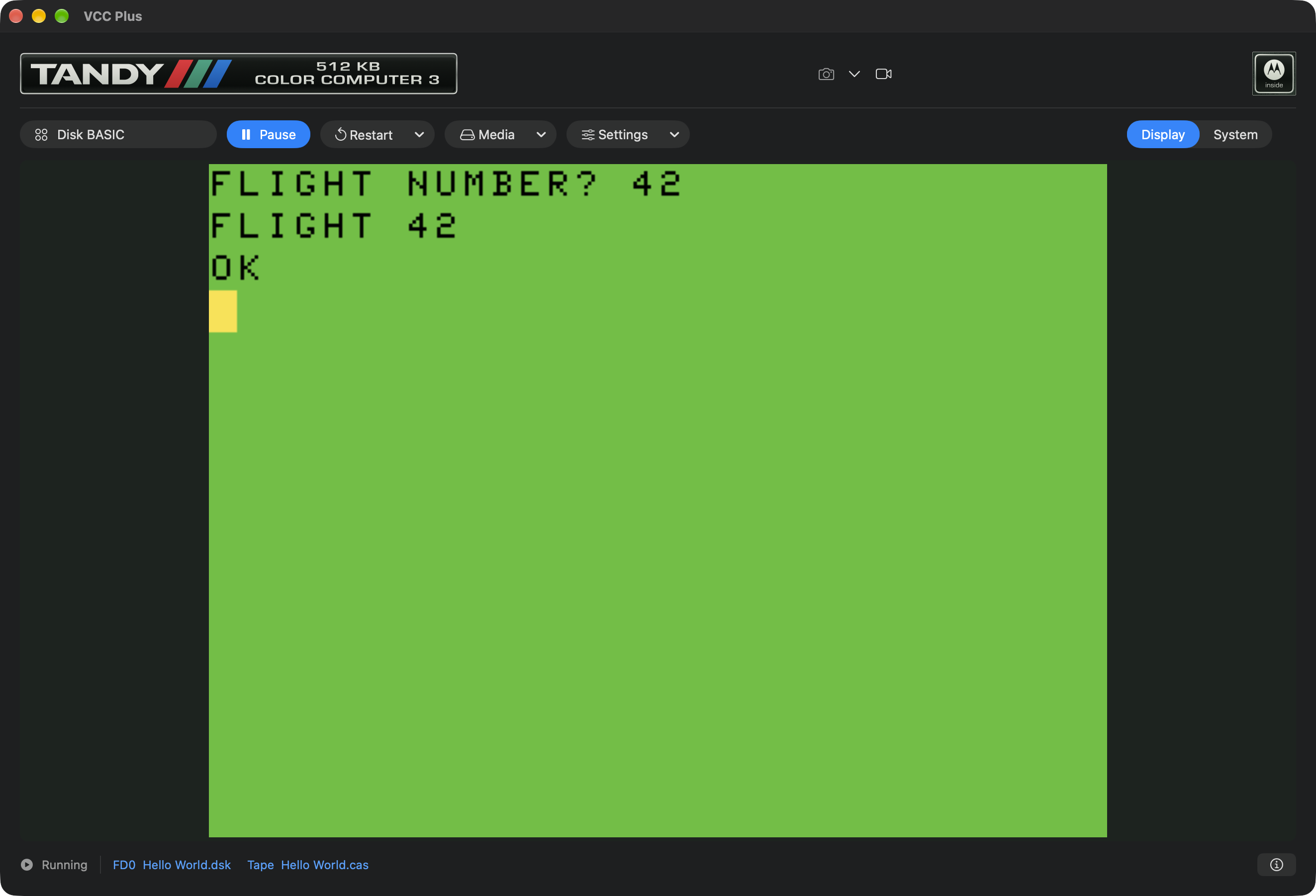
Reopening the window brought back a running program halfway through an answer. A cold restart clears that memory, and quitting ends the session. If you've written something you want tomorrow, save the source or the guest program before quitting.
Match your keyboard to the program
Open Input → Keyboard and Joysticks… and find Keyboard mode. Changes take effect immediately and are remembered.
On a fresh installation the right joystick uses the sole connected controller, or Mouse if there is no unambiguous controller; the left joystick starts at None. This keeps ordinary typing available. A controller connected later can replace the fresh Mouse fallback until you make your own right-port choice. Existing saved input choices are preserved. See joystick sources to choose another source or port.
| Mode | When to try it |
|---|---|
| Natural | Enter a BASIC listing or a letter. The printable keys follow the characters you type on your Mac layout, including punctuation. |
| CoCo | Follow a program's illustrated keyboard or a game that reads key positions. VCC Plus uses physical US CoCo positions, so punctuation can differ from the symbol printed on your Mac key. |
| Compact | Use character-based typing on a small keyboard. Tab sends Clear and the unshifted grave accent key sends Break. |
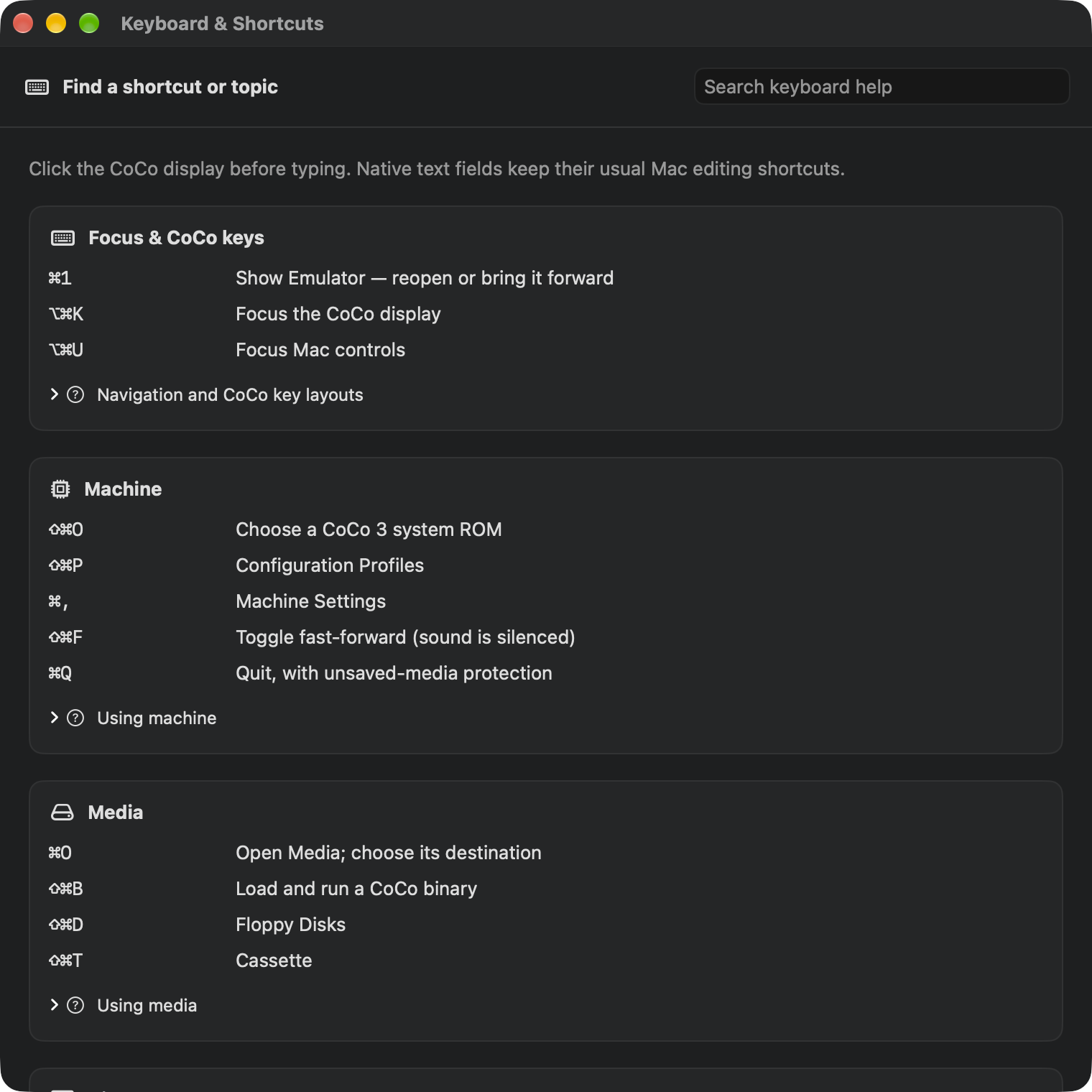
Return is CoCo Enter, Home is Clear, and Escape is Break. F1 and F2 reach the emulated function keys. Hold Fn or Globe if macOS otherwise uses those keys for hardware controls. Help → Keyboard & Shortcuts… lists the modes, key equivalents and Mac shortcuts together. If letters such as Z or X disappear only inside the CoCo, check whether a keyboard joystick has claimed them.
Move text between the two computers
Choose the command for the place the text is going. Ordinary Copy and Paste in the source editor edit a Mac document. The separate commands under Edit communicate with the running CoCo.
| What you want | What to choose |
|---|---|
| Take a guest message back to the Mac | Copy CoCo Screen Text (Shift-Command-C) copies the characters from a supported hardware text screen while running or paused. Paste into a Mac text field to read them. For a drawn game screen, save its picture. |
| Type clipboard text into a guest prompt | Paste Text into CoCo (Shift-Command-V) sends keystrokes. A newline in the clipboard sends Return, so check for extra lines before pasting at a command prompt. |
| Add numbered lines at BASIC's OK prompt | Paste BASIC — Merge… enters the numbered lines. Matching numbers replace existing lines. A number by itself deletes that line. |
| Start a fresh listing at BASIC's OK prompt | Save your old work, then choose Paste BASIC — Replace…. Confirmation sends NEW before the numbered lines. Copies previously saved to files survive. |
The two BASIC paste commands leave you at the prompt so you can examine the listing before running it. Edit → Cancel Paste, pausing the emulator, or typing a CoCo key stops the remaining queued input. Already-entered lines have changed BASIC memory. For a program you want to edit and run repeatedly, keep a Mac source document in BASIC Development….
VoiceOver can read the native menus, controls and media status. The Devices list in System view offers named controls alongside the drawing. For guest text, try Copy CoCo Screen Text; a game that draws its own lettering supplies pixels rather than hardware text characters.