
Chapter 6 of 10
Change the machine
The emulator is halfway through a game. You want a larger picture, a faster processor or more memory. Which of those changes will take you back to the game's beginning? VCC Plus can change how it draws a running game immediately. It can also act as though you took the CoCo apart and installed different hardware. The wording of the Apply button tells you when you're about to do the latter.
Pause, reset or restart?
| Choose | What the CoCo does | When to use it |
|---|---|---|
| Pause, then Run | Stops and resumes execution at the same point. | Read a fast-moving screen or leave a half-finished game where it is. |
| Restart → Soft Reset — Retain RAM | Starts the reset sequence while retaining the bytes in RAM. The ROM or running software decides what to do after reset. | Try the equivalent of pressing the CoCo's reset button. Save important work first. |
| Restart → Cold Restart — Clear RAM… | Clears RAM and starts the selected setup again after confirmation. | Start over on this machine, with its existing media. |
| Configuration Profiles… → Load… | Restarts with the saved machine and file assignments. | Change to different hardware or return to a setup you saved. |
For the supplied NitrOS-9 system disk, see Go through the archive’s menu for the extra step after Cold Restart.
If the window disappeared, use File → Show Emulator. If the display got small, choose the presentation or resize the window. Both actions let the running program carry on.
Change memory and return
Continue the PORTNOTE experiment with two lines in RAM, one line saved to FD0 and a personal profile named Home Port Setup. If you're reading this section on its own, save your current BASIC program before trying a hardware change.
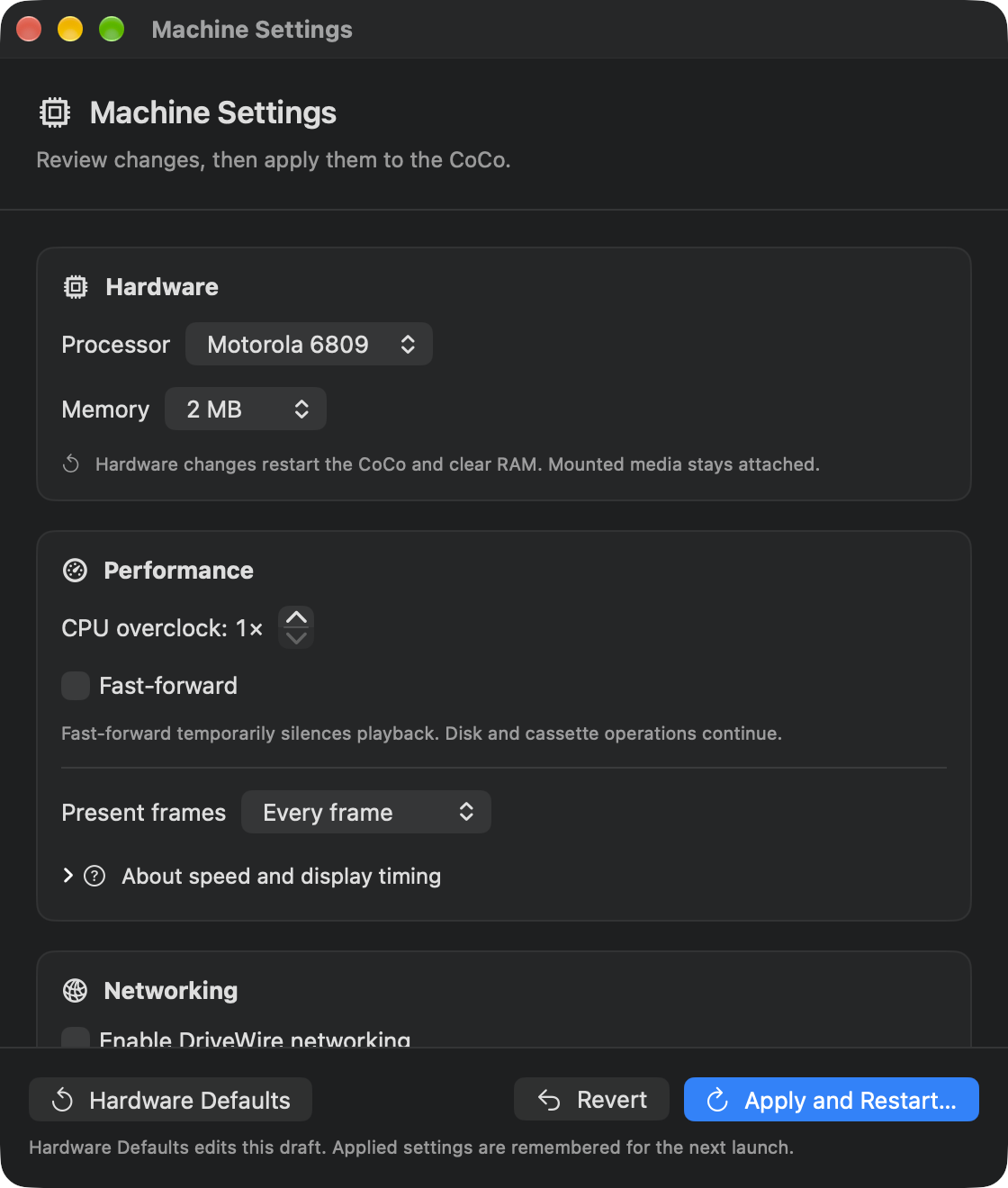
- Open Machine → Machine Settings… (Command-comma). Under Hardware, select 2 MB for Memory. Compare the pending configuration with the existing 512 KB nameplate. Revert lets you abandon the edit here.
- Choose Apply and Restart… and read the confirmation. Choose Apply and Restart, then close Machine Settings. The nameplate shows 2 MB. If the machine was running, it runs again; if it was paused, choose Run. When BASIC is ready, enter
LIST. Both numbered lines have gone. - Open Machine → Configuration Profiles…. Select Home Port Setup under My Profiles, choose Load…, then Load Profile. The restored machine is paused and the nameplate reads 512 KB. In Media → Floppy Disks…, check that FD0 shows your practice filename and Saves automatically.
- Choose Run. At the BASIC prompt, try
LIST. The program area is empty. Now enterLOAD "PORTNOTE"and wait for OK. EnterLIST, thenRUN, pressing Return after each. Only line 10 appears and the message SAFE ON DISK prints.
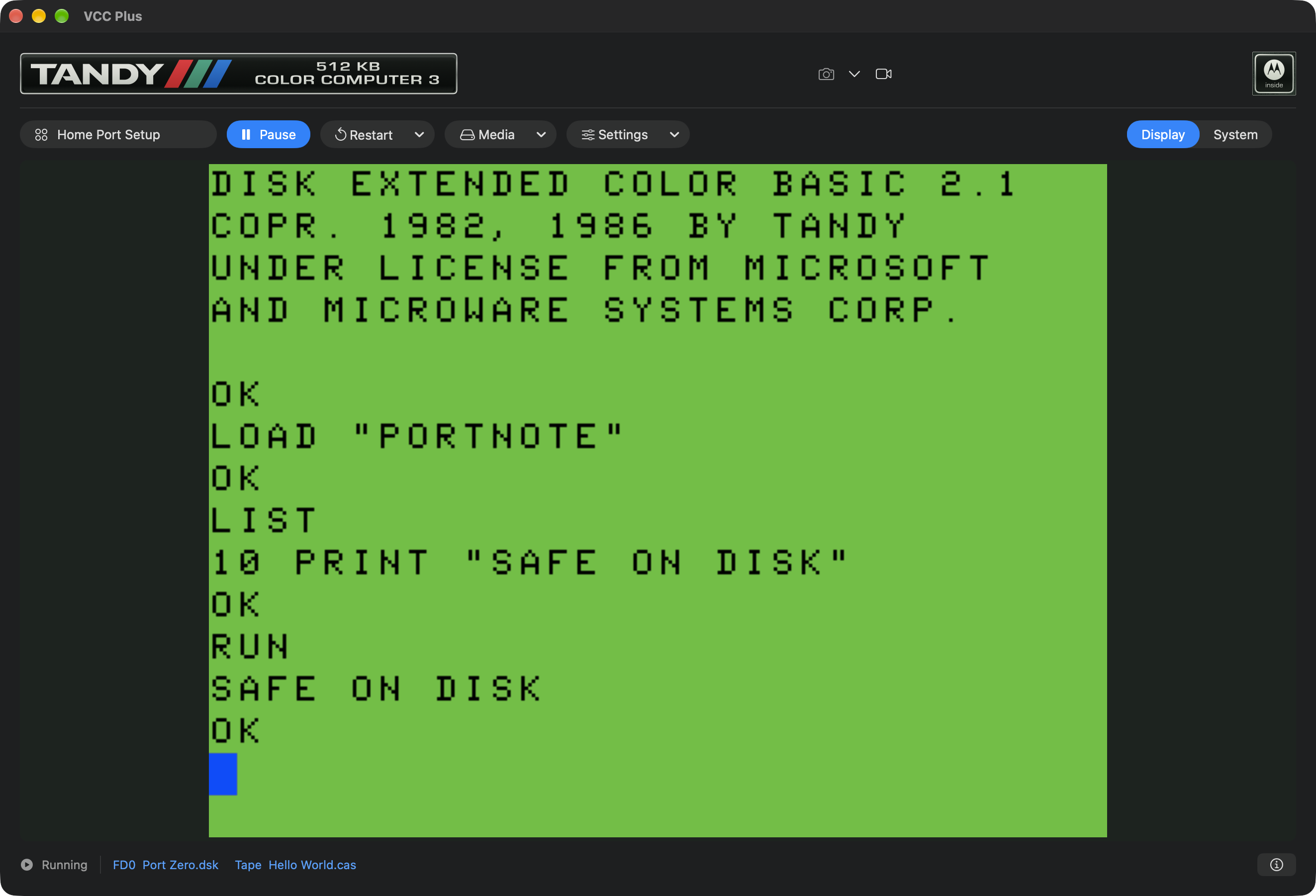
You can now account for both lines. Line 10 went onto a disk before you changed the machine. Line 20 was typed after the save. The profile brought the right disk back to FD0. BASIC's LOAD brought the saved line back to RAM.
Choose the processor, memory and ROM
Motorola 6809 is the usual starting point. Choose Hitachi 6309 when software calls for its additional instructions. The memory choices are 128 KB, 512 KB, 2 MB and 8 MB. Follow the title's requirements. For example, the Double Dragon Arcade Port on CoCo SDC calls for 2 MB. Extra RAM alone cannot make software written for the wrong processor run. Both processor and memory changes require a cold restart on a loaded machine.
A ROM holds code the CoCo can read at startup. Settings → Open System ROM… in the emulator toolbar chooses a 32 KiB CoCo 3 system ROM. The Disk ROM in the floppy controller is separate: it supplies disk commands. It takes an 8 or 16 KiB disk ROM. To return just one of those choices to the installed version, use Restore Bundled System ROM… or Restore Bundled Disk ROM… under Settings. Save guest work before changing ROMs.
Hardware Defaults prepares the usual 6809/512 KB draft. Revert puts the current applied settings back into the form. Apply remembers the settings for the next launch. To put the complete bundled Disk BASIC setup back, including its starter media assignments, use Recovery → Restore App Defaults…. Settings → Run Diagnostic starts a diagnostic preview. Return to your saved profile or to Disk BASIC when you want its normal startup screen again.
Speed, frames and sound
Performance has three controls. Change one at a time so you can tell what made a difference.
| Control | What to expect |
|---|---|
| CPU overclock | 1× is normal. Up to 16× speeds the CPU when the CoCo program selects double-speed mode. Device and video timing keep their usual pace. |
| Fast-forward | Runs the whole machine ahead of real time as fast as the Mac permits. Playback is silent while this is on. Disk and cassette operations continue. The Machine menu also offers this switch. |
| Present frames | Every frame is the smoothest choice. Presenting every second through sixth frame reduces how often a picture reaches the Mac display. The CoCo still processes the intervening frames and its sound and devices continue. |
Use Apply for edits in the Performance form. If a game suddenly becomes silent or races, check Fast-forward first. Picture size, sharpness and scanlines belong in Display → Display Settings….
Let OS-9 connect
Enable DriveWire networking lets compatible OS-9 programs open outbound TCP connections through the FD-502's Becker port. The supplied NitrOS-9 setup has the guest drivers ready and defaults to networking on. Your explicit choice in Machine Settings applies across profiles. Turning it off closes active connections immediately.
A connection to the Mac shell gives a guest program the ability to run commands as your Mac user, starting in your home folder. Use it with a guest you trust. From the supplied OS-9 shell, telnet macshell 2323 requests a session. The prompt on the Mac offers Deny or Allow. For the recognized NitrOS-9 setup you can also remember permission for programs running with that setup. Start Mac Shell Session lets you prepare one guest connection from the Mac. Ordinary internet access and permission to use this shell are separate choices.
Type exit at the Mac prompt to return to OS-9. Stop Mac Shell Session ends access from the Mac side. Use Forget Mac Shell Permission to remove a remembered grant. Read the prompt before typing: a command entered at the Mac shell can change real files on your Mac. See Ask which computer answered for the short host visit and return.