Chapter 7 of 10
Find something to run
Suppose you remember a green cover and a name, Color File II. You can look inside its manual before you decide whether to install the program. Or perhaps you have no title in mind and want a game for a CoCo 3. Both searches start at the wooden shelf in System view. Media → Software Library… opens the same window from either presentation.
Start with a curated game
The Library opens in Getting Started, a guided selection including Bone Quest, Capital Quest and Quadrapassel. Their VCC Plus-exclusive badge identifies this collection; they can also run on compatible real CoCo hardware. Their author and project links appear in the title details. Other Library titles retain their Color Computer Archive source credits.
On later visits the Library resumes your last browsing context: category, search, filters, view, selected title/edition and useful list position. It does not replay Play or change the CoCo's current setup. If the remembered view looks narrower than you expected, inspect the visible search and filters before starting over.
- Bone Quest teaches anatomy through a 28-structure identification quiz, with multiple choice and typed answers. Its setup uses 512 KB and RGB video. Like Capital Quest, it appears under both Education and Games.
- Capital Quest quizzes you on all 50 U.S. states and capitals, using multiple choice or typed answers. Its setup uses 512 KB and RGB video. It appears under both Education and Games, with Education as its primary category.
- Quadrapassel is a falling-block puzzle game. Its setup uses 128 KB and RGB video. Read its manual for the keyboard, joystick and scoring choices.
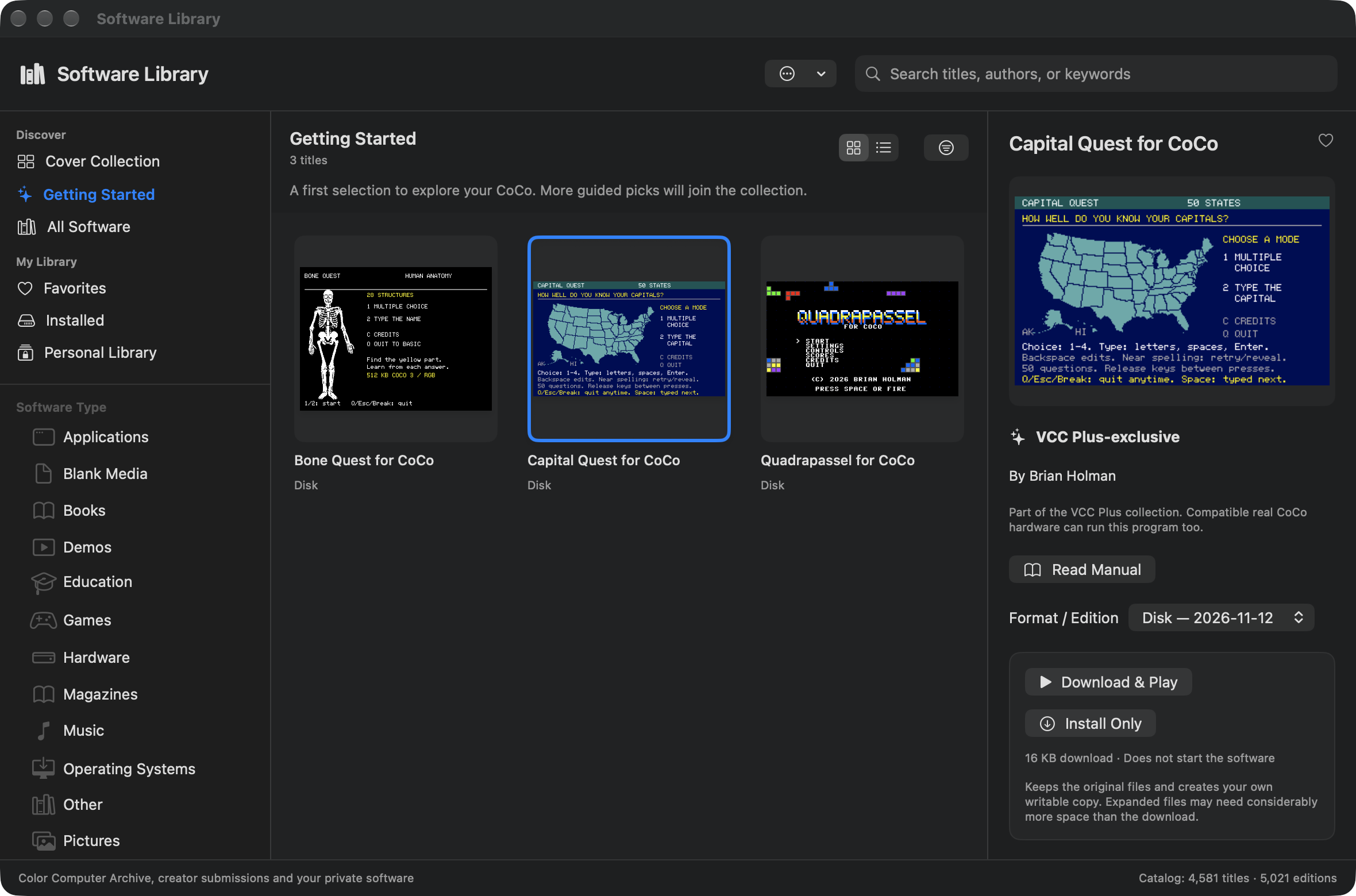
Choose Download & Play, or Play after installation. The Library applies that title's verified setup, performs a Cold Restart and types DOS automatically. You do not need to choose a generic setup or enter the loading command yourself. Each title's specified requirements take precedence over Library defaults.
Save any guest program you want to keep first. If the current machine contains a program, an unfamiliar running setup or a RAM disk, review Restart & Play before continuing. Unsaved temporary media and recordings must be saved or exported before the switch. Cancel keeps the current session. Installed working disks retain their saved files; playing again does not replace them with the original download.
Match the game's manual to the disk edition you are playing. Capital Quest's November 12, 2026 edition adds Q, Esc and CoCo Break to quit from every screen. In typed mode, Enter with a blank answer reveals it as a miss; V reveals from spelling help. The edition chooser lets you install the new edition separately while keeping an earlier working disk and its saves. An explicit edition choice remains selected after a catalog update. Read Manual uses the selected edition's verified cached PDF; Online Manual describes the website's current edition. Opening either manual does not replace your working disk. In VCC Plus, the Mac's Esc key sends CoCo Break.
Find a title
- Search for Color File II in the header. Typing opens Search Results across catalog and Personal Library titles, authors and keywords, even when you began in Getting Started or a different category. You can then apply filters to those results.
- Select the title. The center of the window lists matches; the panel on the right describes your selection. Widen the window if you want more room. Shelf shows covers face out. Table makes it easier to scan names and formats.
- Choose Read Manual if you want to recognize the title by its cover. You can also choose the heart beside the title to find it again under Favorites.
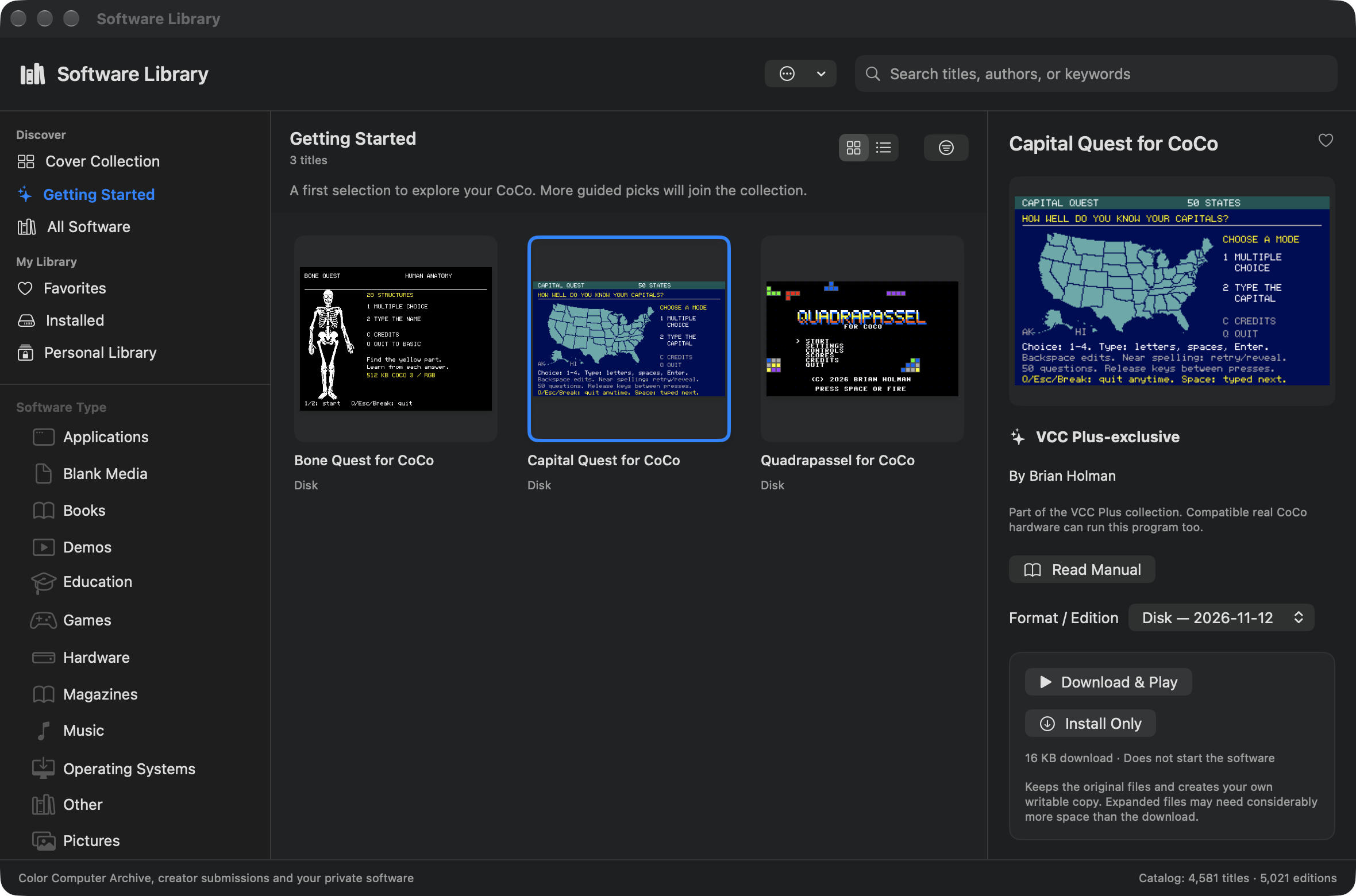
Cover Collection is the illustrated selection. Getting Started offers a smaller place to begin. Installed lists editions you have installed on this Mac. To browse by subject, choose a Software Type such as Games, Education or Music. A title can belong to more than one category without appearing twice in a category's list. Personal matches appear first alphabetically with a Personal badge, followed by curated catalog titles alphabetically and then the other matching catalog titles alphabetically. If you choose modification date or download size as the sort, that choice applies to the remaining titles while the curated group stays alphabetical. To browse the way the Color Computer Archive organizes its collection, expand Archive Folders.
If a familiar title disappears, check the search box as well as the sidebar. For example, switching from Games to Education keeps the words you typed. Clear the search to see everything in Education. Typing a new search from a browse category opens the global results and clears that old scope and its filters. Filters you deliberately choose within Search Results remain as you refine the words. Clearing a global search returns to All Software. Browse All Titles on the empty-results screen clears the search and filters.
Choose a version that fits
Use Filter and sort to narrow the titles. Software Type answers “What is it for?” Format answers “What does it come on?” A game might come on a cartridge, cassette or disk. System helps find titles for a particular model. Environment distinguishes software intended for systems such as Disk BASIC or OS-9. Use Setup when you care how much of the startup the Library can do for you. Sort by title, modification date or download size.
Under Advanced Filters, Processor can narrow a search to software requiring a Hitachi 6309. Hardware and Use let you distinguish a requirement from support for an accessory; for instance, a game can offer joystick controls as an option. Display includes semigraphics modes. Some catalog entries have little descriptive information, so adding filters can hide a title that would work. When a release carries the 6847T1 badge, that is an Archive note about the video chip. Look in the edition’s compatibility information for any VCC Plus checks.
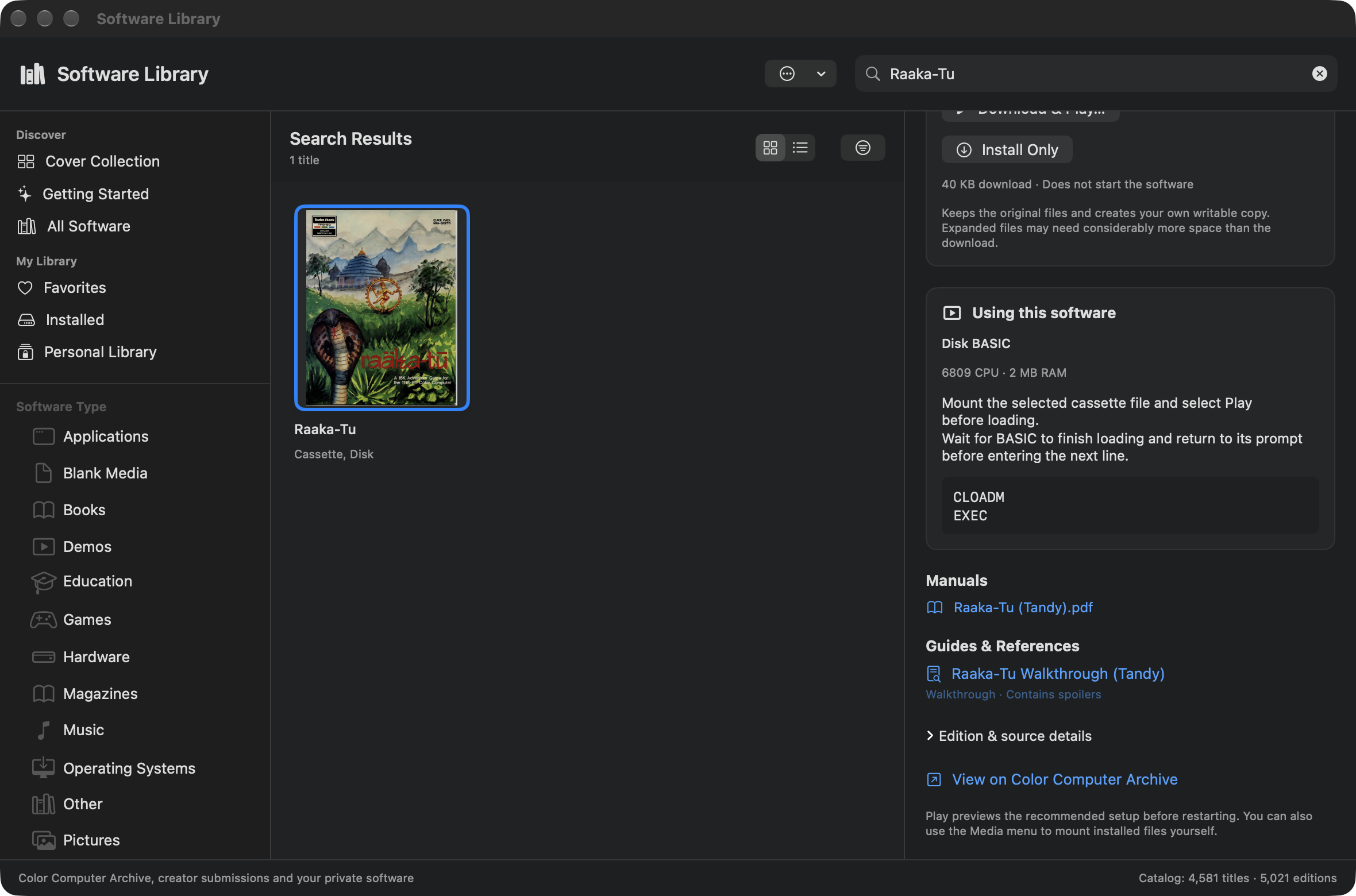
A title can have several editions. Choose the format and edition in its detail panel before reading the setup or pressing Play. Under Using this software, look for the recommended machine, loading instructions and any known controls. Read Compatibility separately for requirements or limitations. View on Color Computer Archive takes you to the collection that preserved the software.
Project-owned titles instead provide Visit Project, their own author and license, and a separate Online Manual. Those links describe their actual source rather than attributing them to the Archive.
Read a manual before installing
Read Manual opens a PDF. Turn pages with the arrows, enter a page number, open the thumbnails or choose Fit Page to bring a whole page back into view. Find Next can locate words in a searchable document. On a scan with no searchable text, use the thumbnails to spot the contents page. Read Instructions opens a text document, often the readme the author supplied with the download. For the SDC edition of Double Dragon Arcade Port, check the controls in the title panel as well as the readme before trying to get past its arcade title screen.
Reopening the same software manual resumes its own saved reading position, including supported PDF zoom or text scroll. A different edition's manual keeps its own position. This does not change the selected working disk or rerun the software.
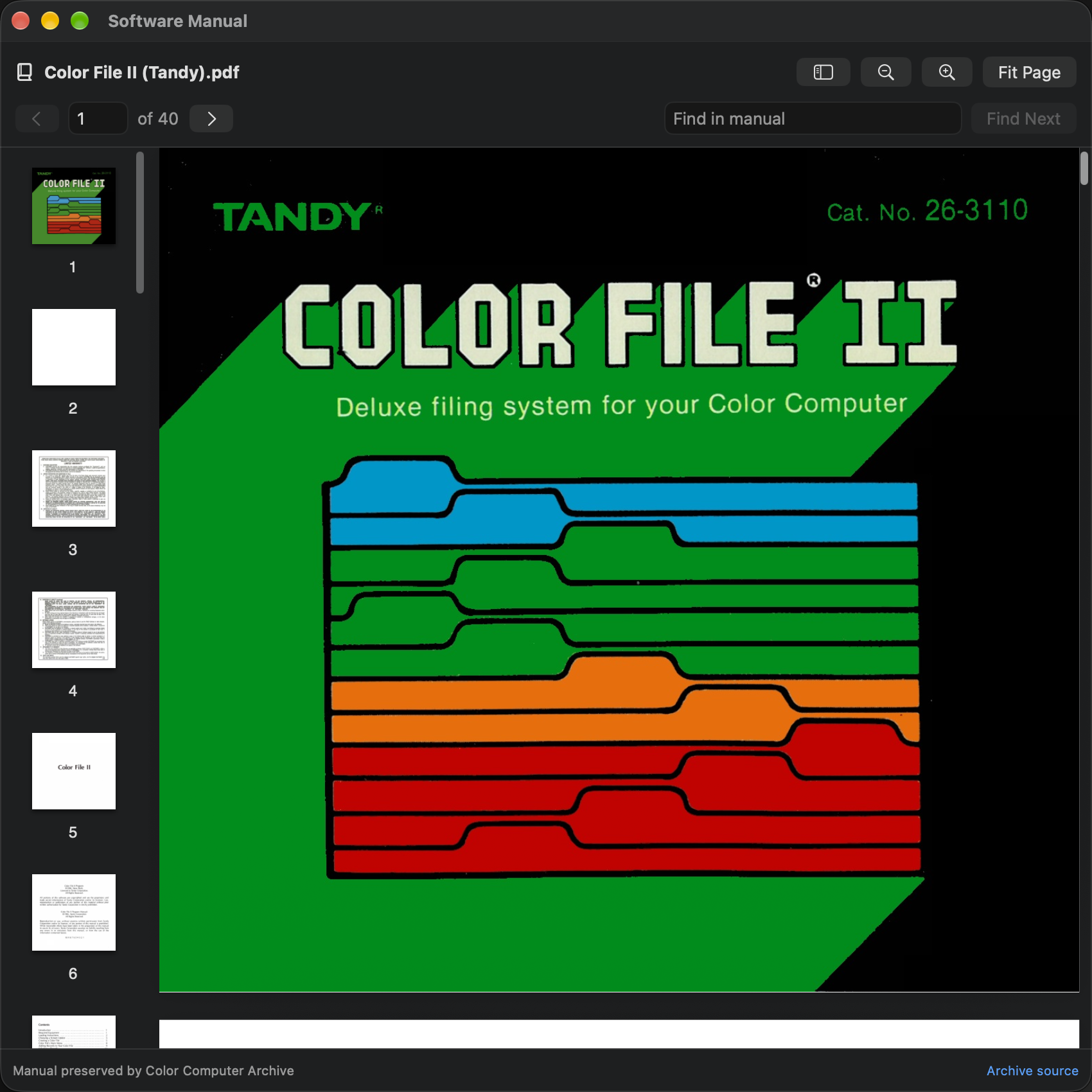
The catalog on your Mac lets you browse before downloading a program. Covers and software documents are fetched as needed and cached locally. Expect to need a connection the first time you open one. Help → Manual Library… has the bundled VCC Plus books for offline reading, including this handbook.
Looking for a magazine review, a tutorial or another edition of a manual? Open Help → Archive Library… and search the publication pages for the software title. Find a page in the Color Computer Archive.
Follow a guide or reference
Some titles have Guides & References below their manual and setup information. These are reviewed links to supplementary material in the Archive: a walkthrough, map, tutorial or useful reference. For example, Raaka-Tu's walkthrough is separate from its main manual. A walkthrough or solution can say Contains spoilers so you know what you are opening.
Select the document once. Archive Library opens the actual text, image or cited publication page in its existing reader; there is no second Read button. The Software Library keeps its title/edition selection and the CoCo keeps running. A page-specific reference opens that page even if you read farther last time. A document-only reference can resume that document's own remembered position. The original Color Computer Archive credit and citation remain available there.
The links apply to the selected software edition. An entry with no reviewed association has no empty Guides & References section. A missing or changed reference reports that it is unavailable rather than opening an unrelated title. You can still search Archive Library directly for more material.
Add software you own privately
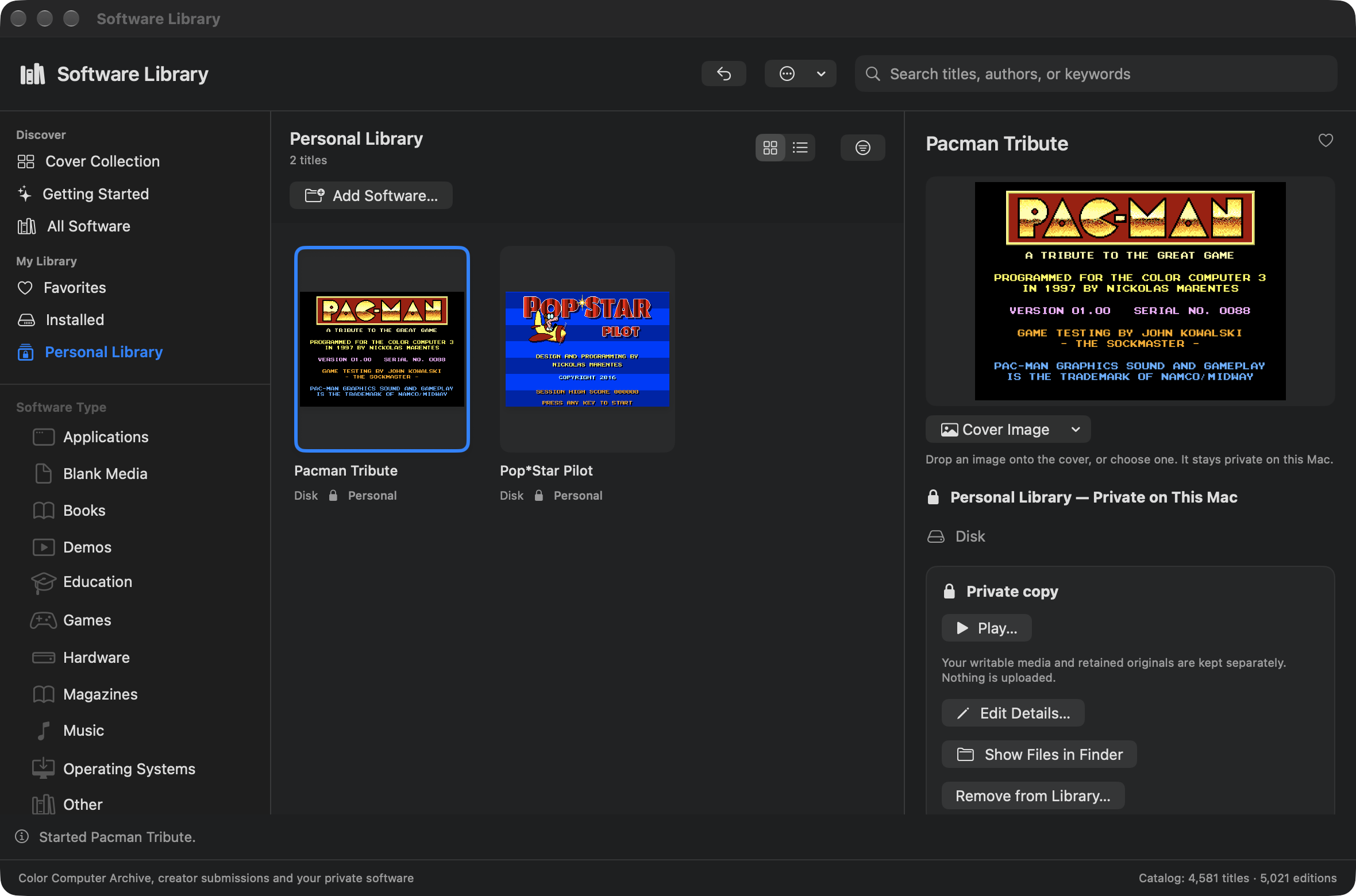
Select Personal Library under My Library and choose Add Software… below the heading. This button stays available as your collection grows; an empty library also offers it beside the invitation to add your first software. From any other category, use Library Actions, the ellipsis icon beside the search controls, and choose Add Personal Software…. Select individual files, one folder or a ZIP, then choose Review Files. This creates a private collection on this Mac. It is useful for a purchased program, a personal project or another title you do not want to submit for public distribution.
The CoCo still has an active community of developers who sell their software. Much historical software is generously shared, but availability does not mean every creator has given permission to redistribute their work. Support the developers whose programs you enjoy, buy from their authorized stores, and respect their wishes about copying and sharing. Personal Library gives you a convenient home for software you have purchased or otherwise obtained with permission, without adding it to the public catalog.
One example is Nickolas (Nick) Marentes, whose store offers both commercial games and freely available titles. The screenshots in this section show Brian Holman's personal copies of Nick's PAC-MAN tribute and PopStar Pilot, with their cover images credited to Nick. Brian bought software from Nick around his visit to CoCoFEST 2015. These examples illustrate organizing a private collection; the games are not included with VCC Plus.
In Files & Details, confirm the title and select the members you want to keep. Author/publisher, software version, category and notes are optional. Supporting manuals and images can stay with the software. Unrecognized files are not treated as runnable media, and nested archives are not expanded automatically.
Choose one standard Category from the dropdown; it starts at Other. The category supplies the fallback illustration and places the entry in the matching browse category. Existing unrecognized categories become Other.
In Cover Image, select an imported image, choose Choose Image… to browse for a local picture, or drop an image onto the preview. The preview preserves the picture's proportions. Save the entry to keep the change; Cancel leaves its previous image in place. Remove Cover restores the category illustration. After import, the detail panel's Cover Image menu and image drop area let you replace the cover directly. Pictures are copied into this Mac's private library; the source image, software files and saved games stay unchanged. Your chosen cover also appears in the matching DriveWire library through its local connection.
Launch Setup starts with Use reviewed launch settings off. You can leave the entry in Manual Setup, or review its machine setup, processor, RAM, video, media assignments and optional keyboard loading commands. Assign a multi-disk set to the intended FD0–FD3 or HD0–HD1 roles; a cassette or ROM cartridge has its own role. Commands are CoCo keyboard input, not Mac shell commands. Leave a sequence blank when you do not know it rather than guessing. A single imported floppy defaults to FD0. Multi-disk sets need explicit assignments; existing saved drive choices are preserved.
The command editor accepts multiple lines: press Return to start the next line. For a disk BASIC program, enter the loading and running commands separately:
LOAD "PROGRAM"
RUN
Replace PROGRAM with the program's disk filename. Ordinary LOAD discards the rest of its command line, so LOAD "PROGRAM":RUN is not an automatic startup sequence. Once machine settings and media assignments are reviewed and saved, the entry offers Play… even with no keyboard commands. Play opens the configured CoCo with its media ready; supported saved commands are entered automatically, or you can load the program yourself. Set Up… remains for entries without reviewed media assignments. An explanation appears in the editor when entered commands need manual entry. Each supported line uses ordinary emulated keyboard input and the normal readiness checks.
Choose Add to Personal Library. Import copies the selected files without changing the purchased source folder, starting software or reconfiguring the guest. An identical set offers Open Existing or Add Separate Copy. The originals, writable working media and supporting assets are retained separately.
Find these entries under Personal Library in My Library. They say Personal Library — Private on This Mac. All Software and the standard categories include both personal and catalog entries. Typing in the top search field opens Search Results across both collections, even when you started in Getting Started or Personal Library. Previous category and format filters are cleared when global search begins; filters you choose within results remain visible. Clearing the search returns to All Software.
Matching personal titles appear first, alphabetically, with a lock and Personal badge on cards, table rows and details. Mixed shelves group Personal Library above Catalog; the catalog retains its normal curated/category sorting. Same-named personal and catalog editions stay separate. Personal Library itself shows only private entries, and Favorites can include either collection. A deliberate Play or Set Up… still uses the normal replacement and unsaved-media safeguards. For a stored binary, use Show Files in Finder, then File → Load Binary… to choose it explicitly.
Edit Details… changes the description and reviewed setup without rebuilding working disks or losing saved games. Show Files in Finder opens the writable Working folder. Go up one folder in Finder to see the retained entry and its originals/assets; back up the complete entry when you want to preserve it. Remove from Library… hides its listing but retains its files and saves, so no disk space is reclaimed. Use Finder for a deliberate permanent deletion only after the media is no longer in use. App and public-catalog updates preserve the private collection. Import does not upload files or submit a title for public distribution. A matching current DriveWire for VCC Plus can browse your personal disk entries through the local companion connection. Insert Disk makes a separate writable DriveWire copy, preserving the originals and emulator's working disk. Add, edit and remove personal listings in VCC Plus.
Favorites and selected editions are shared between the two apps. After changing your entries, cover images or choices in VCC Plus, close and reopen DriveWire's Software Library to see the latest collection. Changes to a DriveWire disk stay in its separate copy; they do not overwrite your emulator's working disk. To use those changes in VCC Plus, save that disk copy and explicitly open or import it.
Offer software or request its removal
Creators can use Library Actions → Submit Software… to open the website's submission form. This is a separate choice from adding a private copy. Provide the title, author, version or historical details, software package or link, contact information and any supporting manuals or artwork. Identify included third-party material and review the permission statement before submitting.
Submission grants the permissions stated in that form to Dezota LLC, operating VCC Plus; it does not transfer your copyright or automatically make the program open source. The website returns a reference for the review queue. Submission, approval and inclusion in a published VCC Plus release are separate steps. Opening the form sends no software or message by itself.
The submission page links to Request Software Removal or Withdraw a Submission in the website feedback service. You can identify a direct submission or an Archive-sourced title and provide evidence that you hold the rights or are authorized to act. A verified rights holder can withdraw future VCC Plus distribution even if the software remains on Color Computer Archive. VCC Plus controls its own catalog and downloads, not the Archive's independently operated website. A removal request does not remotely erase users' existing copies.
For an ordinary bug report or suggestion, use Help → Feedback… instead. It opens the website with VCC Plus preselected, lets you review the information and submits only when you choose to send it.
Open a personal source project
Bone Quest, Capital Quest and Quadrapassel offer Open Source… under Learn from the source. Choose a new folder on your Mac. The Library downloads and verifies the published starter, prepares a writable personal copy, and opens its known project in C Development. A starter can specify a build configuration; Quadrapassel opens in Release.
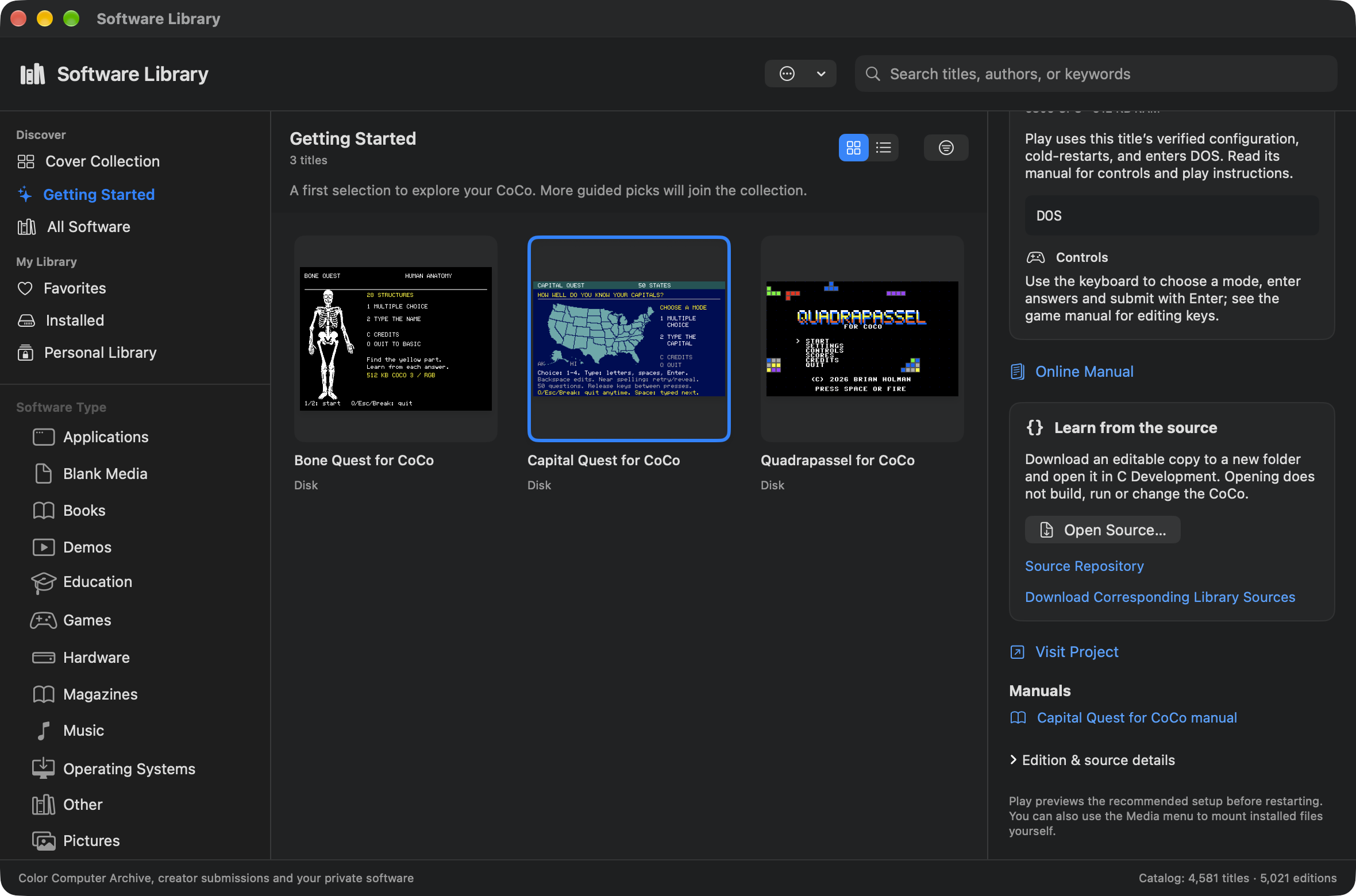
Opening source does not evaluate its Makefile, build or run the program, mount a disk or restart the CoCo. When you choose Build, the C workspace uses the project's build recipe. Read its source and project documentation before making changes.
If another C project has unsaved edits, choose Save All, Cancel or Discard Changes in its review sheet. Cancel leaves the old editor and its drafts open while retaining the newly downloaded folder. If you changed projects during the download, the Library keeps that new workspace and offers Show Source Folder so you can open the imported project when ready. Existing personal project folders are never overwritten or merged.
Source Repository opens the project's online history. Download Corresponding Library Sources is a separate download of the matching library source and notices; it is not automatically unpacked into the starter. Read Manual uses the verified PDF in the Library's normal download storage, while Online Manual opens the website reading edition.
Install, play or finish the loading yourself
- Install Only downloads and verifies the selected edition and prepares working files. You can keep using the current CoCo while deciding when to play. If a download fails, use Try Again.
- Download & Play…, or Play… for an installed Archive edition, previews the recommended setup. Read the processor, RAM, video and mounted media. A package with several starting files may ask you to Choose Starting Media first. Use the author’s loading notes to choose the file. The verified curated game flow described above handles its setup and DOS command directly.
- Download & Set Up…, or Set Up…, prepares an edition that needs manual loading. The preview tells you what it will mount. Once the guest is ready, follow the displayed instructions, using the game’s own manual to choose a program or answer a prompt.
Save any program you want to keep before confirming the restart. RAM will be cleared. You can still Cancel at the preview and use the installed files later. When you confirm an automatic start, watch the CoCo screen; Stop Automatic Loading stops further automatic input if you prefer to take over. Click the CoCo display when it is time to type or play.
Come back with your files
Return to Previous Setup… is available when the Library captured your previous configuration. It restores that hardware and those media assignments through a restart. A program that was sitting in RAM before your visit needs to be reloaded from its saved copy. See how a returning profile brings its disk home.
Under Installed, Show Files in Finder opens the working copy, including writable media that can hold a saved game. The original download is kept separately. Remove from Library… removes the installation record while preserving the files on this Mac. Installing again makes a fresh working copy; use Finder to locate any previous save you want to keep playing.