Chapter 5 of 10
Keep a setup you like
Suppose you lend a friend your CoCo desk. You leave a note saying “512 KB, disk controller in slot 4, practice disk in the first drive.” That note is much like a VCC Plus profile. Your friend can put the desk back together. To read your program, they also need the disk you wrote it on.
Pick the machine that knows your disk
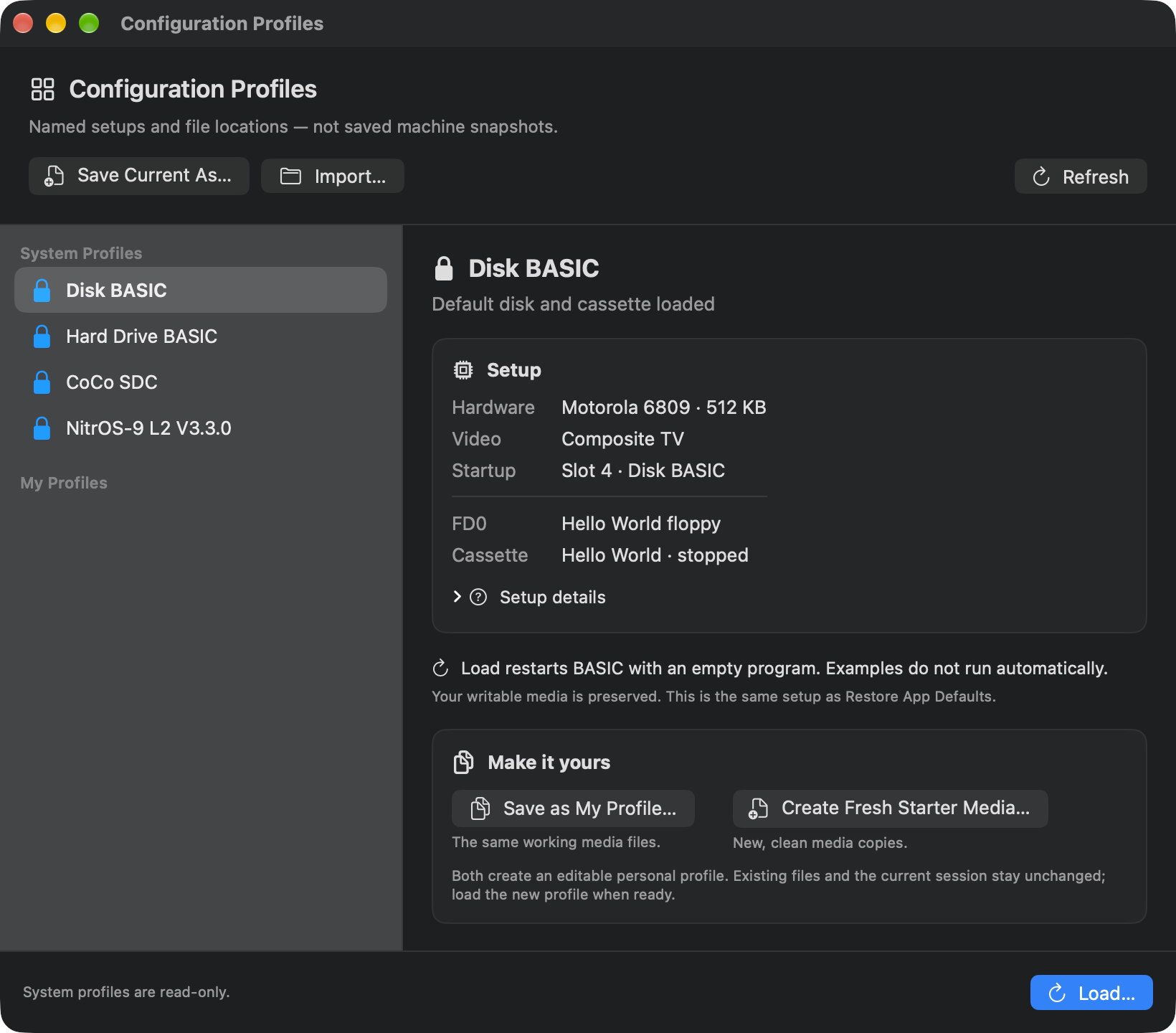
Open Machine → Configuration Profiles… or choose Profiles in the main window. Select a name first. You can read about the hardware, drives and startup instructions while the current machine keeps its place. Load… is the separate action that replaces the setup and clears RAM.
| System profile | Where it starts | Which file or device answers? |
|---|---|---|
| Disk BASIC | Disk Extended Color BASIC | The first floppy is FD0. The recorder holds a separate starter cassette. |
| Hard Drive BASIC | RGB-DOS at a BASIC prompt | Drive 0 starts on the virtual hard disk in HD0. FD0 is also connected. |
| CoCo SDC | SDC-DOS at a BASIC prompt | The Mac folder stands in for an SD card. Its startup configuration mounts HELLO.DSK in SDC drive 0. |
| NitrOS-9 L2 V3.3.0 | Boots its operating system from HD0 | The system disk supplies /dd. HD1 uses the same working image that Hard Drive BASIC puts in HD0; OS-9 sees its OS-9 partition. |
For the actual guest commands, try Which drive zero?. The info button on the emulator brings back instructions for the active setup. In particular, the hard-disk and SDC guides explain names that look surprisingly like ordinary floppy numbers.
Make a personal setup
Use Save Current As… to give the equipment on your desk a name. It appears under My Profiles. A personal profile remembers the processor and memory, performance settings, video output and sound, keyboard and joystick configuration, cartridge arrangement and the files assigned to devices.
If you want to start from one of the four locked system profiles instead, select it and choose how to make your personal copy:
- Save as My Profile… uses the same working media files as that system profile. A guest save on a shared disk can be seen the next time either profile mounts that disk.
- Create Fresh Starter Media… makes separate clean working copies. Use this for a new experiment if you want to leave your familiar disks in their present condition.
Creating either copy leaves you in your present session. Select the new name and choose Load… when you are ready to use it. Loading Disk BASIC restores the same standard setup as Restore App Defaults…, using your existing writable starter media. Choose fresh starter media when you want a clean starting disk.
Where is my work?
| Where you put something | What brings it back |
|---|---|
| A source document saved in a Mac editor | Open that Mac document. A hardware restart can clear the guest copy while your saved source file stays on the Mac. |
| A numbered BASIC line entered at the green screen | It lives in the CoCo's RAM. Save it to a disk or tape, or read it into BASIC Development and save the Mac source, before a cold restart or profile load. |
| A program saved on an automatically saved, writable floppy | Mount the same Mac disk image and load the named file inside BASIC. Other profiles using that image can see later writes. |
| A temporary disk edit or a new cassette recording | Use Save As… for the disk or Export Tape… for the recording before leaving the setup. Look at the device's status for an unsaved change. |
| A drive assignment saved in a profile | Loading the profile reconnects the assigned file. Its contents come from that file as it exists now. |
Try a prediction. Begin in Disk BASIC, with 512 KB on the nameplate, at an empty BASIC prompt. Use a disposable, initialized FD0 with Saves automatically and room for a new file called PORTNOTE. If the name already exists, use a fresh practice disk.
- Click the green screen and enter the first line below. Press Return. Enter the SAVE command and wait for OK before entering the remaining two lines.
10 PRINT "SAFE ON DISK"
SAVE "PORTNOTE"
20 PRINT "RAM ONLY"
LIST- Both numbered lines appear. Choose Machine → Configuration Profiles… → Save Current As…, enter Home Port Setup, then choose Save. Close Profiles. How many lines would you expect to get back if you loaded the profile now?
- Follow Change memory and return to change RAM, load Home Port Setup and open the program you saved. You can also stop here. Until you restart, the working program still has both lines.
For the same distinction in OS-9, recover a log from a saved working image.
Manage the saved entry
Last loaded is a name to orient yourself. If you change equipment afterwards, select the personal profile and use Actions → Update from Current… to replace its stored configuration and file assignments. Rename… changes the name; Delete… removes that entry while keeping your ROMs, media files and current session.
For another Mac, choose Actions → Export… and take the resulting .vccprofile file with you. Bring the media files and ROMs you use as well. The exported profile contains local paths and controller identifiers. On the other Mac, choose Import…, name the new personal entry, then inspect its file references. Use Replace beside a moved file or card folder, or reconnect the original volume and use Refresh. Load the corrected profile to apply it. If a controller is unavailable, check its assignment in Input → Keyboard and Joysticks….