
Chapter 4 of 6
Find your way back
Your last screen showed beacon in sight. That proves the file could be read in that session. Now give the CoCo a fresh start and find the message from its saved disk.
Bring back the same working image
Finish the previous chapter’s save check first. The OS-9 command must have returned, and HD1 must have finished saving to its assigned Mac image.
Quit VCC Plus, reopen it, and load the same personal practice profile you made for this book. Do not create another fresh set of starter media for this step. A fresh set would contain a fresh, empty data filesystem. Loading your saved profile brings back its existing media assignments while starting a new guest session. If VCC Plus is paused, click Run and let NitrOS-9 boot.
Open Media → Virtual Hard Disks… and confirm that HD1 has the same working image. Close the drive window and click the CoCo display. Wait for the shell prompt ending in /DD:. Your current directory has returned to the system disk; it is no longer /H1/mission.
A profile is useful here because it remembers the setup. The message itself lives in the disk image. Saving a profile and saving a changed disk solve different problems.
To recover an entire practice disk and prove which version you have, see Restore the right copy.
Take one deliberate wrong turn
At the fresh shell prompt, enter:
list /h1/captains.logThe supplied system reports ERROR #216. That can be an unsettling greeting after a restart, but examine the path. You asked for captains.log directly in the top directory of /h1. You created it inside mission.
This error is evidence about the path you requested. It is not proof that the file disappeared. The next step is to inspect the directory where you put it.
Follow the complete path
Enter:
dir /h1/mission
list /h1/mission/captains.log
The first command lists captains.log. The second reads:
beacon in sight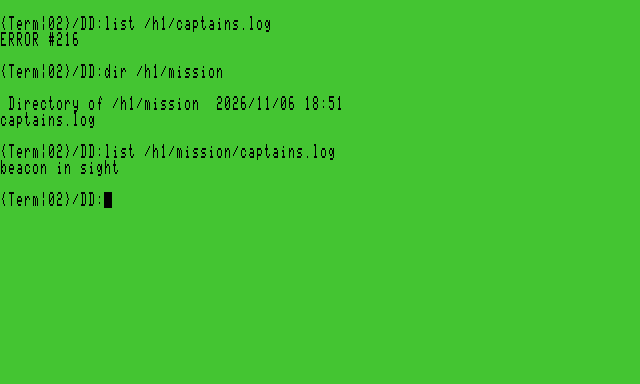
The prompt still ends in /DD:. You did not need to move into mission to read a file there: the full path gave list everything it needed. Compare that with the short name you used while working inside the directory.
| Your current directory | Name supplied to list | Result for this exercise |
|---|---|---|
| /H1/mission | captains.log | Finds the log relative to your current directory |
| /DD | /h1/captains.log | Looks in the wrong directory; error 216 |
| /DD | /h1/mission/captains.log | Follows the complete path and reads the log |
You have now recovered a file from saved storage. The old guest’s RAM is gone, but the working disk supplies the message again.
When your result differs
Start with the smallest question that explains the difference.
| What you see | What to check |
|---|---|
| /h1/mission cannot be found | Is HD1 the same working image used in chapter 3? Did you choose a different directory name? |
| The directory exists, but the log is missing | Use dir /h1/mission to inspect its actual filenames. Check whether you chose a different log name. |
| HD1 reports unsaved changes or a save error | Keep that session and its data. Follow the save message before replacing or ejecting the image. |
| You created a new set of starter media | Load the earlier personal practice profile, or reattach its saved working image. |
| You see BASIC’s OK, not an OS-9 shell | Load the practice profile, choose Run, and wait for NitrOS-9 to boot. |
Avoid formatting a disk to solve a missing-file problem. Formatting prepares a filesystem; it does not search for your old message. The useful clues are the assigned Mac image, the directory path and the filename.
Keep your log. In the next part of the journey, you will visit BASIC and then come back to the same disk.