
Chapter 5 of 5
Fly to either planet
Someone playing Earth or Mars needs just one finger. Someone reading the assembly can answer a harder question: where in the program has the CoCo already chosen the greeting, even though the player can’t see it yet?
Take both flights
Start at a Disk BASIC prompt. In Develop → Assembly Development…, use the workspace’s File → Hello World — Earth or Mars, or save planet.asm and use File → Open Source…. Select the MC6809 target. Choose Run and confirm the load if asked. Click the emulator display. When the menu asks which planet you live on, press 1 without Return. Run again and press 2. Try 3 before the valid key on one flight. The menu keeps waiting.
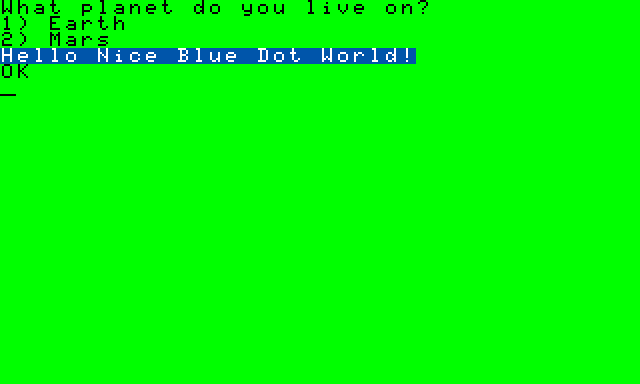
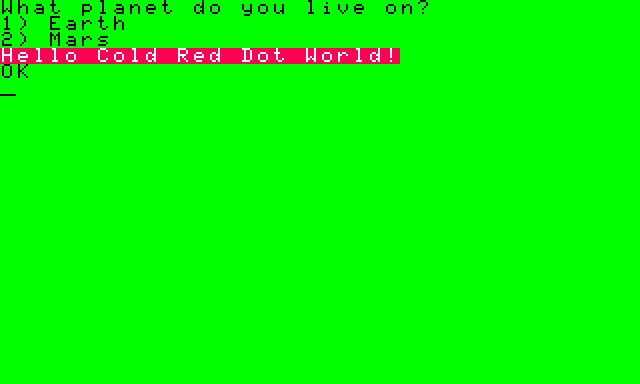
The starter opens a 40-column screen. The first two instructions put decimal 40 in B and call the CoCo 3 ROM routine labeled WIDTH. You can spot decimal 40 as hexadecimal $28 after that first step. The lowercase letters in “Hello” and the separately colored greeting use the CoCo 3 text display. Beneath each greeting the ordinary BASIC prompt is available again.
Catch the instant both routes meet
In the source, find greet at the instruction STB BG6. Put the caret there and choose Set Stop. Use Run again, return focus to the CoCo and press a planet key. The editor stops before the store. Both paths have already done two jobs. They chose a color byte in B and the address of a message in X.
mars        ldb     #$25        ; Warm red background, visible on RGB and CMP.
            ldx     #redmsg
            bra     greet
earth       ldb     #$0a        ; Cool blue background.
            ldx     #bluemsg

greet       stb     BG6         ; Choose the tint for the greeting only.
            lda     #%00011110  ; White foreground (3), background slot 6.
            sta     ATTR
            bsr     puts        ; X points to the selected greeting.
Open Debugger → Inspector to read B and X. Check Build details → Symbols in the assembly editor for the address beside bluemsg or redmsg. Only after taking your own readings, compare them with these:
| Key | B at greet | X at greet in the supplied starter | Prediction |
|---|---|---|---|
| 1 | $0A | $3F73, bluemsg | “Hello Nice Blue Dot World!” on blue |
| 2 | $25 | $3F8E, redmsg | “Hello Cold Red Dot World!” on red |
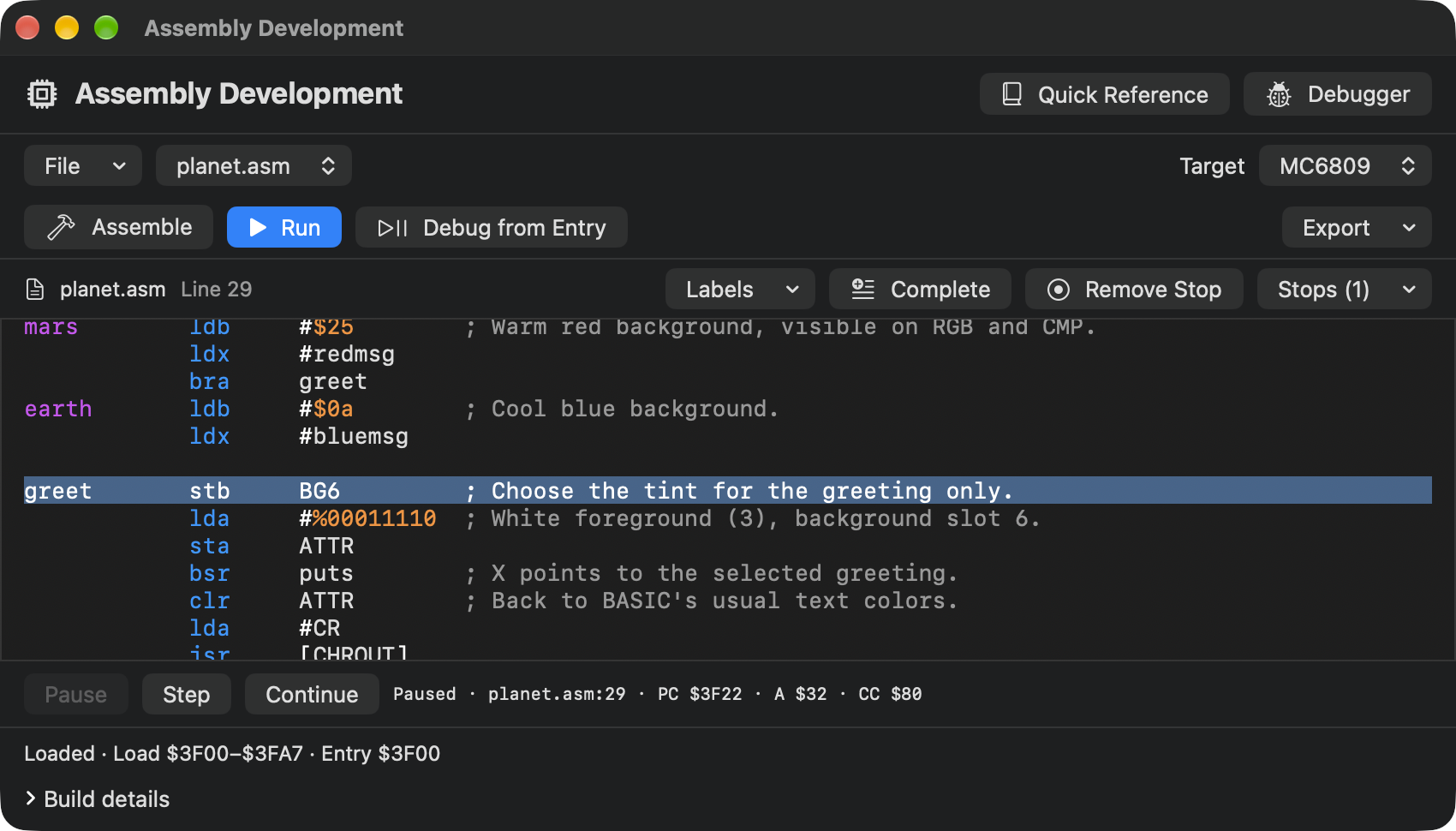
Why does Earth need no branch after it sets X? Read the instruction immediately below the Earth block. It is already greet. Mars must branch over the Earth block to reach the same spot with its own choices intact. The short keyboard exercise used this same arrangement with one letter.
Step once. STB took the color in B and wrote it to $FFB6, the CoCo 3 GIME’s palette slot 6. In this text mode, a character’s attribute selects a palette slot for the background. The following instructions set the text attribute to use slot 6 for the greeting. One action chooses the paint in the pot and the other chooses which pot to use. The greeting itself still has to be printed. Choose Continue to let that happen. Remove the stop when you have tried both predictions.
How X gets a sentence onto the screen
An address fits in X, which is sixteen bits wide. Each letter fits in one byte. At bluemsg or redmsg, FCC lays the letters next to each other in memory and FCB places a zero byte after the last one. The two messages can be different lengths because the zero marks where to stop.
; Print the zero-terminated string at X. X+ advances to the next byte.
puts        lda     ,x+
            beq     done
            pshs    x           ; Keep our place across the ROM call.
            jsr     [CHROUT]
            puls    x
            bra     puts
done        rts                 ; Return to the caller of puts.
Read LDA ,X+ aloud: “Get the byte at the address in X, then advance X to the next byte.” Loading zero sets the zero flag, so BEQ done takes the return route when it reaches the terminator. For an ordinary letter the program saves X on the stack, calls CHROUT with the letter in A, and restores X to find the next one. This is the same output routine used to print a single letter. Here the caller also keeps its place in the sentence. The menu and both greetings can share this one little printing loop.
Land in BASIC
Once the helper has printed the greeting, the caller clears the text attribute for subsequent output, prints a carriage return and executes RTS. The 40-column width persists. Click the CoCo screen, type PRINT 2+3 and press Return. Seeing 5 tells you that BASIC is accepting a fresh command in the same running machine.
Think back to the decision you made at the keyboard. In BASIC you can follow the answer to a numbered line. In C you can follow the key into a condition. In assembly you can stop with the key still in A, or a few instructions later with a color in B and a message address in X. Pick the view that answers the question you have.
The field guide collects the five editable programs, a short guide to the registers and return paths, and the books behind the lessons.