
Chapter 1 of 9
Make the first connection
On your Mac, two windows will share the work. The VCC Plus editor holds your program. The ChatGPT window is where you describe what you'd like to make. A small helper passes requests between them using the Model Context Protocol, usually called MCP. Let's give the helper one page to read and see whether it can find a message you left there.
Put a message in a practice draft
- Copy VCC Plus from its disk image into Applications. Eject the image and open the installed app. Open the signed-in ChatGPT desktop app on the same Mac.
- In VCC Plus, choose Develop → Connect to ChatGPT…. It opens the main BASIC draft and its connection panel. Look at which draft the panel names. If it contains work you care about, leave it alone. Open a separate practice draft in BASIC Development using New. A new editor can begin with the Earth or Mars starter.
- In the practice editor, add a numbered remark near the top. For example, type
5 REM BLUE LANTERNon a line by itself. Make up your own two words so the answer is something only this editor can supply. Keep the remark as the lowest numbered line. Save this practice listing asLantern.basin your own folder. - Open Local Assistant Access… from that editor's … menu. Verify the document named in the panel is the one you just prepared. Each BASIC connection shares a particular draft.
A BASIC remark is a note to a reader. You can leave one in the listing without changing how the game plays. You won't need to start the emulated CoCo for this first check.
Give ChatGPT a page to read
Choose Save Read-Only Connection…. Save the connection file in a private folder you'll recognize. It grants access to the selected document. Keep it out of the conversation and out of any folder you plan to share with your project.
Choose Add to ChatGPT in VCC Plus. Open a new chat in the ChatGPT Mac app and choose Work to use the local computer. Type /mcp if you'd like to see the configured servers. Seeing VCC Plus there is a good first sign. Now try a request that needs the actual editor.
Use the VCC Plus BASIC connection. Read the current shared draft. Tell me its title and quote the lowest numbered line exactly.
Compare the reply with the line you typed. Did it find both of your words? If you chose BLUE LANTERN, for example, the answer should include 5 REM BLUE LANTERN. You can also use Copy First Prompt in VCC Plus for its built-in connection check. Leave the shared editor and VCC Plus open while you work.
For a new project, Copy Project Setup Prompt provides a longer, editable starter with connection-setup permission, reference priorities and working rules. Choose Edit… to review it first. Copying changes only the clipboard; review the text before sending it to your assistant. See the project-starting chapter for the starter documents and the separate project, manual and Archive checks.
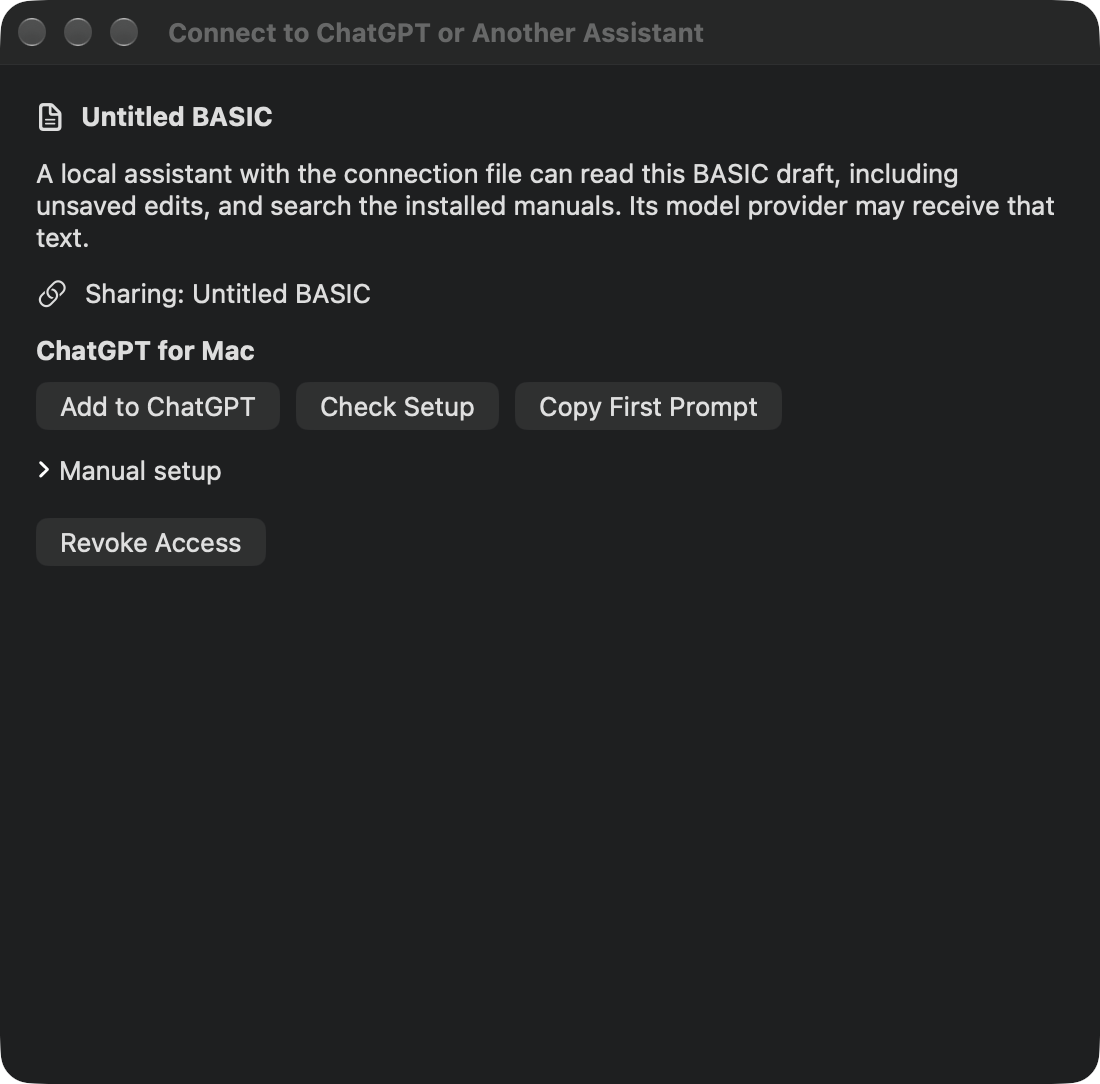
The connection to VCC Plus runs on your Mac. When ChatGPT reads a listing, diagnostic or screen through it, that text can go to the model provider and appear in the chat. A small practice project is a good first choice.
If the message doesn't arrive
- ChatGPT guessed or gave you instructions for opening the file. Make sure you're in Work in a new chat on the Mac. Ask it to use the VCC Plus tool to read the open draft and report the tool's response if it fails. Leave your secret words out of the prompt.
- It quoted a different program. Compare the named draft with the one in the connection panel. Open the right editor's Local Assistant Access…, save its connection, and add it. Name the intended workspace when more than one is available.
- VCC Plus is missing from the list. Use Check Setup in VCC Plus. If necessary, expand Manual setup. In a ChatGPT version offering Settings → MCP servers, choose Add server → STDIO. Copy the displayed name, command and two arguments into their respective fields. Each argument gets its own entry. Save, restart that server and repeat the reading test. This walkthrough uses a ChatGPT account and workspace that offer local servers on the Mac. OpenAI’s desktop MCP instructions
Let the assistant propose an edit
Return to the practice draft's connection panel. Select Allow proposed edits and controls for runs I start and choose Save Review and Run Connection…. Use the updated connection in ChatGPT. If you replace the file used by an existing server, restart that server to make it read the new grant. Repeat the lowest-line check. For interactive lessons, save a fresh connection from the installed app and check its advertised controls.
You still have two decisions to make in VCC Plus. First you can accept or cancel the source change. Then you can start a shared run. Once a supported run starts, ChatGPT can read its text screen and send supported keys to that run. The C workspace also has a separate, explicit permission for disposable playtests; that grant permits repeated artifact-bound test launches without another launch prompt.
Use a separate connection file for each workspace you want to keep available. The equivalent panel is Assistant… in C Development and Local Assistant Access… in Assembly Development. All three workspaces use the same helper. A BASIC connection points to one draft. A C or assembly connection points to one project.
When you finish, choose Revoke Access in the workspace's panel to disable that grant and remove its file. Previously shared results can still appear in the chat. To work together again, save a new connection, reconnect and repeat the reading check.
An existing local Codex chat
The installed helper also works with a local Codex chat. Add its STDIO command and the two separate grant arguments in Settings → MCP servers, restart the server, then use /mcp in the existing project chat to check live discovery. Keep VCC Plus and the shared C project open. Use the private connection exported for that project, and keep it outside Git. Official OpenAI MCP setup
For a custom Make project, select Use Project Makefile in the C project's Assistant panel before exporting. The C workflow explains the build-support folders and configuration choices.
Check discovery separately from access
A saved server, tools visible in this chat, and a successful call are three different checks. Ask the assistant to discover its tools, call get_capabilities, and read the actual shared title and revision. For an updated C connection, also ask which capabilities it advertises: project refresh, diagnostics, disposable playtests, audio and processor selection. Installing a new app does not silently expand an older private grant.
If the server is registered but its tools are missing, use the client's supported Restart action and check its catalog again. A delayed catalog is not a reason to grant more files or keep exporting new connections. If the reply instead says host_unavailable, leave VCC Plus and the intended project open and check that the saved grant is still valid. That failure is different from a missing catalog.
For a technical connection check, the same installed helper and approved private grant support ordinary STDIO MCP: initialize, notifications/initialized, tools/list, then an advertised tools/call. Ask the assistant to report that result separately from tools visible in the chat. It must keep grant contents private and use the public helper; reading app caches or calling a private emulator bridge is not part of this workflow.