A modern app-store experience for the CoCo
Return to a favorite game or program from your past. Discover a recent creation made with modern tools, or an old classic you missed. The Software Library brings thousands of titles into one native place to browse, search, read about and prepare to play.
This is possible because of the outstanding preservation work of Color Computer Archive, the upstream curator and source. Original authors, publishers, source links and notices remain with the software.
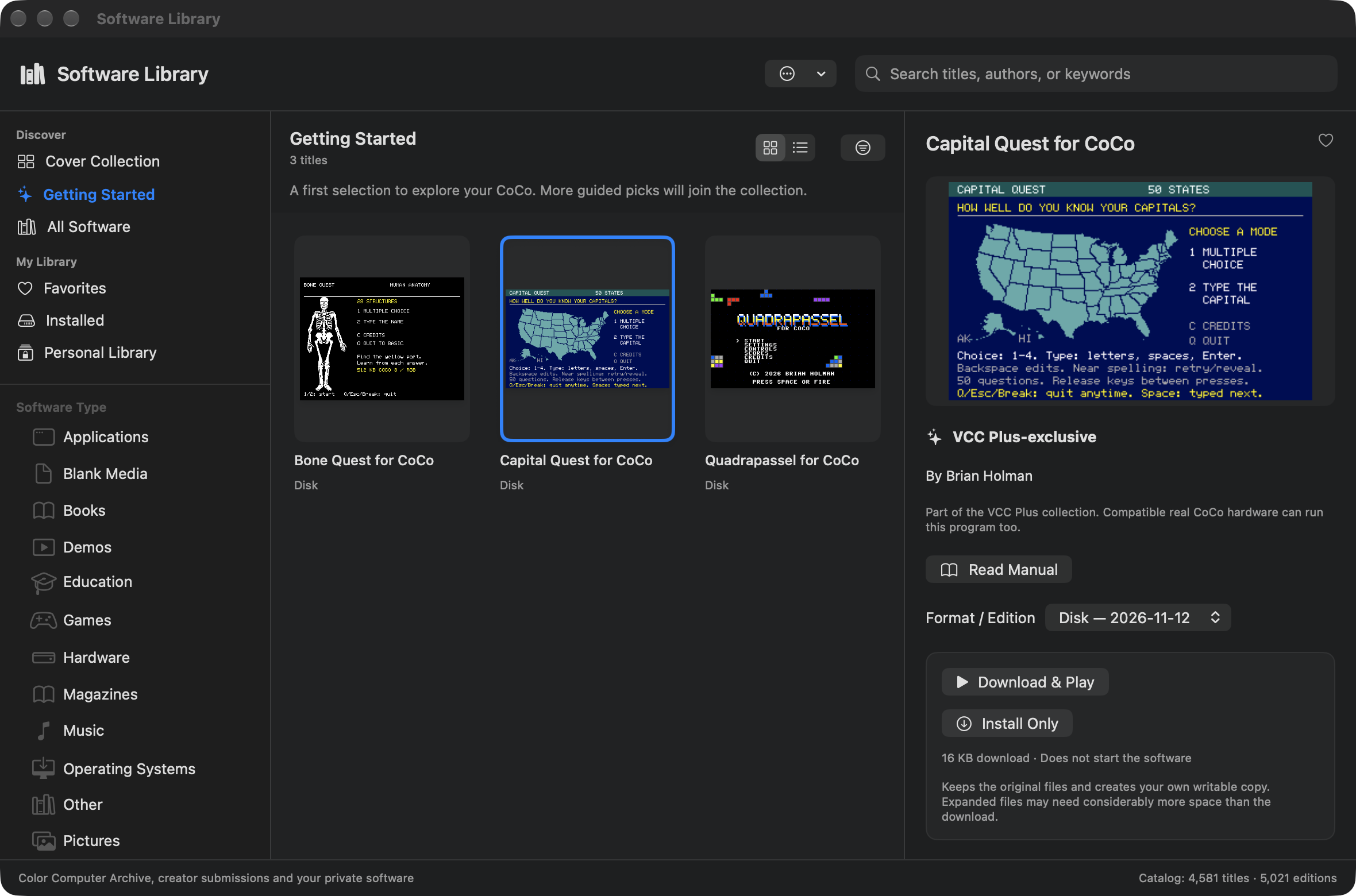
Getting Started in the official 3.7.0 app. Personal Library remains visible in the sidebar even when empty; your private titles also appear in search and their standard categories, marked as personal.
Explore the Software Library for the discovery tour, or jump to finding a title and installing or playing it below.
Three libraries, three useful jobs
VCC Plus brings together material with different origins and purposes. Keeping those differences clear helps you choose the right reference and understand what is already on your Mac.
| Library | What you find | When it is available |
|---|---|---|
| Manual Library | The twelve teaching books written for VCC Plus, with lessons and examples tied to its tools | Installed with the app for offline reading and search |
| Archive Library | Historical manuals, magazines, diagrams and supporting publications preserved by the Color Computer Archive | An installed index and verified cached originals work offline; first downloads need a connection |
| Software Library | Software editions, descriptions, requirements, controls and original manuals or readmes | Browse the local catalog; download selected software and supporting documents when needed |
The wooden bookshelf in System view opens Software Library. Help → Manual Library… opens the teaching shelf. Help → Archive Library… opens the historical collection. Reading leaves the running CoCo and your development documents in place.
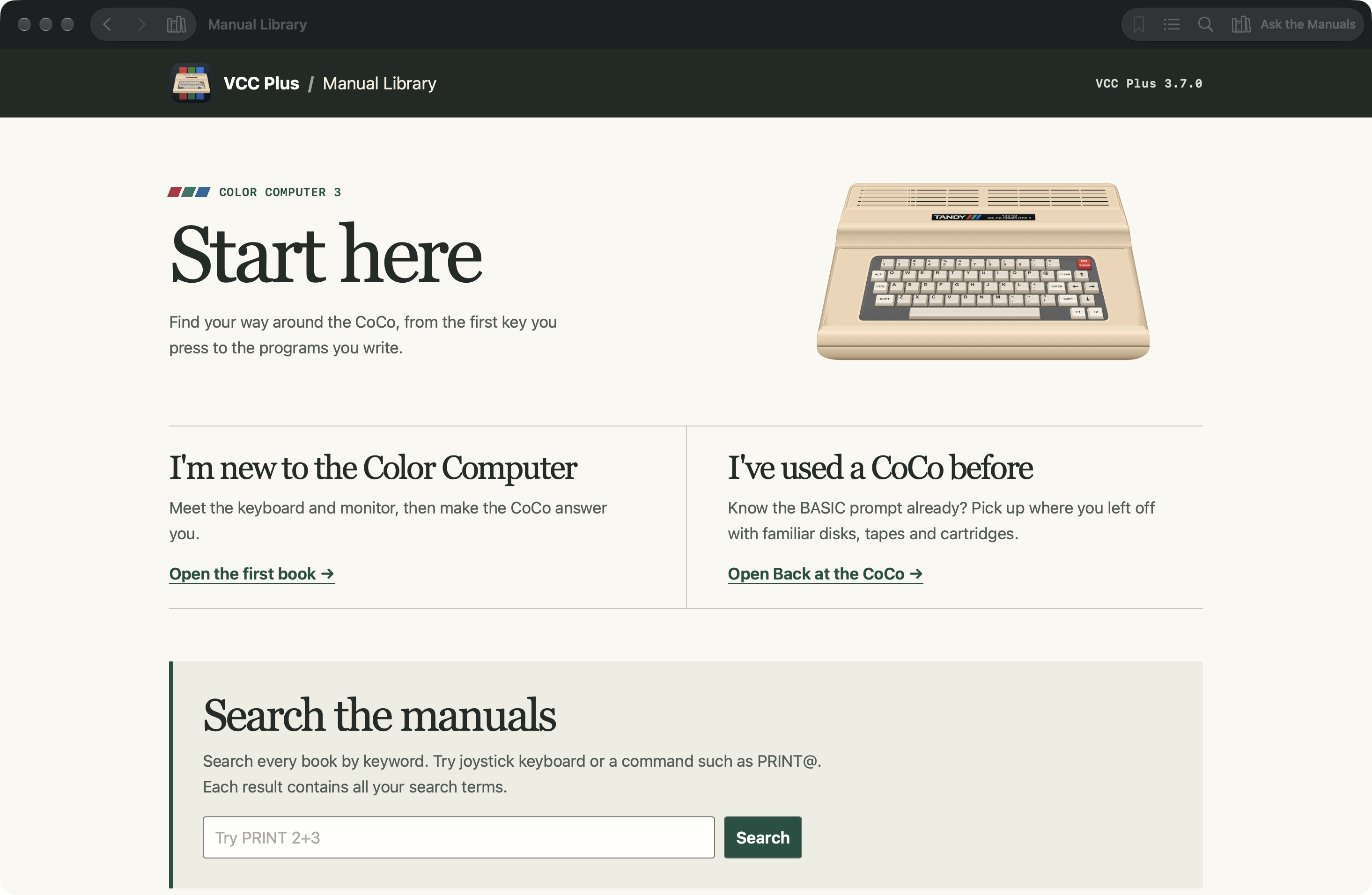
The 3.7.0 Manual Library home. The toolbar keeps bookmarks and search beside the twelve offline books; the reader remembers where you left off.
Choose a book by the question you have
The twelve-book shelf starts with meeting a computer and returning to familiar hardware, then follows BASIC, storage, processors, C, assembly, operating systems, tool references and AI collaboration. You do not need to read the entire shelf before experimenting.
A first-time learner can begin with Meet Your Color Computer. Someone returning after years away can use Back at the CoCo to match physical habits to the Mac controls. The User’s Handbook provides the practical app controls and recovery paths. Programming books develop projects and explain how to test them.
Read and search all twelve books on the website, with downloadable examples and the original CMOC and LWTools references. In the app, the books are available offline, and integrated example actions can open reviewed source in its own workspace.
Keep the reader and emulator side by side. A chapter’s contents and topic links let you move within a lesson. Select a figure for a larger view, then return to your reading position. Use Input → Focus CoCo Display when you want your next keystroke to go to the guest rather than the reader or an editor.
Find an answer across the installed books
Ask the Manuals searches the twelve VCC Plus books. Enter one or more keywords; the search preserves punctuation in command names. A query such as PRINT@ is useful when punctuation is part of the thing you are trying to learn rather than incidental typing.
Results identify the book, chapter and matching excerpt. Open a section, then use Back to return to the results. This makes a reference lookup part of the working session: search for a joystick setting, read the relevant passage and return to testing the same program.
Find on This Page is a different tool. Command-F searches the page you are reading, Command-G moves to another match, and Shift-Command-G goes back. The counter shows where you are among the matches. Escape returns you to the page.
Quick References under Develop or Help answer smaller syntax questions for BASIC commands and assembly mnemonics. Check the supported environment or processor and open an example in its own document. A quick example should help your current project, not overwrite it.
Search historical publications by page
In Archive Library, leave Search Archive empty to browse collections and publication folders. A narrow window offers Collections to reach the sidebar. Result paging lets you move through larger collections without opening every publication at once.
For a topic search, choose Entire Archive or limit the scope to the collection you mean. Results group matching pages or sections beneath publication titles. Select the particular hit; a search does not automatically open the first title and claim it is the answer.
A first open can show download progress and verification. Cancel stops the transfer; Try Again resumes a canceled or failed load through the supported workflow. Verified cached originals can be used offline, but an uncached publication still needs a connection and enough local storage.
Archive source opens the upstream document or containing archive. It is the place to check an edition, original layout or unavailable in-app rendition. Keep the publication title, cited physical page and any named ZIP member with material you adapt.
Read the format you actually found
A PDF scan has page navigation, page entry, zoom and Fit. A search hit opens its cited physical PDF page. Find in PDF searches the document’s own text layer; a scan may be searchable in the archive index without having selectable text in the PDF itself.
Images and maps have zoom, scrolling and Fit Image. Plain text can be selected and copied. Indexed text from other publication formats may have section navigation. A worksheet’s extracted rows are useful historical text, not a newly editable spreadsheet.
OCR is a way to locate words in a scanned page. It does not establish that a program listing has been corrected. Before running copied code, compare zeros and letter O, ones and letter I, quotation marks, punctuation, numbered lines and line wrapping against the original. Preserve the source citation while repairing a working copy.
A reviewed listing can become an experiment
Selected PDF pages have reviewed source renditions connected to the exact edition and page range. Copy Snippet copies a fragment with its stored line breaks. Copy Example copies a reviewed example. Source information identifies the author, language and provenance; a fragment can still depend on code elsewhere in the article.
For complete reviewed BASIC programs, Open in BASIC Editor opens a separate BASIC Example workspace. It does not run the program or replace your main draft. Inspect the environment, save an editable copy and deliberately choose Load or Run when ready.
Those actions are selective. The absence of an example button on another page is normal. Archive Library does not offer a blanket conversion of every scan into a tested program, nor direct Open in C Editor or Open in Assembly Editor buttons. For C or assembly, preserve the reference and bring reviewed source into the appropriate project yourself.
Find a remembered title—or something new
Software Library can search titles, authors and keywords within the chosen collection. All Software is a good place for a broad search. Cover Collection, Getting Started, Installed and Favorites support different ways of returning to something useful. Shelf emphasizes covers; Table makes names and formats easier to scan.
Filters distinguish software type, format, system, environment and setup. Advanced choices can narrow processor, accessory requirements and display characteristics. Sparse catalog information can mean that a tight filter hides a title that might otherwise be relevant. Clear filters when a familiar name disappears.
Select an edition before choosing a launch. Using this software, Compatibility and the original manual or readme answer different questions: how to start it, what it requires and how its controls work. Color Computer Archive remains the upstream curator and source. A catalog record is not a guarantee that every edition works in every setup.
Install when you choose, launch when you are ready
Install Only downloads and verifies the selected edition and prepares working files without immediately taking over the current CoCo. Download & Play… or Play… previews the recommended hardware and media before restart. Some titles instead offer Set Up because their loading sequence needs manual steps.
Read the preview and save any guest work before confirming. A title with several starting files may ask you to select the intended media. Automatic input can be stopped if you prefer to take over at the keyboard. The original download is retained separately from writable working files that can hold your save games.
Return to Previous Setup…, when available, restores captured equipment and media assignments through a restart. It cannot recreate unsaved guest RAM. Keep a source or guest-file copy of a program you want to return to. The media and profiles guide explains that persistence model in detail.
Together, the libraries make discovery productive: find a topic, read its context, open an appropriate example, run a deliberate experiment and keep what you learn with your own project.