VCC Plus / Hardware guide
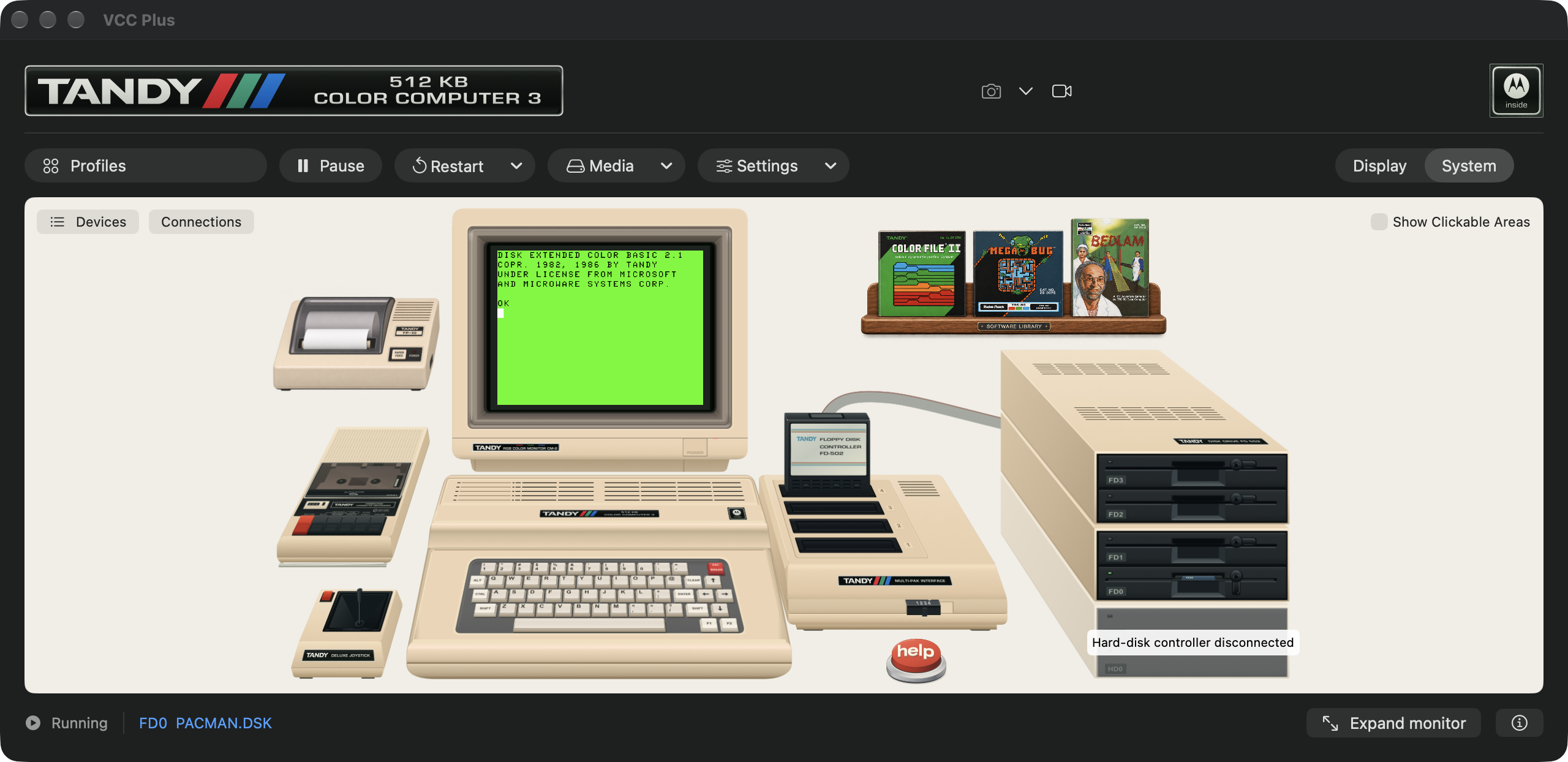
The whole desk.
Every piece has a purpose.
That is a computer, a display, storage, input devices, and a route between them. Explore what each piece did on a real CoCo—and what happens when you choose its virtual counterpart in VCC Plus.
Take a tour of System view.
Select a numbered marker or its name below. These links explain the picture; they do not operate an emulator in your browser.
| On the physical desk | Its job | In VCC Plus |
|---|---|---|
| CoCo 3 & keyboard | Run programs and accept typed input. | The emulated machine; your Mac keyboard supplies guest keys. |
| CM-8 monitor | Display the CoCo 3’s analog RGB output. | A live display with RGB and composite signal choices. |
| Cassette recorder | Read and save programs as a tape recording. | CAS/WAV media, transport controls and exportable recordings. |
| Deluxe Joystick | Send direction and button input to a joystick port. | Keyboard, mouse or a supported Mac controller assigned to a CoCo port. |
| TP-10 printer | Put computer output on thermal paper. | Capture serial bytes, copy or save text, print from the Mac. |
| Multi-Pak & controller | Connect expansion hardware and route disk requests. | Four slots, startup selection and live ROM/I/O routing. |
| Floppy disks & drives | Keep programs and files after the computer is turned off. | Disk-image files mounted in FD0–FD3. |
| Hard-disk storage | Provide a larger persistent store. | HD0/HD1 behind a virtual interface; not a claim to reproduce one specific Tandy controller. |
01 / The computer and its keyboard
The keyboard case contains the computer.
Unlike a separate keyboard plugged into a modern desktop, the CoCo’s keyboard belongs to the computer itself. Its processor runs instructions, RAM holds the working program, and ROM supplies startup code. On a BASIC setup, the green OK prompt is the computer waiting for your command. A game or OS-9 can take over that same machine.
VCC Plus reproduces the guest computer while native Mac windows provide the surrounding controls. Click the live screen, or choose Input → Focus CoCo Display, before typing to the guest. Clicking the illustrated keyboard instead opens input controls. The BASIC source editor is another document: editing a line there does not change the guest until you choose to load or run it.
System view, an expanded monitor and Conventional Display show one shared running machine. Moving between them preserves the program and attached media. The illustration helps you recognize the equipment; you can use ordinary menu commands and the Devices list to reach the same controls.
11 / The nameplate and processor badge
Know which machine you have built.
The physical CoCo 3 used a Motorola 68B09E processor and originally offered 128 KB RAM, with a 512 KB upgrade. Its GIME chip combined important display and memory-management functions. CoCopedia documents the CoCo 3’s hardware.
The app’s processor badge and RAM nameplate are readable indicators and shortcuts to Machine Settings. Choose an emulated Motorola 6809 or Hitachi 6309, with 128 KB, 512 KB, 2 MB or 8 MB memory. These are guest choices; either guest processor can run on an Apple Silicon or Intel Mac. Software using 6309-specific instructions needs that guest processor, regardless of your Mac’s chip.
Changing the processor or RAM cold-restarts a loaded machine. Save a guest program before applying the change. A configuration profile remembers equipment and file assignments; it does not preserve the unsaved bytes in RAM.
02 / Tandy CM-8 monitor
The picture has a signal behind it.
The CM-8 was Tandy’s analog RGB monitor for the CoCo 3. The computer also provided television and composite output, giving owners different ways to display their software. Source: CoCopedia, Color Computer 3.
In VCC Plus, the monitor contains the real emulated framebuffer. Select RGB Monitor, Composite TV or the alternate composite color phase in Display settings. Some older games used fine black-and-white patterns to produce color on a composite display. On RGB those patterns can appear as stripes instead. Choosing a signal can therefore change the colors without changing the program.
The display has smooth, sharp and integer-pixel scaling plus an optional scanline effect. These choices affect presentation on your Mac. Save CoCo Screen… exports the guest picture, while a Mac window screenshot includes the surrounding equipment and controls. Expand Monitor makes more room for the live image without rebooting the computer.
03 / CCR-81 cassette recorder
A program could sound like a recording.
The CCR-81 was both an audio cassette recorder and a computer data device. The computer could store and recover data through its tape connection. CoCopedia describes its role as Radio Shack’s Computer Cassette Recorder.
The illustrated recorder opens Media → Cassette…. Insert a CAS or WAV file, ready Play, and let the guest’s loading command request the tape motor. Rewind returns to the start; the position represents bytes for CAS and samples for WAV. Fast CAS accelerates supported ROM loading rather than turning every recording into a different format.
To record, create a new CAS or WAV tape, perform the save in the guest, stop the transport and choose Export Tape…. Until export, a new recording is an in-memory recording. Closing the cassette window leaves its transport and recording available. The App sound controls lower in that window affect all emulated audio, including sound cartridges, rather than only the cassette.
04 / Tandy Deluxe Joystick
A position, not just four switches.
Tandy’s CoCo joysticks were analog devices. Deluxe models offered selectable self-centering, and versions had one or two fire buttons. That makes the illustrated stick more than a decorative stand-in for a modern gamepad. Source: CoCopedia, Deluxe Joystick.
VCC Plus maps input into the emulated computer’s separate left and right joystick ports. Assign a keyboard layout, mouse or supported Mac controller to the port the program expects. A physical controller’s two thumbsticks are not the same thing as the CoCo’s two ports. Controller Test first proves that the Mac sees a device; each port’s X, Y and Fire indicators then show what the guest receives.
Keyboard choices include arrows with Z/X, WASD with F/G, and numeric keypad directions. A dead zone can steady a resting analog stick. Standard is the usual CoCo interface; software high resolution, Tandy high resolution and CoCoMax are choices for software that specifically expects them. A game ignoring movement is a reason to check its port, input focus and instructions.
05 / Tandy TP-10 printer
Keep the output after the screen changes.
The TP-10 was a compact thermal printer with a CoCo-compatible serial connection. It printed onto narrow paper rather than a modern sheet-fed page. CoCopedia’s printer guide identifies the TP-10 and CoCo serial printers.
In the app, its illustration opens Printer Output. Start capture before the guest prints, then collect the serial bytes the program sends. Follow Output keeps recent text visible; control codes are shown explicitly. Copy, Save Text and the Mac print dialog let you keep or print the result. Export Raw Bytes preserves a stream that should not be interpreted as ordinary text.
The illustration identifies the connection, rather than promising a complete thermal-paper or printer-graphics simulation. The preview retains the latest 64 KiB, and capture is bounded to 1 MiB. Save and clear between large jobs. Closing the output window preserves the capture and its collected data.
06 / Tandy Multi-Pak Interface
Give one expansion port four places to go.
The physical Multi-Pak plugged into the CoCo’s cartridge port and provided four cartridge slots. It allowed a system to keep several expansion devices connected. Source: CoCopedia, Multi-Pak Interface.
The virtual equivalent separates what starts the machine from what the running program has selected. The startup switch chooses the initial slot. Guest software can subsequently route ROM and I/O through different slots. If the disk controller looks connected but cannot answer, inspect the live ROM and I/O labels as well as its physical-looking position.
Cartridge → Cartridges… chooses a single cartridge or Multi-Pak layout. A floppy controller serves four floppy drives from one slot; the virtual hard-disk controller is a different device. Assigning an existing controller to another slot moves that device. Changing the cartridge arrangement cold-restarts the CoCo, so preserve the program in RAM first.
07–08 / FD-502 controller and floppy drives
The cartridge and the drive do different jobs.
The FD-502 combined a cartridge-port controller with external floppy storage. CoCopedia identifies it as Tandy’s final CoCo floppy-controller model, with double-sided drive hardware; using the second side required appropriate software. Source: CoCopedia, FD-502.
The controller translates the guest’s disk requests; the drives hold the media. The app labels its four virtual floppy positions FD0–FD3. A DSK in Finder is the whole floppy, not the particular BASIC program inside it. Mount the image, then use the guest’s directory and loading commands to select a file. FD0 means the first floppy position; it does not mean a Multi-Pak slot.
Drive windows expose the mounted filename, protection and save mode. Ordinary writable images save changes automatically. Temporary changes let the guest write while you decide whether to keep the result in a separate image. A failed save retains the changed bytes so you can retry or save another copy. Drive lights report actual device activity.
The native Disk Image Editor can inspect supported Disk BASIC and OS-9 filesystems, import or export files, and make controlled edits. Editing a mounted image pauses and locks the guest. Applying the modified image requires a restart to avoid stale guest filesystem state; closing the editor leaves the CoCo paused.
09 / Virtual hard-disk storage
A larger store, with an explicit virtual interface.
Hard disks gave CoCo systems another storage route beyond removable floppies and tapes. The app’s HD0/HD1 presentation represents that role. It is a virtual hard-disk interface, not a claim to emulate the circuitry of one particular Tandy hard-disk controller. The dimmed unit in this screenshot explicitly says its controller is disconnected.
Connect the controller and mount raw VHD, OS9 or IMG media in Media → Virtual Hard Disks…. The Hard Drive BASIC and NitrOS-9 profiles supply working combinations. The controller has no boot ROM of its own. A guest’s disk zero may refer to a numbered hard-disk volume, while OS-9 uses its own device names; HD0, FD0 and an SDC drive zero are separate assignments.
Protection, temporary changes, saving and the native image editor follow the same principles as floppy media. An image can contain an OS-9 region and numbered HDB-DOS volumes. Selecting one filesystem for editing does not insert another drive, and saving a complete image retains its other volumes.
10 / The software shelf
The shelf is an invitation, not a peripheral.
The wooden bookshelf evokes the boxes and manuals beside a physical computer. It does not occupy a cartridge slot or send data over a CoCo cable. Selecting it opens the modern Software Library: a way to find a title, inspect its editions and instructions, and prepare an appropriate working setup.
Color Computer Archive is the upstream curator and source. Install Only downloads and verifies a chosen edition without replacing your running session. Play and Set Up show the hardware and media to be changed before a restart. The library’s writable installation is separate from its retained download. The cover art in the screenshot is an example shelf, rather than a promise that every title is compatible or already installed.
Beyond this particular desk
Change the expansion hardware as your project grows.
Program cartridges. Physical ROM cartridges supplied program code through the expansion connector. In VCC Plus, choose a raw program ROM such as a CCC image and select its slot at startup. A system ROM, a floppy controller’s Disk ROM and a program cartridge have different jobs; selecting one is not a substitute for supplying another.
CoCo SDC. Darren Atkinson’s later community hardware replaces floppy storage with images held on an SD card. It belongs to the CoCo’s continuing life, rather than the original Tandy product lineup. CoCopedia describes CoCo SDC. In the app, a selected Mac folder stands in for the SD card. The profile retains its SDC-DOS ROM, folder and protection setting. SDC0/SDC1 are independent of FD0–FD3. When protection is off, guest operations can change real files in that folder.
Orchestra-90 and Speech/Sound. These represent real expansion approaches to music and synthesized speech, listed in CoCopedia’s hardware guide. Orchestra-90 gives supporting guest programs stereo output; an optional 8 KiB ROM supplies its own music program. Speech/Sound needs its two internal ROMs and software that issues sound or speech commands. It is not a boot program: a disk application can still need the disk controller selected at startup.
A RAM disk. The optional 512 KB RAM-disk device is distinct from increasing the computer’s main RAM. Supporting software treats it as a storage device. Its contents survive a reset but are lost when the last assignment is removed, a profile is loaded or the app quits. A profile remembers that device, not the files it contained.
Some arrangements use conventional device controls because the illustration cannot accurately show every possible combination. The Devices list and cartridge details remain the authority for what is connected.
Follow one program through the whole system.
Imagine saving a BASIC greeting. The Mac keyboard supplies input to the CoCo. BASIC stores the numbered line in emulated RAM. Saving to a floppy sends a request through the selected controller to FD0, which changes bytes in a disk image on your Mac. Reloading reads those bytes back into the guest. The monitor displays the result; the printer can capture a copy of its output.
That path explains why a larger picture does not erase a program, but a cold restart can. It also explains why loading a profile restores a drive assignment without reconstructing an unsaved BASIC listing. The system feels familiar because the relationships are preserved, while native tools make those relationships visible.
Return to the VCC Plus overview