A project has more than one source file
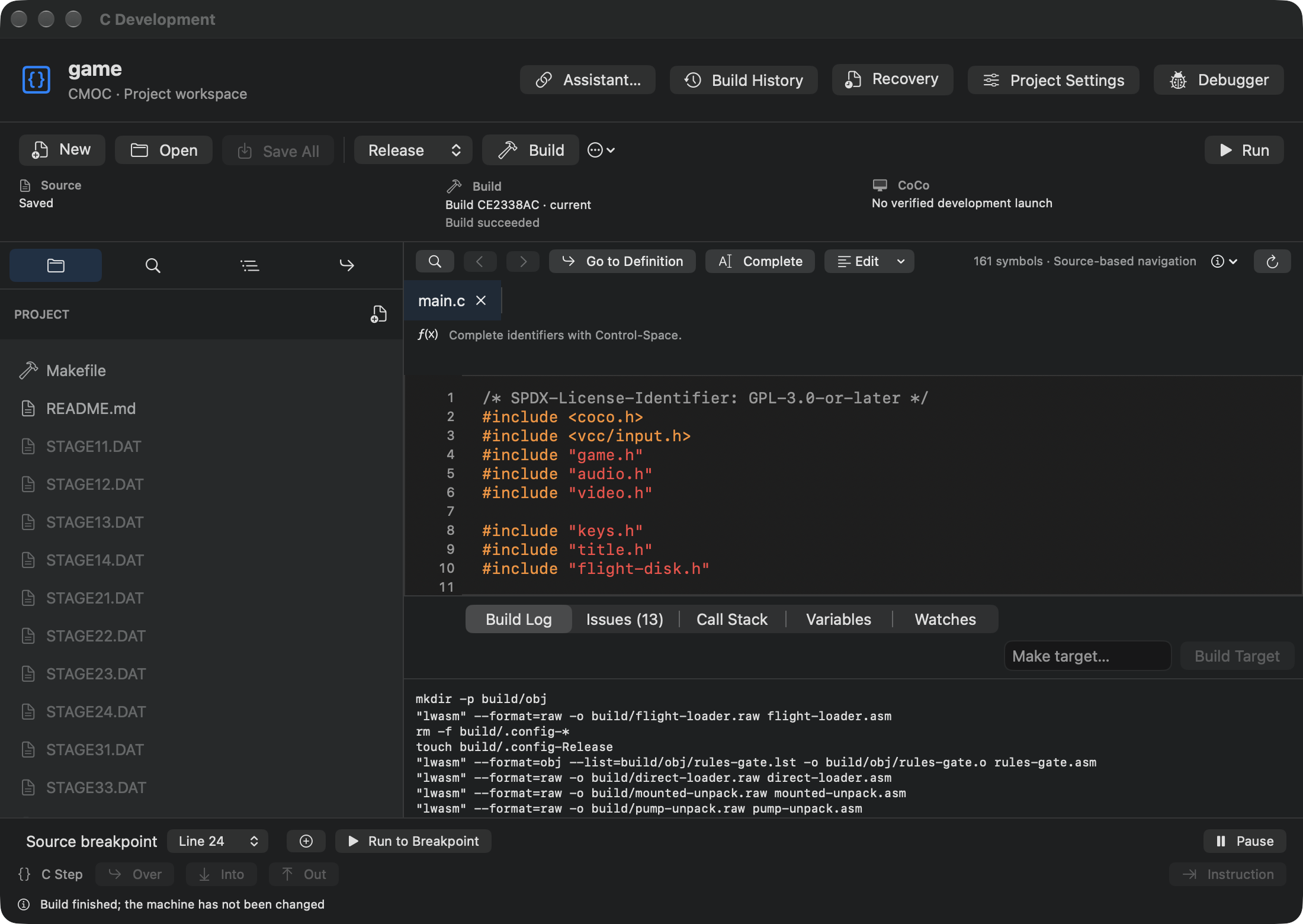
A small C program can fit in one file. A game or utility may bring together several C modules, headers, graphics, data and library code. The C workspace keeps that project visible as a whole, with a navigator for its files and settings for the build and launch decisions.
Open Develop → C Development…, then choose New for a starter or Open for an existing project directory. A simple starter asks the player to choose Earth or Mars. Hello Disk is a useful next example when your question involves a file on a guest disk rather than only text on the screen.
The supported installed workflow includes CMOC and Make. You do not need to install Homebrew or Xcode to use that ordinary bundled workflow. Building VCC Plus itself is a different task, and a custom project can bring its own additional requirements. Check its Makefile before assuming its build is as self-contained as a generated starter.
Read code as a connected project
Select a module in the navigator and follow a name with Go to Definition. Back takes you to the place you left. Identifier completion and parameter hints help with the names and arguments already in the project’s world. Installed library headers can be read in the editor when the declaration is the clearest answer to a question.
Find in File searches the active buffer, including an unsaved draft. Command-F begins; Command-G and Shift-Command-G move among occurrences. Use the replacement controls to change one occurrence or every match in the file, with Undo available for the grouped change.
Find in Project is a separate search across files, reached with Shift-Command-F or its sidebar tab. That distinction matters when a function is declared in a header, implemented in one module and called from another. Search the wider project before changing a name in just one place.
Changes in a source buffer are not automatically changes in the guest. Save All writes your project edits. A subsequent build produces an artifact from the selected inputs. A launch then starts that artifact. Keeping those stages visible makes it possible to tell whether you are testing the latest edit or an earlier successful build.
Five groups of project decisions
Project Settings organizes the information needed to reproduce a build and a run.
| Settings group | What you decide | Why it matters |
|---|---|---|
| Build | Generated settings or a custom Makefile; output name, addresses, stack, optimization and targets | The compiler needs a defined recipe and a known output. |
| Sources | Modules, include directories, preprocessor definitions and flags | A missing source or include path can explain a build error before the code itself is wrong. |
| Libraries | Bundled libraries and project-local library builds | The chosen library and its version are part of what the program depends on. |
| Resources | Input files and generation rules for required data | A successful compile does not prove the disk contains the picture, map or data file a game needs. |
| Disk & Run | Disk contents, optional DOS bootloader and launch method | A program that reads files needs those files in the guest environment when it runs. |
Generated settings provide an ordinary route for a new project. Custom Makefile preserves a recipe the project already owns. You can select a defined target or leave the target empty to use Make’s default goal. Review the generated preview before replacing an existing Makefile; that file may contain important decisions beyond its compiler command.
Quickload executable loads a binary directly. Mount disk in FD0 provides the guest disk and can use configured startup commands. A program may be correct under one launch method and fail under another because a required data file is absent. Choose the launch that represents how you intend to deliver or use it.
Treat the compiler’s response as evidence
Click Build and read Issues if the build fails. Start with the first useful diagnostic: later messages may be consequences of the same missing declaration, punctuation mark or include. Follow the diagnostic to its source location, make the smallest useful correction and build again.
The build menu also offers Rebuild, Clean, Build Disk and Show Build Products. Build History lets you revisit output from a previous attempt. That record is useful when a new change breaks something that compiled earlier: the exact command and diagnostic are more reliable than a memory that it “worked this morning.”
A successful build establishes that the tools produced an acceptable artifact. It does not establish that the game handles every input, loads its files, displays the expected colors or saves its progress. Run or Launch Disk, as appropriate to the project, begins that next part of the investigation.
Debug a function in its own frame
Select a Debug build when you need source stops and named variables. At a C breakpoint, examine the source and Call Stack. Each row is an active function call. Selecting a frame shows the corresponding source and the values that are available in that call.
This matters for recursion and repeated helper functions: two rows can refer to the same function while holding different local values. Expand a structure, array or pointer to inspect what the debugger can establish from that frame. Add a watch when a particular value is central to the question.
Looking at a caller does not move execution backward. Continuing resumes the current stopped program. Show Current Frame takes your inspection back from the selected caller to the active stop.
A mapped C statement and a function-entry address are different kinds of stop. An optimized or custom build may not retain the same source detail as a fully evidenced Debug build. Unavailable locals are not zero and should not be guessed. The debugging guide explains how source evidence, disassembly and memory complement each other.
Keep custom builds debuggable
An inherited Makefile can produce a perfectly runnable program while discarding the intermediate files needed for source debugging. Its Debug recipe should preserve the matching object files, compiler intermediate files, assembly listing and linker map expected by the supported workflow.
Those files connect a source revision to the addresses and instructions in a particular binary. If you change source after building, the old map does not prove that the current line is what the old machine code executes. Rebuild and use the evidence belonging to the artifact you intend to inspect.
The bundled tool references and Programming in C explain the supported CMOC options and APIs. Start there before importing a build flag from a different compiler’s example. The CoCo is the execution target even when your host Mac uses Apple Silicon.
Work alongside external editors and AI
A project can also be edited outside VCC Plus. When a source file changes on disk, compare or preserve your local editor draft before Reload File from Disk. Save Selected Copy… gives your current text another destination. Recovering the last draft should not require guessing which editor wrote most recently.
The project’s Assistant… panel can share its selected scope with ChatGPT. Supported refresh requests adopt reviewed external inputs without silently discarding unsaved buffers. Wider file scope or changed build recipes require their own native review. With the appropriate exported permission, C also supports isolated disposable playtests and retained writable test disks.
Use the AI vibe coding guide for that complete loop. You can ask the assistant to read the build log, propose a correction and test the exact resulting artifact. You can also do every ordinary edit, build, run and source inspection yourself.